How to Create AI Enemy in Unity
Have you ever wondered how game developers bring virtual opponents to life? Whether you’re just starting out or looking to deepen your skills in game development for beginners, creating a responsive AI enemy in a game is a rewarding challenge that sharpens both your coding and design skills. Learning to build an AI enemy in Unity not only enhances your understanding of game mechanics but also sets a solid foundation for developing engaging gaming experiences from the comfort of your home.
Materials & Supplies
- Computer: A PC or Mac with moderate specifications to run Unity smoothly. A good setup is essential for compiling and testing games without lag.
- Unity AI Enemy (Unity Game Engine): The primary software used to create games, offering extensive tools and scripting support to develop AI behavior.
- Code Editor: Visual Studio or Visual Studio Code integrates well with Unity for C# programming tasks.
- Graphics Software: Programs like Blender or Adobe Photoshop to design characters and environments.
- Audio Tools: Audacity or other free audio editors help create or edit sound effects for your game.
- Mechanical Gaming Keyboard: Though optional, a mechanical keyboard can greatly improve your coding speed and comfort while developing.
- Optional Free Alternatives: Godot (game engine), GIMP (image editing), and Inkscape (vector graphics).
Timing / Development Schedule
Creating a game, even a simple one, follows a general timeline:
- Concept & Planning: 1-3 days to outline your AI enemy’s behavior and the game mechanics.
- Asset Creation: 3-7 days to build or acquire sprites, models, sounds, and animations.
- Coding Phase: 1-2 weeks for scripting the enemy’s AI logic, player controls, and interactions.
- Testing & Debugging: Several days are needed to polish gameplay, fix bugs, and optimize performance.
- Publishing: 1-2 days to prepare your game for release and upload it on platforms.
Beginners should keep expectations flexible, allocating extra time for learning and experimentation to ensure a smooth development flow.
Step-by-Step Instructions
- Set Up Unity Project: Open Unity, create a new 3D project, and organize folders for scripts, prefabs, and assets.
- Create Enemy Model: Use built-in shapes or import a custom character model.
- Write AI Scripts: Using C#, write scripts to control enemy movement, detection, and attack logic. Start simple with patrol and chase behaviors.
- Add Player Interaction: Script detection zones using colliders and raycasting for enemy awareness of the player.
- Debug and Test: Use Unity’s Play Mode to test enemy behavior. Adjust variables like speed or detection range for balance.
- Implement Animation: Add animations for enemy movements and attacks to make actions look realistic.
- Optimize Performance: Manage AI calculations efficiently to prevent frame-rate drops.
Integrating this AI seamlessly requires careful iteration and testing at each step.
Advantages of Learning Game Development
Delving into Game Development with Unity nurtures creativity and sharpens problem-solving skills through hands-on coding and design. It encourages logical thinking by breaking complex systems into manageable components. Whether collaborating on projects or working solo, it enhances communication and teamwork abilities. Moreover, mastering these skills opens doors to diverse career paths in tech and entertainment industries, making your time invested extremely rewarding.
Tips, Alternative Methods, or Development Advice
- Start with 2D games before moving into 3D to grasp core concepts faster.
- Utilize visual scripting tools like Bolt or Playmaker, especially if coding feels intimidating.
- Collaborate using GitHub or online forums for feedback and bug fixes.
- If hardware is limited, optimize your workflow by using lightweight assets and testing frequently.
- Maximize learning through free tutorials on YouTube, Unity Learn, and coding communities like Stack Overflow.
Common Mistakes to Avoid
- Overcomplicating First Project: Keep it simple to avoid frustration and burnout.
- Neglecting Testing: Regularly test your game to catch bugs early and ensure smooth gameplay.
- Ignoring Player Feedback: Encourage playtesting and adapt accordingly to improve user experience.
- Poor Project Organization: Maintain a clean folder structure and version control.
Maintenance / Update Tips
Post-release, continuously update your game by fixing reported bugs, introducing new features, or balancing gameplay. Use version control systems like Git to keep your project organized and backed up. Collect player feedback through surveys or forums to guide meaningful improvements and keep your game relevant and engaging over time.
The best websites or tools that offer this for free
For beginners, platforms like Unity Learn offer detailed courses, while websites such as Brackeys and Coursera provide tutorials and community support to accelerate your journey.
A brief explanation for beginners, including the steps involved
Starting with Unity AI Enemy involves setting up your development environment, learning C# basics, creating simple game objects, and scripting enemy behaviors. Proceed incrementally: build simple prototypes, test often, and expand your game step-by-step to avoid overwhelm while solidifying your understanding.
FAQs
- What programming language should I start with?
- C# is the best language to learn for Unity game development as it integrates natively with the engine and has a large supportive community.
- Which game engine is best for beginners?
- Unity is highly recommended due to its intuitive interface, extensive tutorials, and support for both 2D and 3D games.
- How long does it take to make a small game?
- A simple game can take anywhere from a few days to a couple of weeks depending on your experience and project scope.
- Do I need to know coding to start?
- Basic coding knowledge is helpful, but visual scripting tools are great alternatives for those new to programming.
- Where can I publish my first game?
- Platforms like itch.io, Game Jolt, and even the Unity Play Store are excellent places to share your project with others.
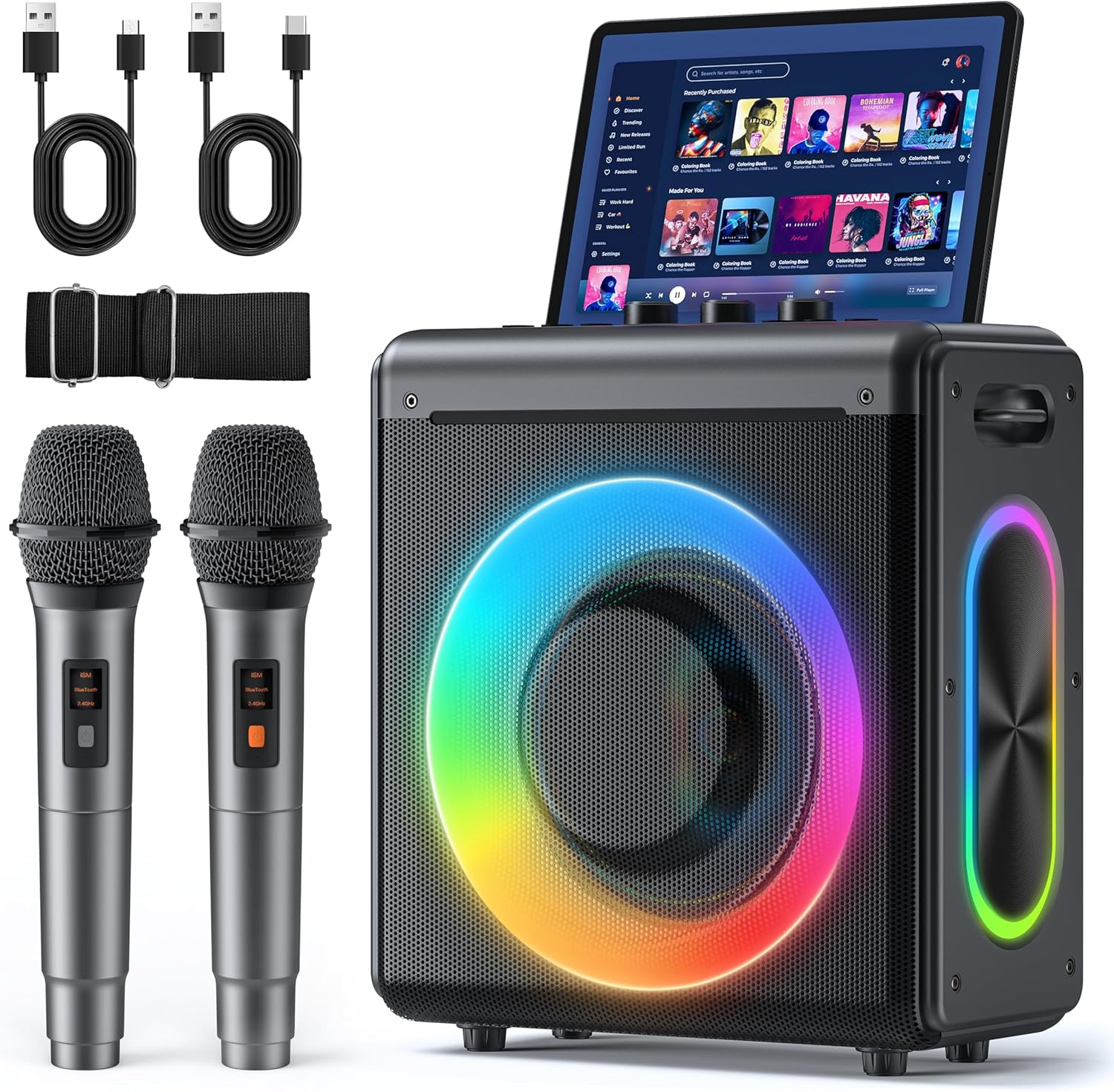
Karaoke Machine
Karaoke Machine with 2 Wireless Rechargeable Microphones: Portable Bluetooth Speaker for Adults & Kids – PA System with Lights Supports TWS/TF Card/USB/AUX for Home Party
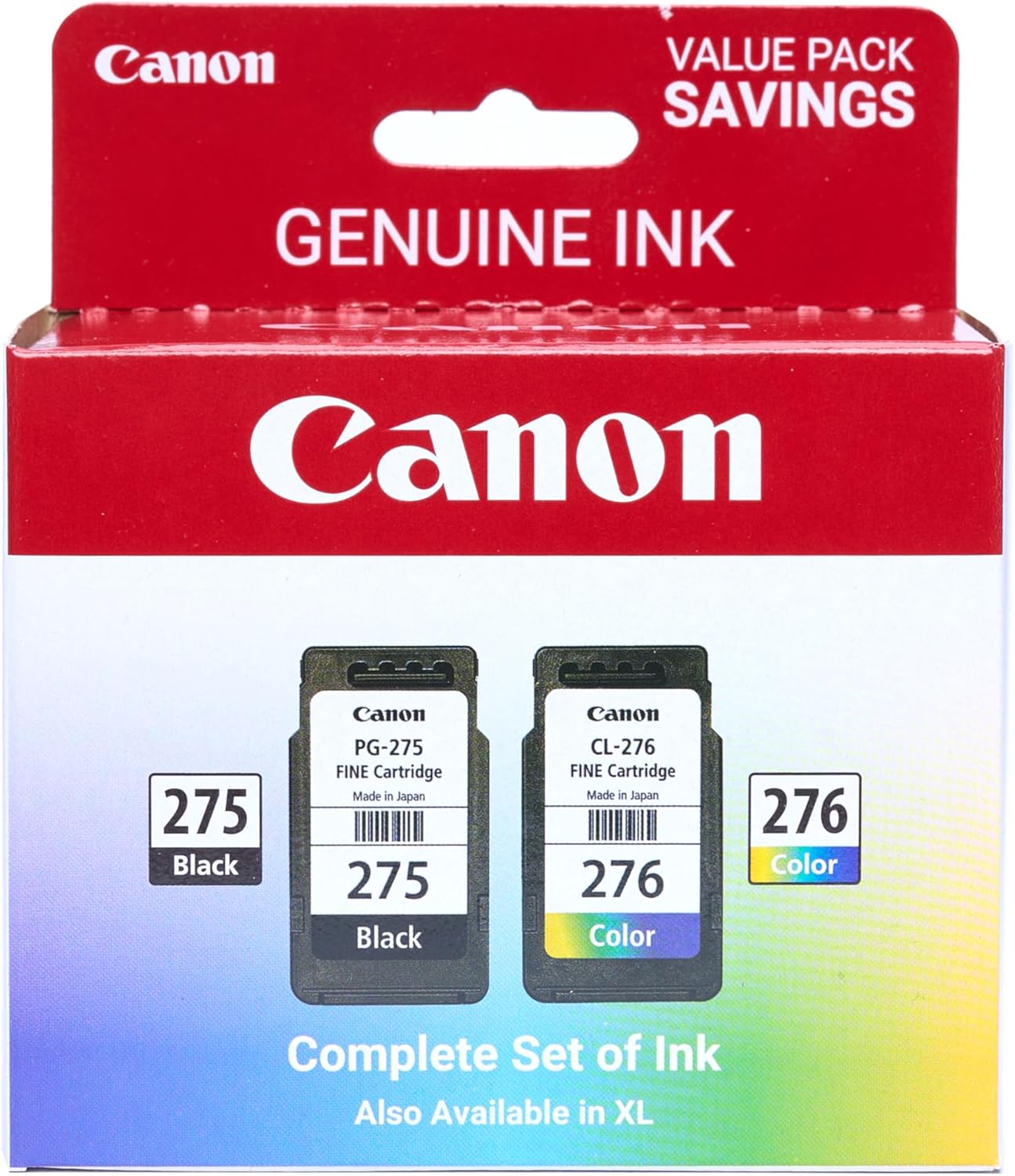
Canon PG-275
Canon PG-275 / CL-276 Genuine Ink Value Pack (2 Cartridges), Compatible with TS3520/3522/4722/3720/3722, TR4720
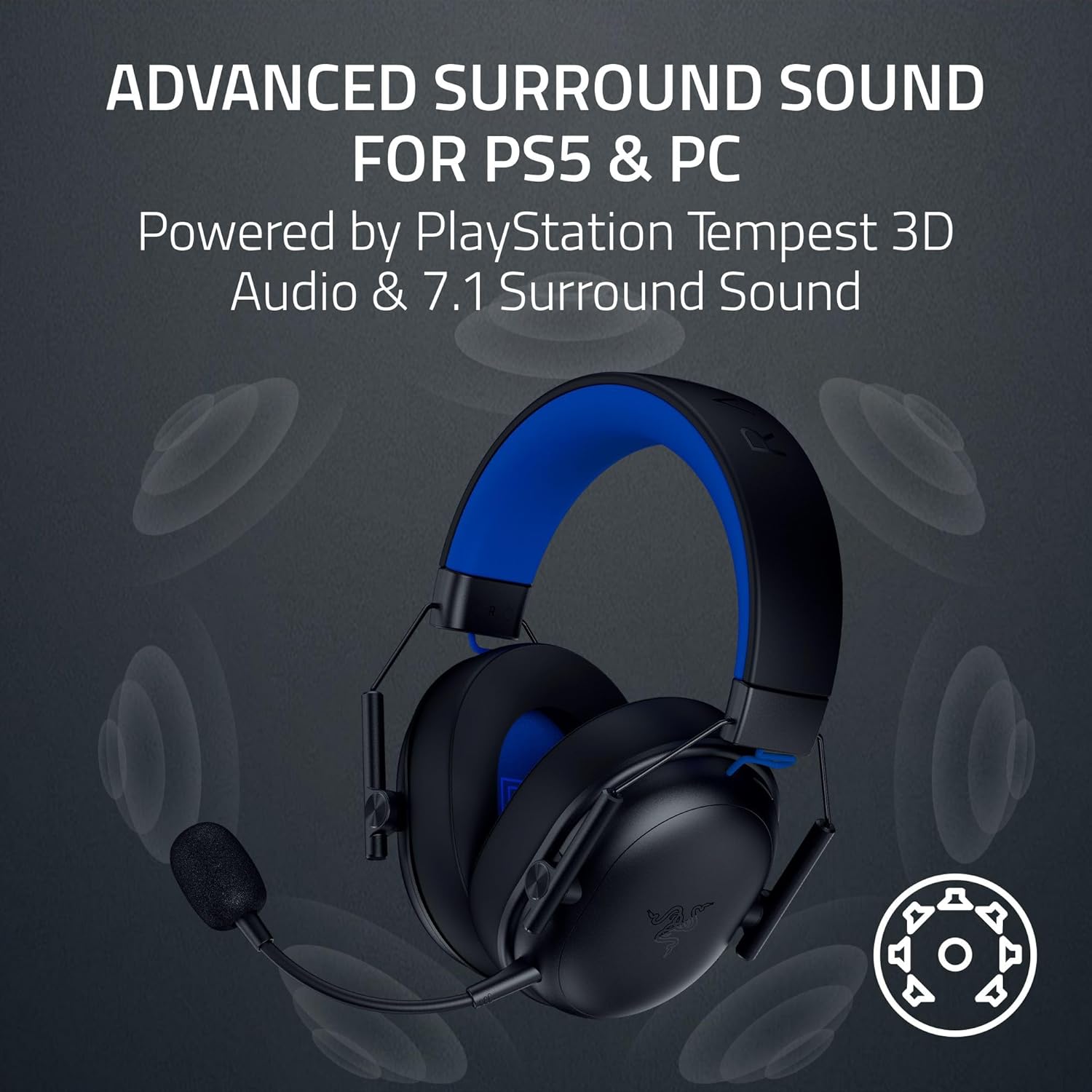
Results
Razer BlackShark V3 X HyperSpeed Wireless Gaming Headset for PS5: 50mm Drivers – Cardioid Mic – 2.4 GHz, Bluetooth – Works with PC, Mac, Nintendo Switch, Smartphone – Long Battery Life – Black

Scotch Thermal Laminating Pouches
Scotch Thermal Laminating Pouches, for Use with Thermal Laminators, 8.9 x 11.4 Inches, Letter Size Sheets, 100-Pack
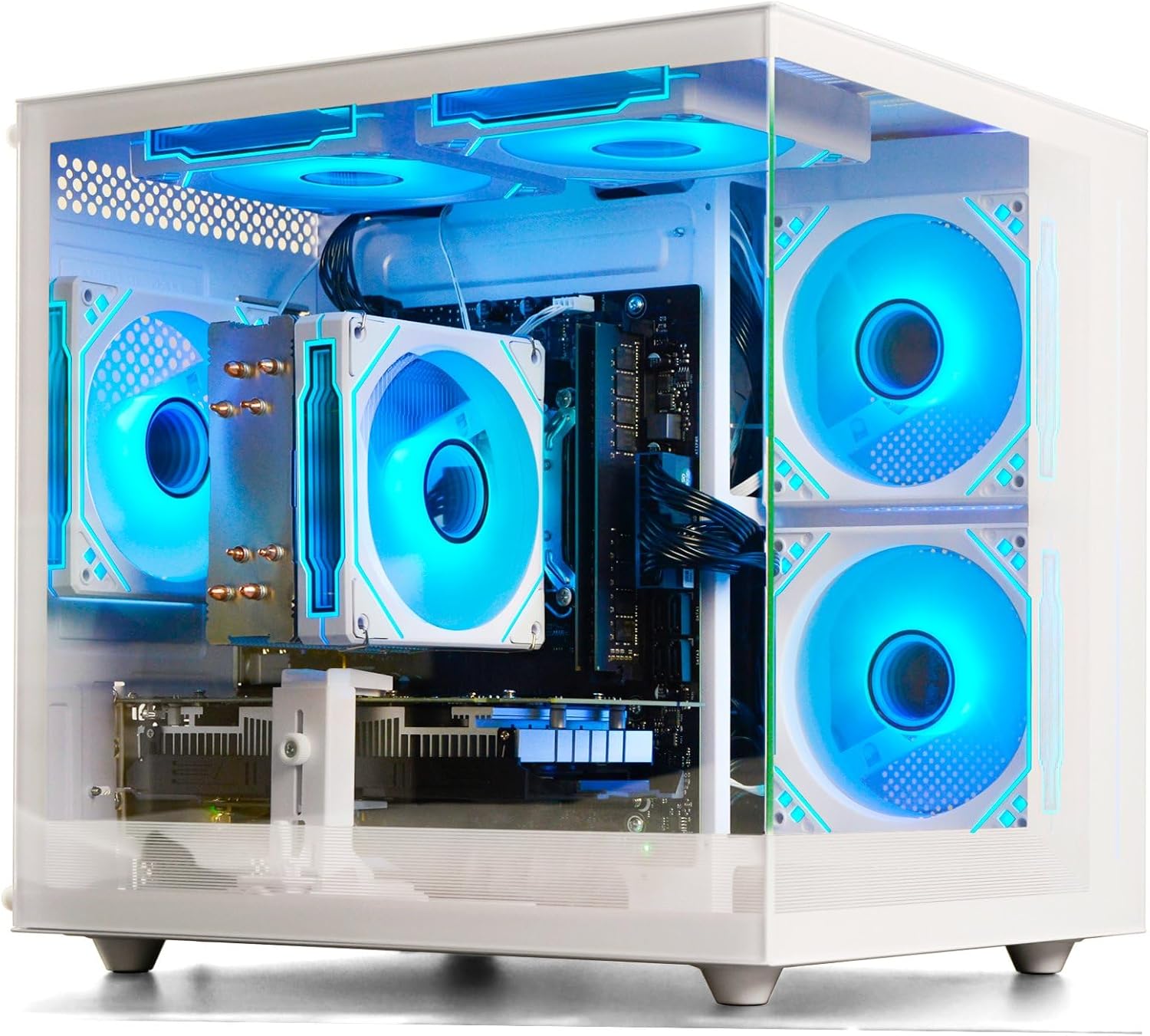
Prebuilt Gaming Desktop Computer
Prebuilt Gaming Desktop Computer | 16G Memory | 512G SSD | AMD Ryzen5 6Cores 3.6G Up to 4.1G | RX 560 4G Graphics Card | Wi-Fi 6 | Gamer PC White
Mouse Pad
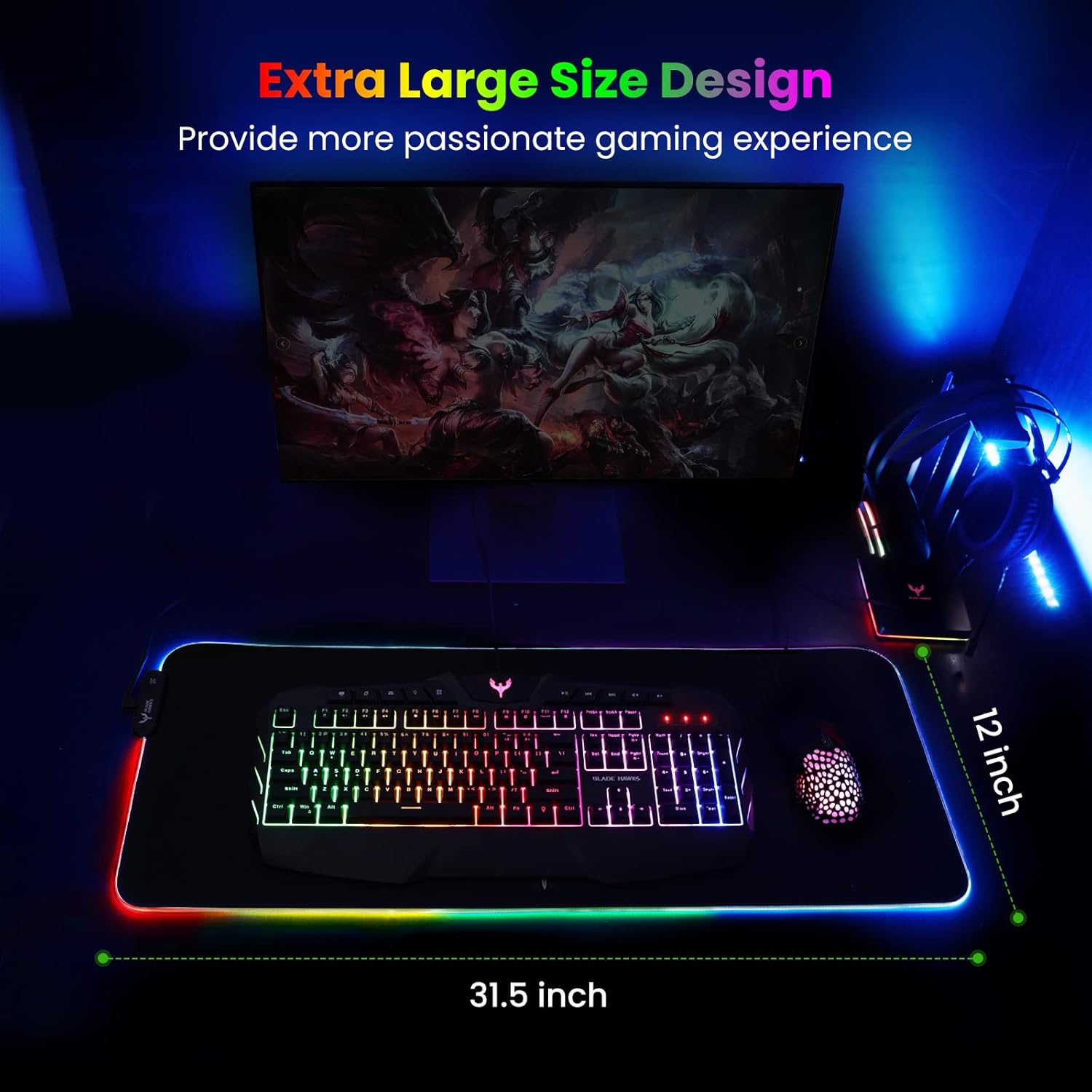
BladeHawks Extra Large RGB Gaming Mouse Pad-14 Light Modes, Extended Soft LED Mouse Pad, Anti-Slip Rubber Base, Computer Keyboard Mousepad Mat (31.5 x 12 Inch)