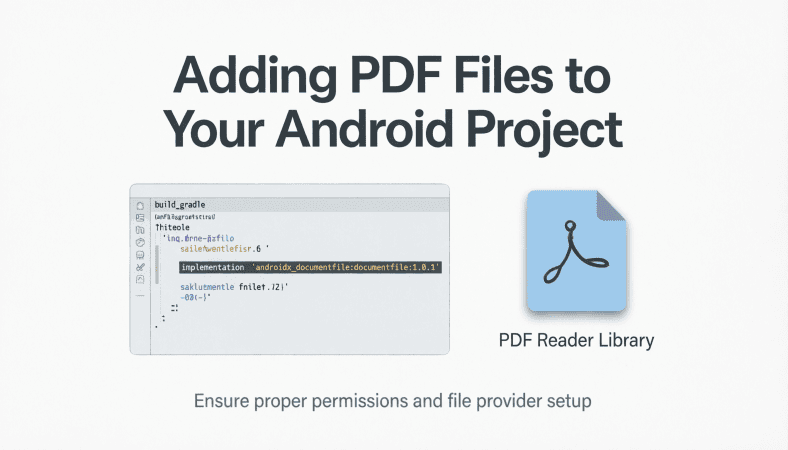
Once you’ve set up Android Studio and chosen your language, the next step is integrating your PDF into the app. Many beginners make the mistake of just dumping the PDF into the project, which leads to crashes, slow loading, and frustrated users. Let me show you the method I use after building multiple PDF apps.
Step 1: Decide Where to Store the PDF
There are two main options:
-
Assets Folder:
-
Place the PDF in
app/src/main/assets. -
Pros: Easy to access, simple integration.
-
Cons: App size increases with large PDFs.
-
-
External Storage / Downloaded PDFs:
-
Store PDFs on the device storage or download from a server.
-
Pros: Keeps app size small, can update PDFs without updating the app.
-
Cons: Requires permissions, more code to handle file access.
-
In my first PDF app, I put a 200-page PDF in the assets folder. The app took 80MB to install and crashed on older phones. Moving the PDF to external storage solved the problem instantly. Lesson: consider app size and device limitations when choosing storage.
Step 2: Add the PDF to the Assets Folder
Steps in Android Studio:
-
Right-click
app/src/main. -
Choose New → Folder → Assets Folder.
-
Copy your PDF file into this folder.
-
Name the file logically, e.g.,
my_book.pdf.
Pro Tip: Avoid spaces and special characters in the file name. This prevents path errors when loading the PDF in the app.
Step 3: Access the PDF in Your Code
Using a PDF library like AndroidPdfViewer:
pdfView.fromAsset(“my_book.pdf”)
.enableSwipe(true)
.swipeHorizontal(false)
.enableDoubletap(true)
.load();
Always test loading small sections first, especially for large PDFs. Loading the entire PDF at once can crash the app on devices with less RAM.
Step 4: Lazy Loading for Large PDFs
For PDFs over 100MB or with hundreds of pages, lazy loading is essential:
-
Load pages in chunks rather than all at once.
-
Display a progress indicator while pages load.
-
Use background threads to avoid freezing the UI.
Think of it like a buffet. You don’t dump all the food on your plate at once you take it gradually to enjoy it without overwhelming yourself.
Step 5: Optional – Using External PDFs
If your app downloads PDFs:
-
Request storage permissions (
READ_EXTERNAL_STORAGE). -
Store the PDF in a known folder.
-
Load with
fromFile(new File(path))instead offromAsset().
Practical Advice: Always check for file existence and integrity before loading. Users may delete or move files, causing crashes.
Step 6: Common Mistakes to Avoid
-
Not testing PDF on low-end devices → app crashes.
-
Large PDFs directly in assets → large APK size.
-
Misnamed files with spaces → file not found errors.
-
Loading PDF on the main thread → app freezes.
Story Mode: In one educational app, the PDF was embedded in assets and 150MB. On mid range phones, the app crashed immediately. Splitting the PDF into smaller chapters and lazy loading each solved the issue.
Step 7: Checklist Before Moving to Interactive Features
✅ Decide storage location (assets vs external)
✅ Name files clearly and consistently
✅ Test PDF loading with a small sample first
✅ Implement lazy loading for large PDFs
✅ Handle errors gracefully (missing file, corrupted PDF)
Conclusion
Adding PDFs to your Android project isn’t just copying a file it’s about strategy, performance, and usability. By:
-
Choosing the right storage method
-
Handling large PDFs carefully
-
Loading efficiently and testing thoroughly
…you ensure your app runs smoothly and provides a great user experience.
For the complete guide to building a full PDF Android app, read the main article here.

NUBWO U3 Gaming Headset
NUBWO U3 Gaming Headset with Microphone, Safe Volume Limited, Kids Headphones for Switch, Super Lightweight, Rich Sound, 3.5mm Jack for NS, PS4, PS5, Xbox, Tablet, iPad Computer, Red

Logitech G
Logitech G PRO X SUPERLIGHT 2 Wireless Gaming Mouse

Results
Razer BlackShark V3 X HyperSpeed Wireless Gaming Headset for PS5: 50mm Drivers - Cardioid Mic - 2.4 GHz, Bluetooth - Works with PC, Mac, Nintendo Switch, Smartphone - Long Battery Life - Black