Turning a PDF book into an Android app sounds exciting, but I’ve seen many developers jump straight into coding—only to get frustrated later because the content wasn’t properly prepared. Let me share my approach, learned over years of building PDF apps, so you can avoid the common pitfalls.
Why Analyzing Your PDF is Crucial
I once worked on an educational PDF app with over 300 pages. The initial version loaded all pages at once, including blank and duplicate pages. Users reported crashes, slow navigation, and frustration. That taught me a vital lesson: preparing your PDF content is as important as coding the app itself.
By carefully analyzing your PDF:
-
You reduce app size and memory usage.
-
Users can navigate smoothly between chapters.
-
Your app feels professional, which increases retention and positive reviews.
Step 1: Review Your PDF Thoroughly
What to do:
-
Open the PDF in a reliable viewer like Adobe Acrobat, SmallPDF, or Foxit Reader.
-
Go page by page and mark:
-
Chapters or sections to include.
-
Images that are important for context or engagement.
-
Pages that are repetitive, irrelevant, or blank.
-
Pro Tip: I keep a simple checklist in a spreadsheet: page number, content type, include/exclude. This saves me headaches later when integrating into Android Studio.
One of my first projects had a “table of contents” repeated on every chapter. I only realized this after testing the app—users kept scrolling through duplicates. Lesson learned: check for repetitive content early.
Step 2: Break Down Your PDF into Usable Sections
Instead of thinking of your PDF as one giant file, divide it into logical modules:
-
Chapters → Individual sections.
-
Images → Save separately if needed for lazy loading.
-
Special content (charts, tables) → Consider converting to images or HTML for better display.
Tip: I usually annotate each chapter with expected screen behavior. For example, “Chapter 1 → scrollable text + two images” so when I start coding, I know exactly what to load.
Step 3: Tagging Keywords for Search and Navigation
One feature I always add is in-app search. But it only works if the content is clean and meaningful. While analyzing the PDF:
-
Identify keywords in each chapter.
-
Highlight terms that users might search for.
-
Remove irrelevant headers or footers that could clutter search results.
Real-Life Insight: In one medical PDF app I built, I ignored headers during analysis. When users searched for symptoms, results included “Page 12 – Header: Table of Contents,” which annoyed them. Always clean your text before indexing.
Step 4: Tools to Make Your Analysis Easier
-
Adobe Acrobat / Foxit Reader: Highlight, comment, and organize pages.
-
SmallPDF: Extract specific pages or compress files.
-
Spreadsheet (Excel / Google Sheets): Track page numbers, content type, and notes.
Relatable Friend Tip: Think of it as organizing your closet. You wouldn’t throw all your clothes into a drawer and expect to find your favorite shirt easily. Your PDF needs the same careful organization.
Step 5: Plan Your App Structure Based on PDF Analysis
Once you finish analyzing:
-
Decide the table of contents structure.
-
Determine navigation (scrollable pages, chapter tabs, or swipe gestures).
-
Identify which images need lazy loading to optimize memory.
Deep Reasoning: I often hesitate here: should I split PDFs by chapters or keep one file? The decision depends on size, performance, and expected user behavior. In my experience, splitting large PDFs improves performance on mid-range devices, but increases development complexity slightly. Balance is key.
Actionable Checklist Before Moving to Android Studio
✅ Remove duplicate pages
✅ Highlight important chapters
✅ Save images separately if necessary
✅ Identify keywords for search
✅ Map out table of contents structure
✅ Plan navigation flow
Conclusion
Analyzing your PDF content is not optional—it’s the foundation for a smooth, professional, and user-friendly Android app. By taking the time to carefully review, clean, and structure your content:
-
You avoid crashes and slow navigation.
-
You make features like search, bookmarks, and chapter navigation much easier to implement.
-
Users have a better experience, which translates to higher engagement and better reviews.
Start here, and you’ll thank yourself when your PDF reader app is fast, responsive, and loved by users.
For the complete guide to building a full PDF Android app, read the main article here.
Ultimate Mobile Controls – Plug & Play
Take your mobile game to the next level with this ready-to-use Mobile Controls Pack. customizable mobile controls without wasting days on UI and input setup. Perfect for 2D, 3D, FPS, RPG, Platformer, Shooter, and Casual mobile games.
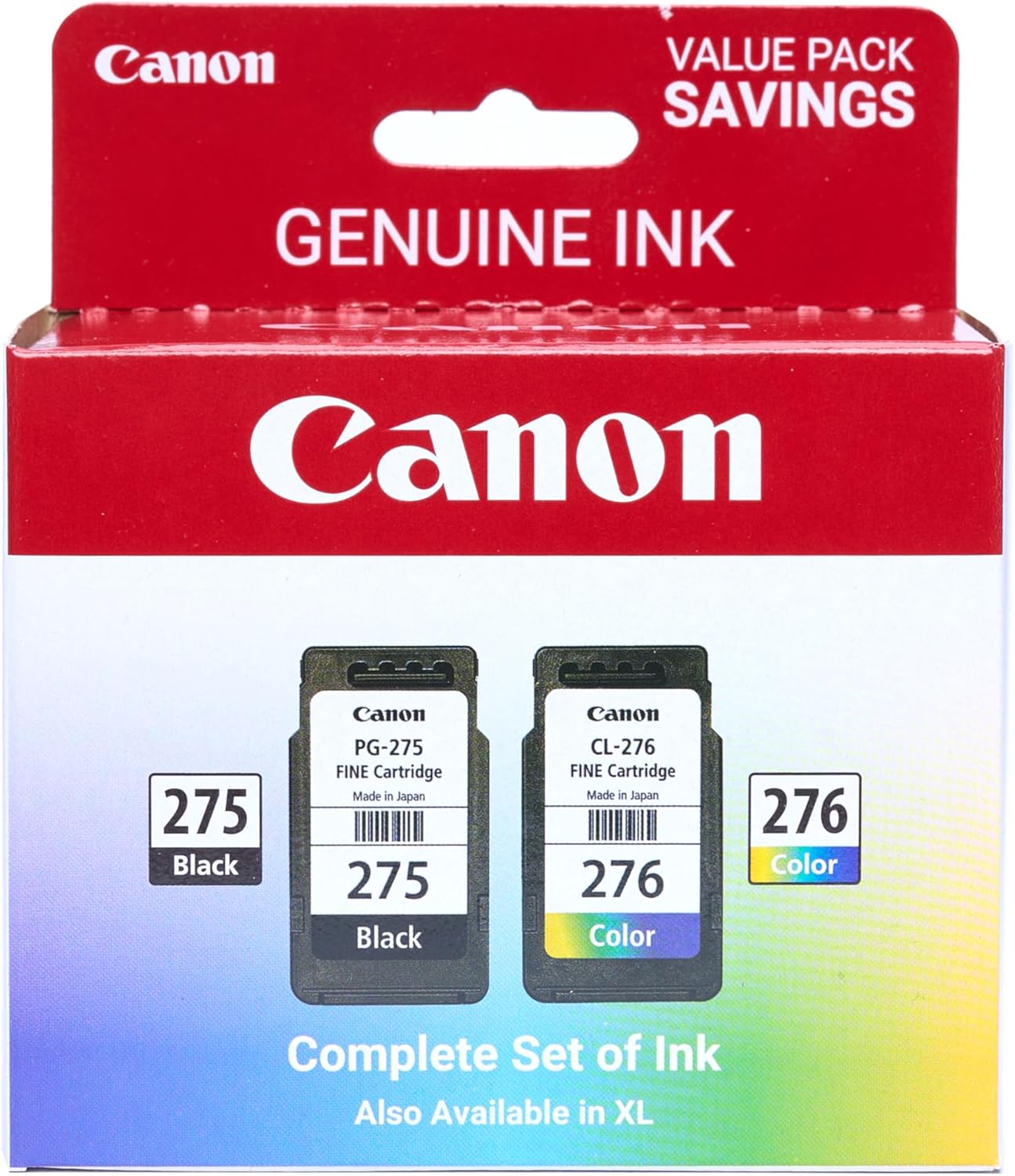
Canon PG-275
Canon PG-275 / CL-276 Genuine Ink Value Pack (2 Cartridges), Compatible with TS3520/3522/4722/3720/3722, TR4720
iFIT Pro
iFIT Pro – Monthly Membership – 1 month free trial included [Subscription]
Make Your First 2D Game in Unity
Want to build your first game but don’t know where to start? This beginner-friendly guide shows you how to create SampleGame2D — a fun Flappy Bird–style project — step by step in Unity. Inside you’ll learn:

AA Products High Back Ergonomic Gaming Chair
AA Products Gaming Chair Ergonomic High Back Computer Racing Chair Adjustable Office Chair with Footrest, Lumbar Support Swivel Chair – BlackOrange
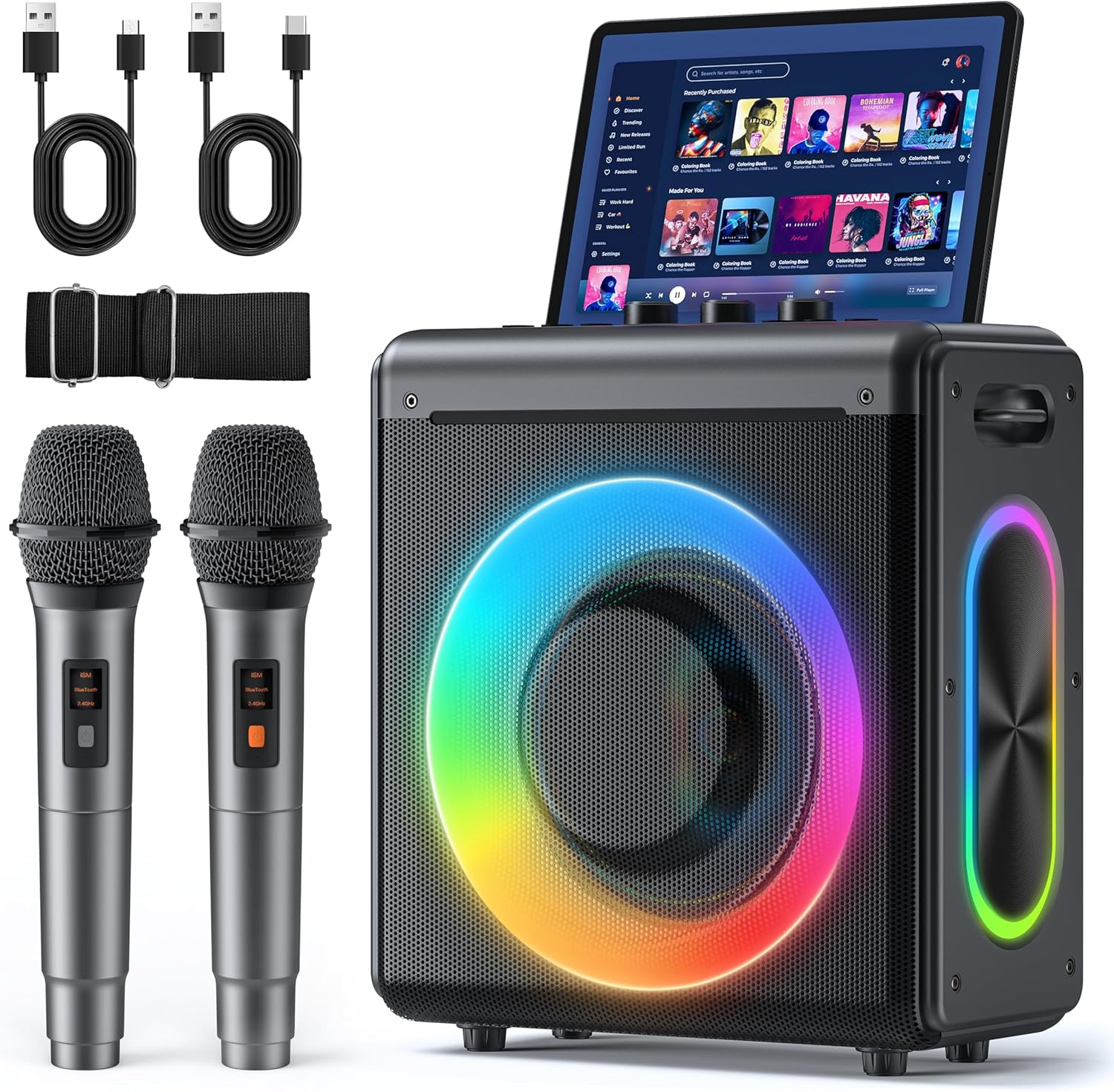
Karaoke Machine
Karaoke Machine with 2 Wireless Rechargeable Microphones: Portable Bluetooth Speaker for Adults & Kids – PA System with Lights Supports TWS/TF Card/USB/AUX for Home Party