
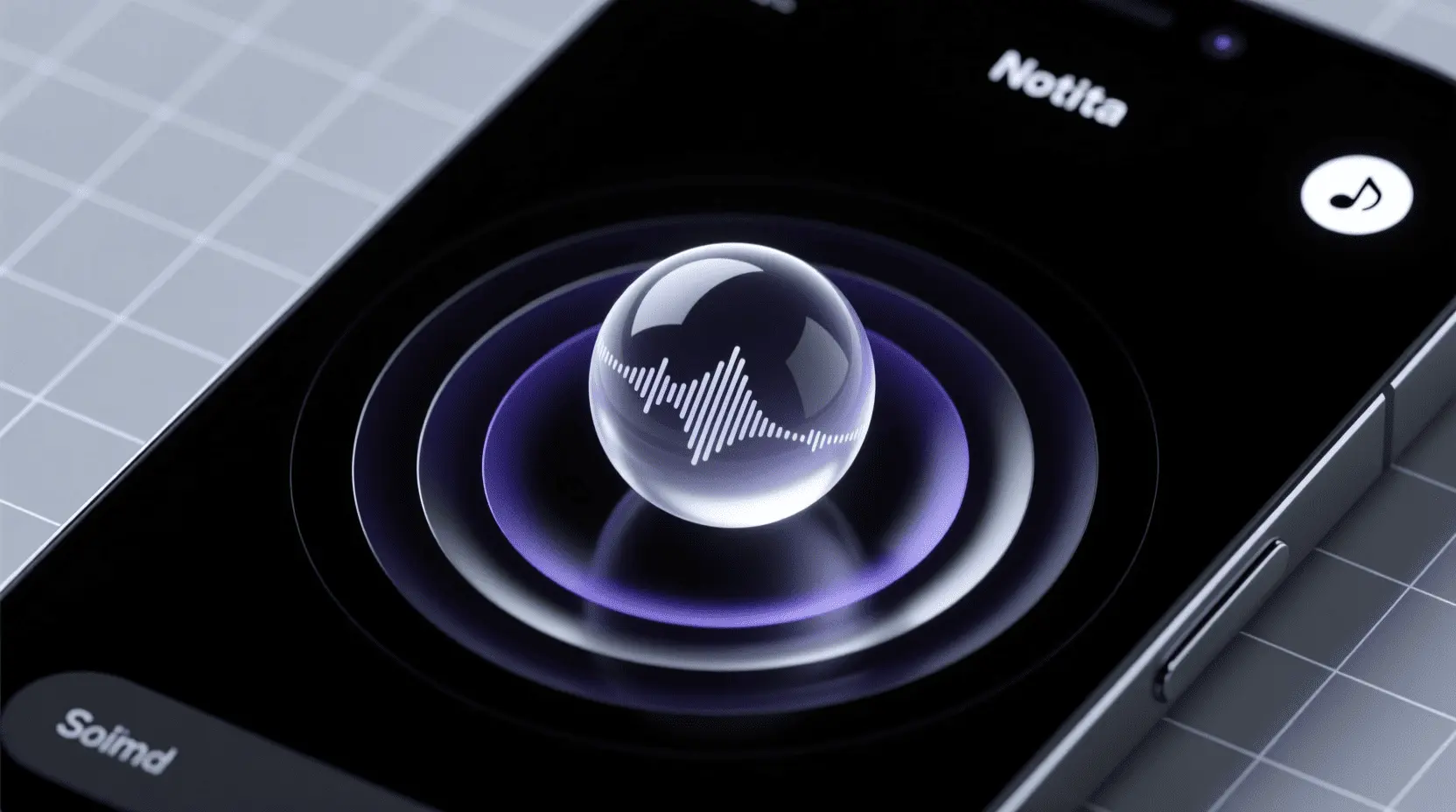
Are you tired of the same old, generic pings and chirps that your devices use to signal new messages or important alerts? In a world saturated with digital communication, the subtle art of choosing the perfect notification sound is often overlooked, yet it plays a crucial role in our daily rhythm and overall digital well-being. A high-quality, distinctive alert can improve focus, reduce annoyance, and even uplift your mood. It’s time to upgrade your auditory experience, and we’re here to guide you to the best free, high-quality sound for notification downloads available. Get ready to personalize your digital life with alert tones that truly resonate with you!
Materials & Tools for Finding/Creating Notification Sounds
Embarking on your quest for the perfect alert tone doesn’t require a sophisticated studio, but a few essential tools will make the process smooth and enjoyable. At its core, you’ll need a smartphone or computer with reliable internet access. These are your primary interfaces for browsing, downloading, and setting new sounds.
For those who want to go beyond simple downloads, audio editing software like Audacity (free and open source) or GarageBand (free on Apple devices) can be invaluable. These tools allow you to trim, adjust volume, or even layer sounds to create something truly unique. Additionally, access to diverse online sound libraries and websites is paramount; these platforms house vast collections of free and premium alert tones. Consider platforms like Zedge, Freesound.org, or specialized apps for curated selections. Their purpose is to simplify discovery and provide high-fidelity audio files, often in universal formats like MP3 or WAV.
Timing / Selection Schedule
The process of finding and implementing a new notification sound doesn’t have to be a major project. You can integrate it into your routine seamlessly. A typical schedule might look like this:
- Identify the Need (5 minutes): Do you need a subtle sound for work, an urgent tone for specific alerts, or a fun jingle for personal messages?
- Browse & Preview (15-30 minutes): Dedicate a short session to explore various sound libraries. Listen to different categories from classic chimes to futuristic beeps or even a satisfying keyboard sound effect.
- Download & Prepare (5-10 minutes): Once you’ve found a few favorites, download them. If necessary, use your audio editor to trim them to an ideal length (typically 1-3 seconds) and ensure they’re in a compatible format (MP3, M4R for iPhone, WAV).
- Install & Test (2-5 minutes): Transfer the sound to your device and set it as your desired notification. Send yourself a test message from another device to check volume and clarity.
You could even make it a monthly ritual, refreshing your sound library seasonally or for special occasions.
Step-by-Step Instructions: How to Find and Install Your Perfect Alert Tone
Finding your ideal sound for notification is simpler than you think. Follow these steps:
- Define Your Preference: Before you dive in, consider what you’re looking for. Do you prefer something subtle and non intrusive, a distinct and urgent chime, or a playful and unique melody? Knowing your desired vibe will streamline your search.
- Explore Reputable Sound Libraries: Head to websites known for free, high-quality sounds. Freesound.org is a fantastic community-driven resource (check licenses!). Zedge offers a vast array of user submitted content for mobile. Many stock audio sites also have free sections.
- Preview and Download: Most sites allow you to preview sounds before downloading. Listen carefully for clarity, length, and how it sounds on your device’s speakers. Download your top choices, typically in MP3 or WAV format.
- Transfer to Device (if needed): If you downloaded to your computer, connect your phone and transfer the audio files to your device’s “Notifications,” “Ringtones,” or “Media” folder. For iPhones, you might need to use iTunes or Finder to sync custom tones as M4R files.
- Set as Notification:
- Android: Go to
Settings>Sound & vibration>Notification sound(or similar path) and select your custom sound. You can often set specific sounds for individual apps. - iOS: For custom text tones, go to
Settings>Sounds & Haptics>Text Tone. For other app notifications, individual app settings often control their sounds.
- Android: Go to
Always ensure the files are high-quality to avoid pixelated or distorted audio.
Advantages of High-Quality Notification Sounds
Upgrading your notification sounds isn’t just about aesthetics; it brings tangible benefits to your daily digital interactions. High-quality alerts contribute to improved focus by making distinct sounds easily identifiable, reducing the need to constantly check your phone. They can significantly enhance your mood, replacing jarring, generic tones with pleasant or even amusing ones that bring a moment of joy. This leads to unique personalization, making your device feel truly yours and stand out from the crowd. Furthermore, clear, well-chosen sounds ensure clear alerts, preventing missed notifications while reducing annoyance caused by repetitive or unpleasant tones. Investing a little time in selecting the right sound for notification genuinely improves how you interact with your technology.
Tips, Alternative Methods, or Customization Advice
- Create Your Own: Feeling adventurous? Use an app like GarageBand (iOS) or online synthesizers to create truly unique short melodies or sound effects. For more advanced sound design, consider investing in a tool like the Synido MIDI Pad Beat Maker Machine with 64 Velocity Sensitive RGB Pads to craft professional-grade alert tones.
- Context is Key: Choose sounds that fit the context. A gentle chime might be perfect for work emails, while a more vibrant sound could suit personal messages.
- Vary Sounds by App: Assign different sounds to critical apps (e.g., banking, emergency alerts) versus less urgent ones (e.g., social media). This auditory cue helps you prioritize without even looking at your screen.
- Length Matters: Keep notification sounds short and to the point (1-3 seconds). Longer clips can be disruptive.
- Volume Control: Test your chosen sounds at various volume levels to ensure they are audible but not obnoxious in different environments.
- Consider Nostalgia/ASMR: Sometimes a retro keyboard sound effect or a satisfying “pop” can be incredibly effective and pleasant.
Common Mistakes to Avoid When Choosing Notification Sounds
Even with the best intentions, it’s easy to fall into common pitfalls that can diminish the effectiveness of your alert tones:
- Overly Long or Complex Sounds: A notification should be quick and informative, not a mini-symphony. Long sounds become annoying and distracting.
- Too Loud or Too Soft: Sounds that are either blasting or barely audible defeat the purpose. Always test volume in different environments.
- Repetitive and Annoying Tones: What sounds quirky once can become grating after the hundredth listen. Choose something you can tolerate repeatedly.
- Low-Quality Audio: Grainy, distorted, or poorly recorded sounds diminish the user experience and can make your device sound cheap.
- Ignoring Copyright: Always check the licensing of free sounds. Many require attribution, and commercial use often requires a license. Stick to public domain or royalty free options for personal use.
Maintenance / Update Tips for Your Sound Library
Just like cleaning out your app drawer, your notification sound library benefits from regular maintenance:
- Periodically Refresh: Every few months, take stock of your current sounds. Are they still serving you well, or are you growing tired of them? A refresh can inject new life into your device.
- Organize Downloads: Keep your downloaded sound files in a dedicated, organized folder on your computer or cloud storage. This makes it easy to find and reuse them later.
- Backup Your Favorites: If you’ve spent time curating a perfect collection, back it up! Device changes or accidental deletions can erase your hard work.
- Clear Unused Files: Remove any notification sounds you’ve downloaded but never used, or those you’ve grown tired of. This keeps your device clutter-free.
- Explore New Trends: The world of audio is always evolving. Keep an eye out for new sound design trends or curated collections that might offer fresh inspiration.
Conclusion
Choosing the best sound for notification is a small but impactful step towards a more personalized and pleasant digital experience. By carefully selecting high-quality alert tones, you can minimize distractions, enhance your mood, and ensure you never miss an important message. Remember, your device’s sounds are an extension of your personality, so don’t settle for generic! Start small, experiment with different styles, and don’t be afraid to change things up. Ready to transform your auditory alerts? Explore the vast world of free, high-quality notification sounds and find your perfect ping today!
FAQs
Q: Can I use any MP3 as a notification sound?
A: Generally, yes! Most modern smartphones and operating systems support MP3 files for custom notifications. However, ensure the MP3 is short (1-3 seconds is ideal) and not too large.
Q: Where can I find free, high-quality notification sounds?
A: Websites like Freesound.org, Zedge, and many stock audio sites offer free sound effects. Always check the licensing terms to ensure personal use is permitted.
Q: How do I set a custom notification sound on my phone?
A: For Android, navigate to Settings > Sound & vibration > Notification sound and select your file. For iOS, you’ll typically need to sync custom M4R files via iTunes/Finder and then select them in Settings > Sounds & Haptics.
Q: Are there legal considerations for using sounds?
A: Yes. Most sounds are copyrighted. For personal use, many “royalty-free” or “creative commons” sounds are fine, but always read the specific license (e.g., CC-BY requires attribution). Avoid using copyrighted music clips unless you have explicit permission.
Q: What’s the best length for a notification sound?
A: The optimal length for a notification sound is typically 1 to 3 seconds. This provides enough time to convey the alert without becoming distracting or annoying.

Arknights: Endfield
3D tactical RPG set in the Arknights universe. Lead a team of operators on a mysterious planet, explore new areas, build and optimize your base, and fight in dynamic battles while completing story-driven missions in a sci-fi world.
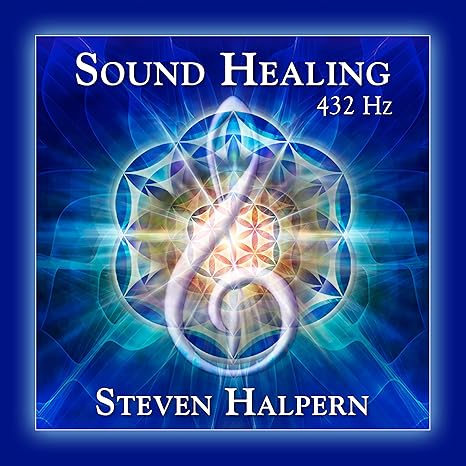
Sound Healing 432 Hz
song transports the listener to a relaxed state of mindfulness and inner peace.
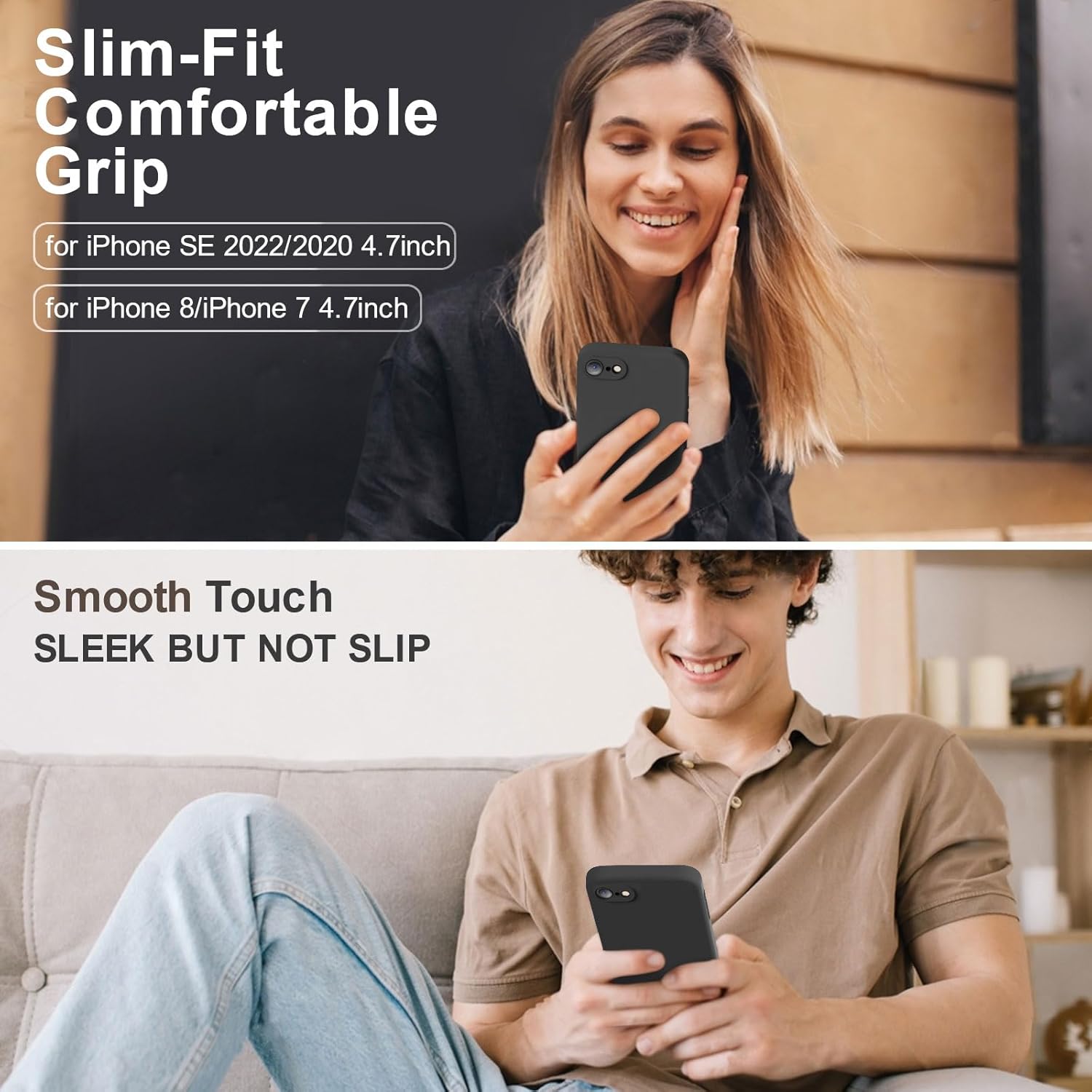
Vooii for iPhone SE
Vooii for iPhone SE Case 2022/3rd/2020,iPhone 8/7 Case, Upgraded Liquid Silicone with [Flat Edges] [Camera Protection] [Soft Anti-Scratch Microfiber Lining] Phone Case for iPhone SE - Black

KOORUI
KOORUI 24.5 Inch Gaming Monitor 200Hz, 1ms, FHD(1920 * 1080p) IPS Display, HDR400, 90% DCI-P3 Color Gamut with Adaptive Sync, HDMI & DP Port, Black, G2511P