
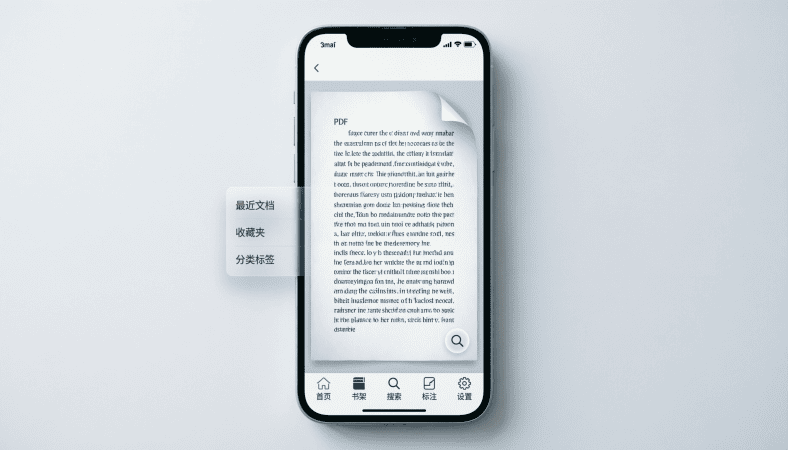
Many developers underestimate the impact of UI/UX when creating a PDF reader app. I’ve seen apps with flawless functionality fail simply because users struggled to navigate pages or read content comfortably. Designing for mobile isn’t just about aesthetics—it’s about usability, readability, and engagement.
Here’s how I approach UI/UX design for PDF apps, combining years of hands-on experience and lessons from real projects.
Start from the User’s Perspective
When I first built a PDF app for students, I realized I wasn’t thinking like the end user. Students wanted quick access to chapters, clear headings, and a way to highlight or bookmark content. Without these, they abandoned the app within minutes.
Actionable Steps:
-
Identify your target audience (students, readers, professionals).
-
List the main tasks they will perform (reading, searching, bookmarking).
-
Map these tasks to app features (table of contents, search bar, floating navigation).
Practical Advice: Always sketch the flow before touching Android Studio. Paper or Figma wireframes save countless hours later.
Navigation Should Be Intuitive
PDF apps often fail because scrolling through hundreds of pages feels tedious. Based on my experience:
-
Table of Contents (TOC): Allows users to jump to specific chapters.
-
Swipe Gestures: Horizontal or vertical swipes for page turning.
-
Next/Previous Buttons: For users who prefer tapping over swiping.
In one children’s storybook app, I initially relied only on swipes. Some younger users got confused. Adding visible “Next/Prev” buttons made the experience much smoother.
SEO Tip: “PDF reader app navigation Android,” “mobile-friendly PDF app UX.”
Typography and Readability
Small screens demand thoughtful text design. From my trials:
-
Use legible fonts (e.g., Roboto, Open Sans).
-
Maintain sufficient line spacing for comfort.
-
Avoid excessive text on a single page; split large paragraphs.
I always test with real devices of different sizes. One app looked perfect on a tablet but cramped text on a 5-inch phone.
Visuals and Layout
Images, charts, or illustrations need proper placement:
-
Resize images to fit mobile screens.
-
Align images with the text logically.
-
Consider floating captions or pop-ups for diagrams.
Relatable Friend Advice: Think of it like arranging a magazine. Poor placement distracts the reader; thoughtful layout keeps them engaged.
Color and Theme Choices
Colors aren’t just decoration they affect reading comfort:
-
Light backgrounds with dark text for daytime reading.
-
Dark mode for low-light environments.
-
Highlighted text or annotations should contrast but remain subtle.
I often hesitate between flashy design and simplicity. My experience shows minimalism wins for PDF readers: users focus on content, not flashy UI elements.
Interactive Features in the UI
Beyond static reading, interactive features improve usability:
-
Bookmarks: Easy access to frequently used pages.
-
Search Bar: Prominent and fast, ideally accessible from all screens.
-
Annotations / Notes: Let users add highlights or personal comments.
Story Example: In a technical manual app, I initially hid bookmarks in a menu. Users missed the feature entirely. Moving it to a floating button increased usage drastically.
Tools I Use for UI/UX Design
-
Figma: Rapid prototyping and collaboration.
-
Adobe XD: For creating interactive mockups.
-
InVision: User testing prototypes before coding.
Pro Tip: I always involve 2–3 users in testing the wireframes before starting development. Observing how they navigate gives insights you won’t get from theory.
Checklist Before Development
✅ Identify main user tasks and target audience
✅ Create wireframes for all screens
✅ Design intuitive navigation (TOC, swipes, buttons)
✅ Optimize typography and readability
✅ Place images and charts thoughtfully
✅ Choose color schemes for comfort and accessibility
✅ Plan interactive elements (bookmarks, search, annotations)
Conclusion
Mobile-friendly UI/UX design is the difference between an app users love and one they abandon. By:
-
Thinking from the user’s perspective
-
Prioritizing navigation and readability
-
Planning interactive features thoughtfully
…you’ll ensure your PDF reader app is not just functional but engaging, usable, and professional
For the complete guide to building a full PDF Android app, read the main article here.
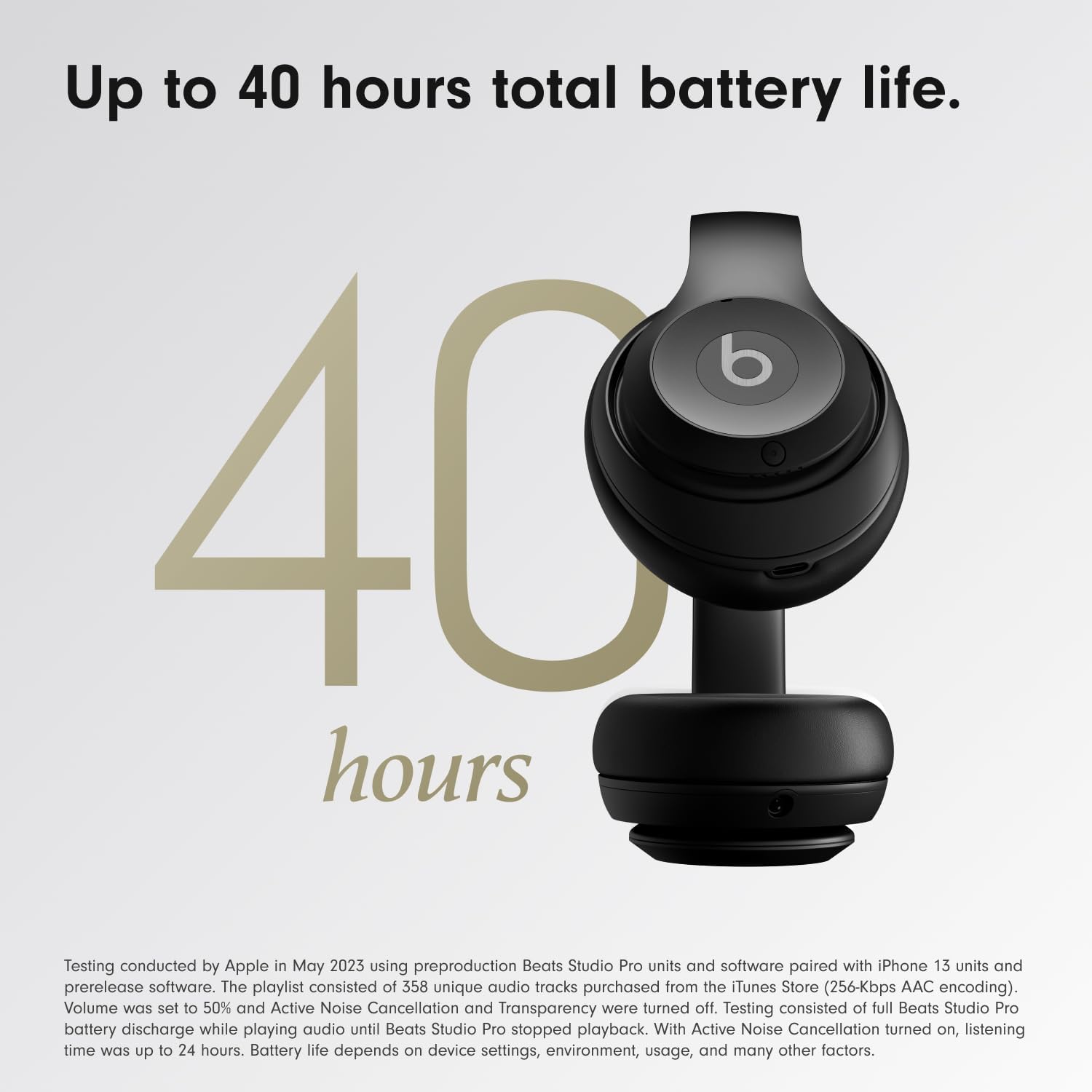
Beats-Studio Pro Cancelling Headphones
Beats Studio Pro - Wireless Bluetooth Noise Cancelling Headphones with USB-C Charging Cable (20 cm) - Jet Black
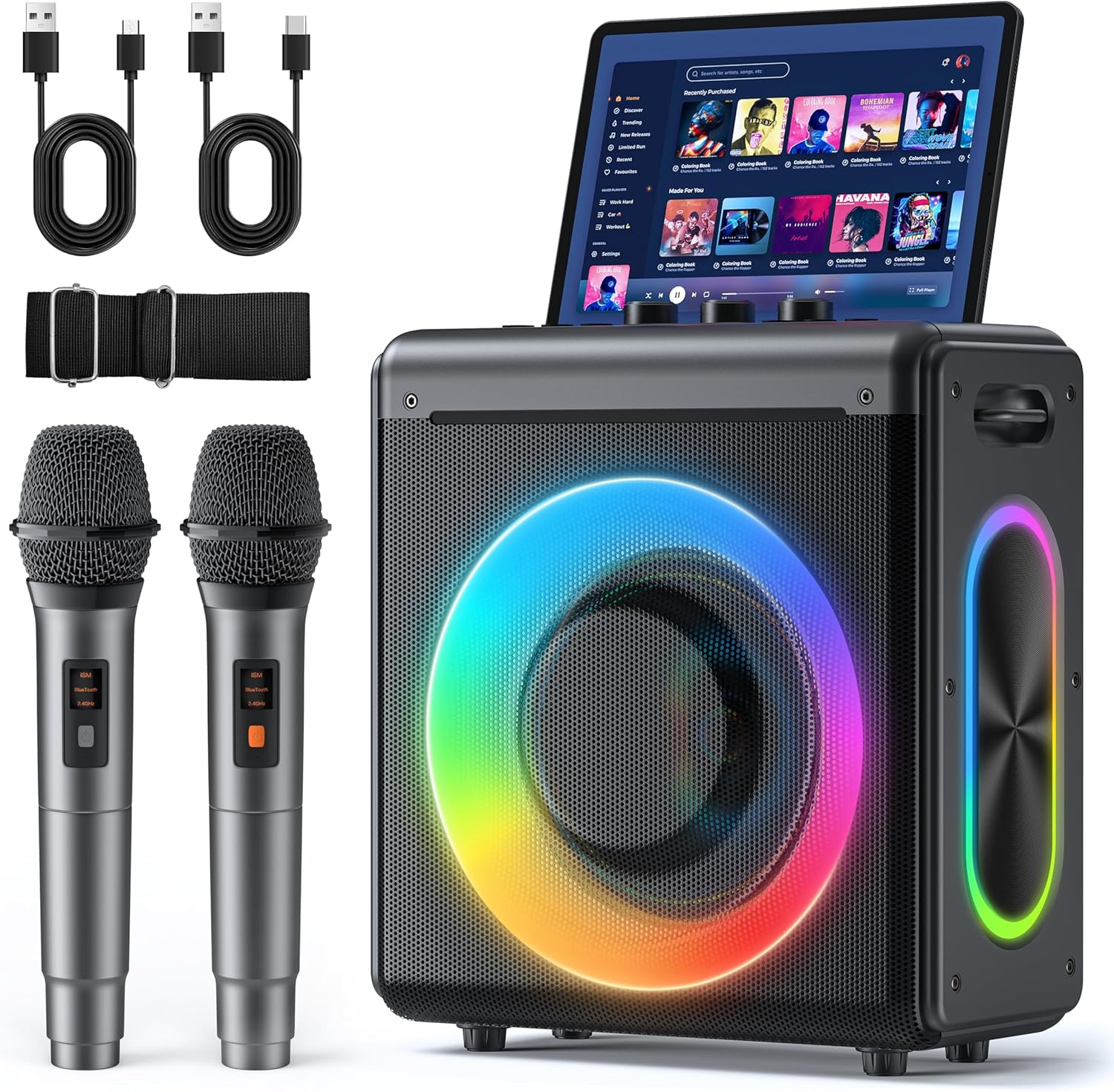
Karaoke Machine
Karaoke Machine with 2 Wireless Rechargeable Microphones: Portable Bluetooth Speaker for Adults & Kids - PA System with Lights Supports TWS/TF Card/USB/AUX for Home Party
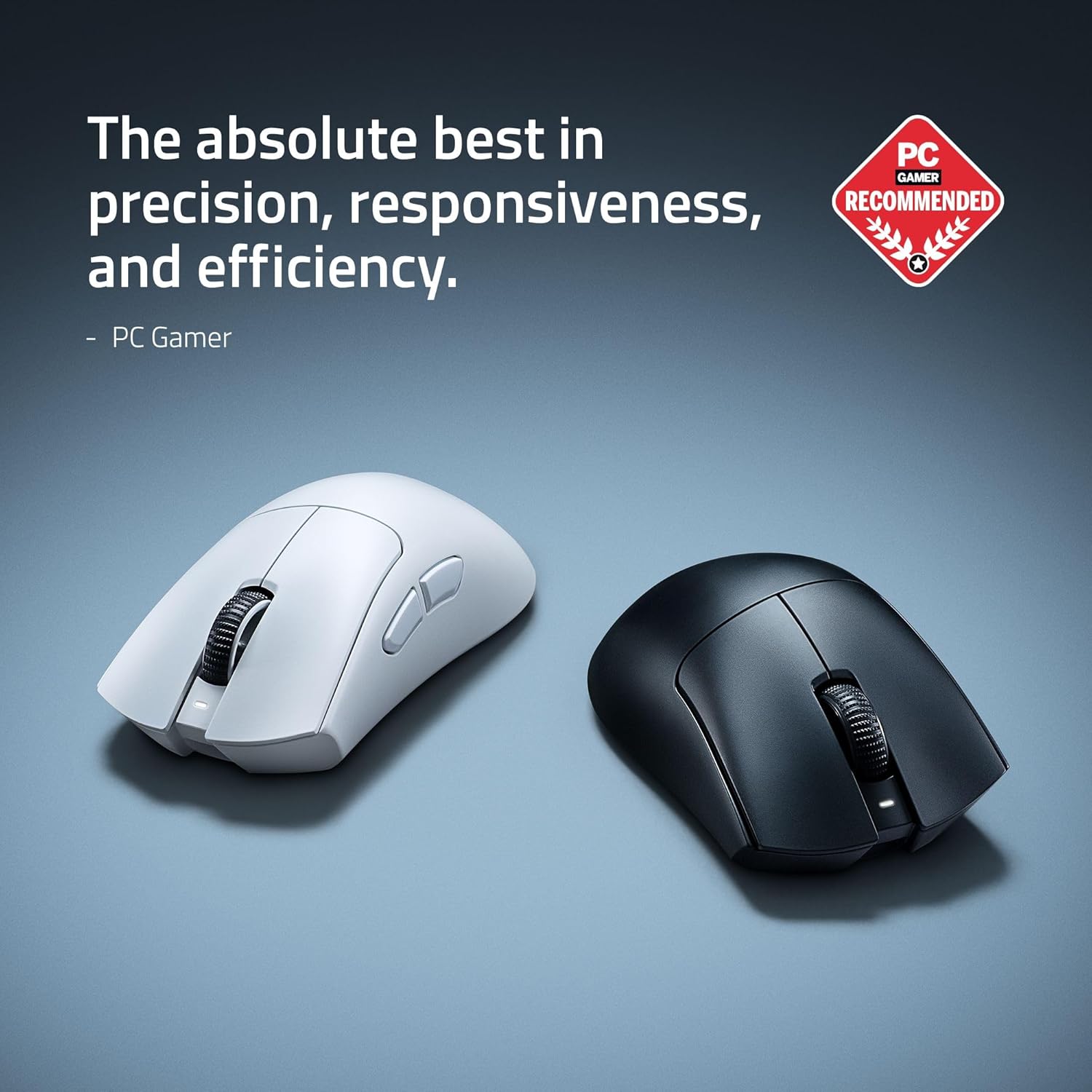
RAWM ES21 Wireless Gaming Mouse
Razer DeathAdder V4 Pro Wireless Gaming Mouse: 56g Lightweight - HyperSpeed Wireless Gen-2 - Optical Scroll Wheel - Optical Switches Gen-4 - Focus Pro 45K Sensor Gen-2 - Up to 150 Hr Battery

Prebuilt Gaming Desktop Computer
Prebuilt Gaming Desktop Computer | 16G Memory | 512G SSD | AMD Ryzen5 6Cores 3.6G Up to 4.1G | RX 560 4G Graphics Card | Wi-Fi 6 | Gamer PC White