
Turning your PDF into an Android app is exciting, but you can quickly hit a wall if your content isn’t usable. I’ve seen beginners struggle with scanned PDFs or protected files hours wasted just trying to get text out. Let me walk you through exactly how I handle it, step by step, from my own experience building multiple PDF apps.
Why Extraction Matters
Imagine this: I once tried to build an educational PDF app directly from a scanned PDF. The app crashed repeatedly because the text wasn’t selectable, and images were embedded in the wrong format. That taught me a critical lesson: getting clean, structured content from your PDF is the foundation of a usable app.
By extracting text and images properly:
-
You can implement features like search, bookmarks, and text resizing.
-
The app loads faster because unnecessary data is removed.
-
Your users won’t get frustrated with missing or corrupted pages.
Step 1: Determine the Type of PDF
Not all PDFs are the same:
-
Standard digital PDFs: Text is selectable and can be copied.
-
Scanned PDFs: The content is an image, not text, requiring OCR.
-
Protected PDFs: Some PDFs have passwords or editing restrictions.
Practical Advice: I always open the PDF in Adobe Acrobat first to see if I can select text. If not, it’s a scanned PDF.
Step 2: Extract Text from Standard PDFs
Tools I Use:
-
Adobe Acrobat Pro: Export text directly as
.txtor.docx. -
SmallPDF: Online tool to convert PDF → Word or Excel.
-
Foxit Reader: Useful for batch extraction.
Step-by-Step:
-
Open the PDF.
-
Highlight the content you want.
-
Export to your preferred format (TXT, DOCX, or HTML for images).
-
Clean up formatting errors (line breaks, headers, footers).
Relatable Friend Tip: Treat this like copy-editing a manuscript. Don’t assume it’s perfect straight from the PDF.
Step 3: Handle Scanned PDFs with OCR
For scanned PDFs, text isn’t selectable. I rely on OCR (Optical Character Recognition):
-
Tesseract OCR: Free, open source, works well for multiple languages.
-
Google Drive OCR: Convenient for occasional use, quick conversion to Google Docs.
Practical tip: Always proofread the output. OCR can misread characters—“0” vs “O” or “1” vs “I” are common mistakes. In one app, a chapter titled “Unit 10” came out as “Unit IO,” confusing users.
Step 4: Extract Images
Images are just as important as text. My approach:
-
Use Adobe Acrobat or SmallPDF to export all images.
-
Organize them in folders by chapter or section.
-
Optimize for mobile: reduce resolution if images are large to save memory.
In a children’s storybook PDF I converted, images were embedded at 5MB each. Without optimization, the app crashed on mid-range phones. Lesson: always resize images for mobile apps.
Step 5: Organize Extracted Content
After extracting text and images, structure them so they’re ready for Android Studio:
-
Text: Save per chapter or section in separate
.txtfiles or JSON format. -
Images: Name files logically (
chapter1_image1.jpg) to simplify coding. -
Check for completeness: Ensure every page from the PDF is accounted fo I often pause here: Should I combine text and images in one JSON or keep them separate? I choose separate files for easier lazy-loading in the app. This reduces memory usage and prevents crashes.
Step 6: Tips for Complex PDFs
-
Tables: Export as images or HTML if text extraction breaks formatting.
-
Charts and Graphs: Use high-quality images for clarity.
-
Special Characters / Formulas: OCR may misread them proofreading is essential.
Relatable Friend Tip: Think of this stage as prepping ingredients before cooking. Messy prep leads to a bad final dish.
Checklist Before Moving to Android Studio
✅ Identify PDF type (standard, scanned, protected)
✅ Extract text cleanly and proofread
✅ Extract and optimize images
✅ Organize files logically by chapter
✅ Prepare special content (tables, charts) separately
✅ Name files consistently for coding convenience
Conclusion
Properly extracting text and images from your PDF is the foundation for a smooth, professional Android app. Spending extra time here pays off in:
-
Faster app performance
-
Accurate search and bookmark functionality
-
A better user experience
By following these steps, your content is now ready for integration into Android Studio, where you can start building your PDF reader app.
When testing your PDF reader app, it helps to use a real book instead of a simple sample file. For example, the 500 Mouthwatering Dessert Recipes Cookbook provides hundreds of recipe pages that are perfect for testing navigation, scrolling, and chapter structure.
For the complete guide to building a full PDF Android app, read the main article here.
Make Your First 2D Game in Unity
Want to build your first game but don’t know where to start? This beginner-friendly guide shows you how to create SampleGame2D — a fun Flappy Bird–style project — step by step in Unity. Inside you’ll learn:
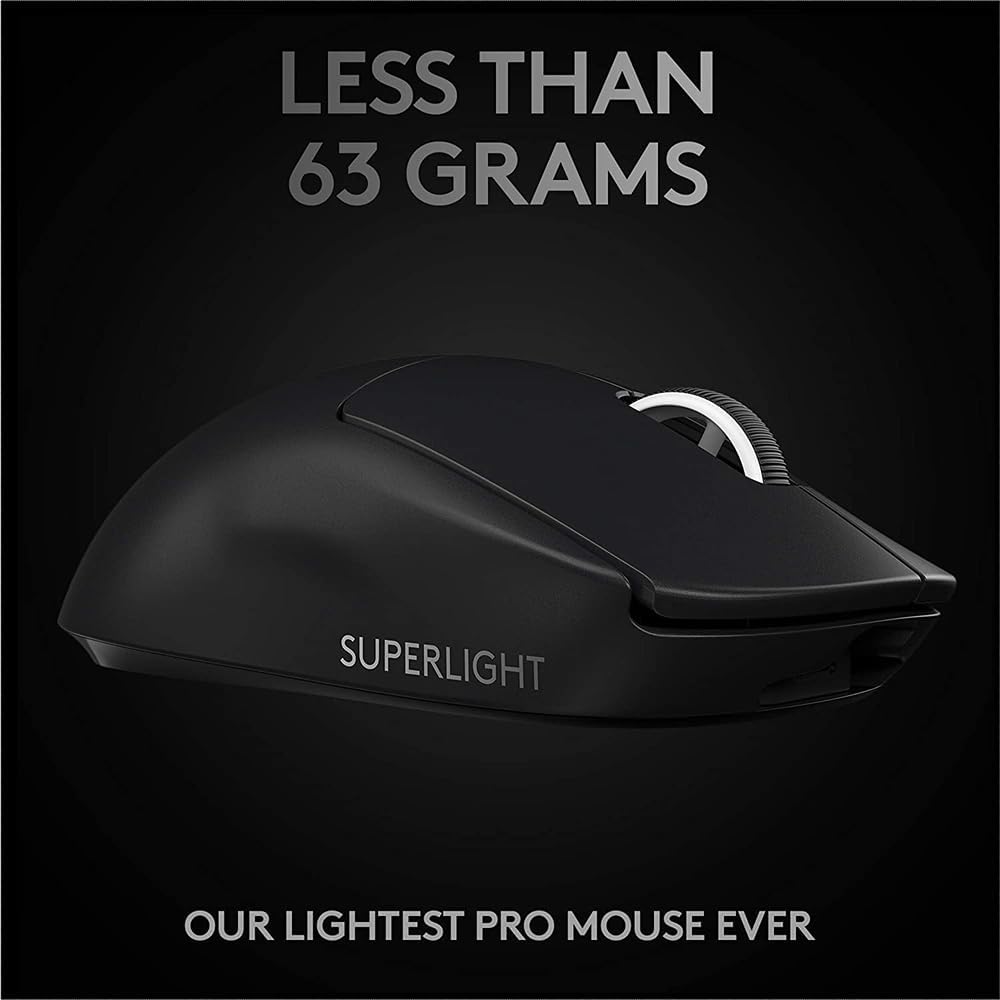
Logitech G
Logitech G PRO X SUPERLIGHT 2 Wireless Gaming Mouse
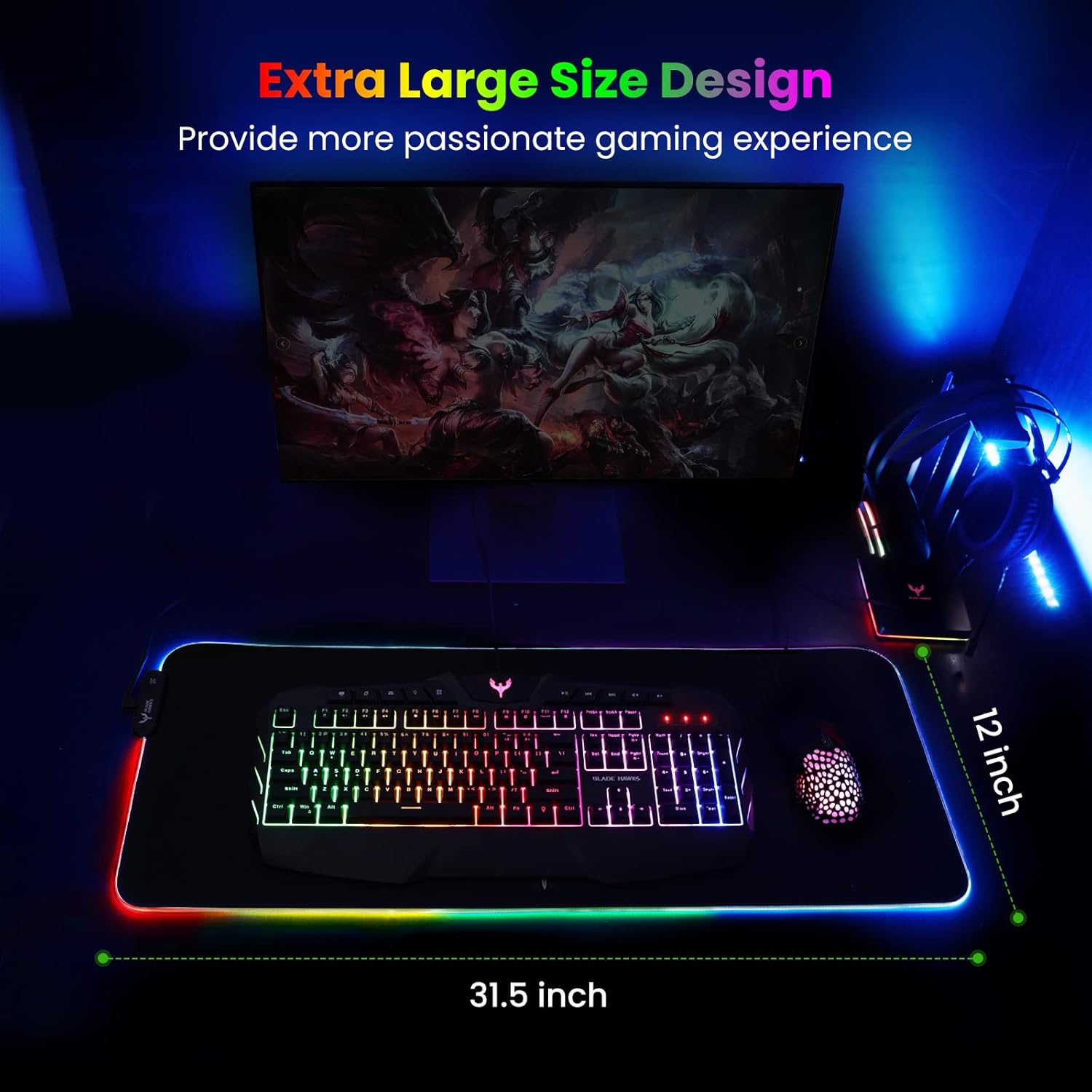
Mouse Pad
BladeHawks Extra Large RGB Gaming Mouse Pad-14 Light Modes, Extended Soft LED Mouse Pad, Anti-Slip Rubber Base, Computer Keyboard Mousepad Mat (31.5 x 12 Inch)
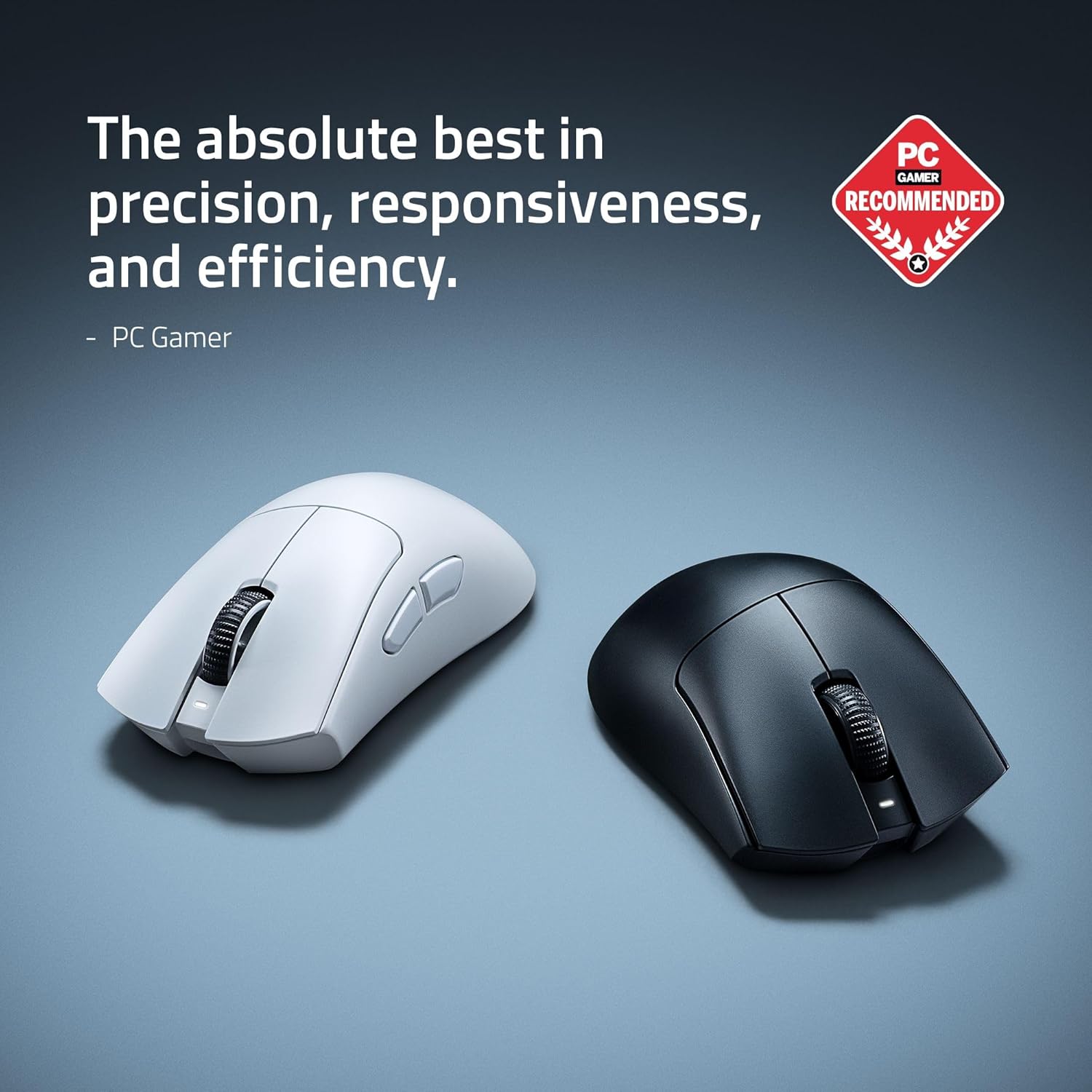
RAWM ES21 Wireless Gaming Mouse
Razer DeathAdder V4 Pro Wireless Gaming Mouse: 56g Lightweight - HyperSpeed Wireless Gen-2 - Optical Scroll Wheel - Optical Switches Gen-4 - Focus Pro 45K Sensor Gen-2 - Up to 150 Hr Battery