
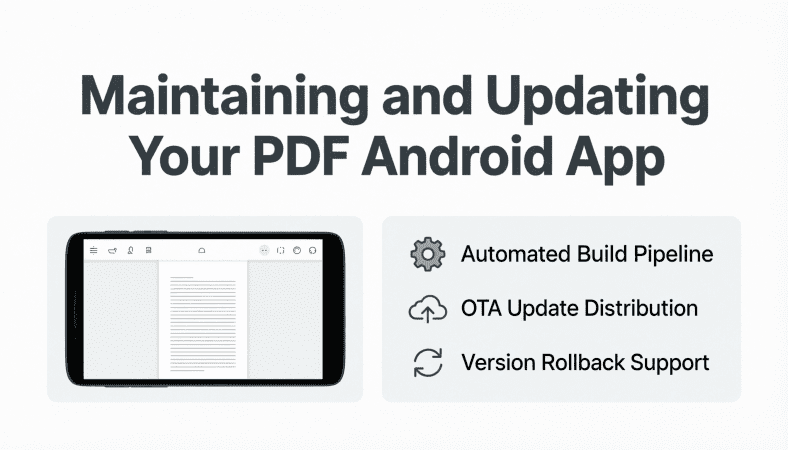
Publishing your PDF Android app is a major milestone—but the journey doesn’t end there. From my experience, regular maintenance and timely updates are what keep users engaged, prevent crashes, and ensure your app stays compatible with new Android versions. Let’s break it down step by step.
Step 1: Monitor User Feedback
User reviews and in-app feedback are gold:
-
Track common complaints and suggestions.
-
Identify features users love vs. features that confuse them.
-
Respond to reviews promptly to build trust.
In one educational PDF app, users requested the ability to highlight text. Implementing this feature after feedback boosted daily active users by 25%.
Step 2: Fix Bugs Promptly
Even the most tested apps can encounter issues post-launch:
-
Keep an eye on crash reports via Google Play Console.
-
Monitor analytics for unexpected app exits or slow performance.
-
Prioritize fixing bugs that affect many users first.
I always maintain a bug log and categorize them by severity. High-priority issues are fixed within 48 hours whenever possible.
Step 3: Update PDFs and Content
Your app may feature PDFs that evolve over time:
-
Replace outdated content with new versions.
-
Add new chapters or resources as downloadable PDFs.
-
Ensure updated PDFs maintain file structure consistency to avoid breaking app features.
Think of your app as a living library. Keep it fresh and users will keep returning.
Step 4: Maintain Compatibility with Android Updates
New Android versions may introduce:
-
API changes
-
Permission adjustments
-
Layout differences on new devices
Practical Tip: Test your app on beta Android versions whenever possible. Updating libraries and dependencies regularly prevents surprises.
I delayed updating one PDF app after an Android release. Users reported crashes when opening PDFs. A quick library update fixed the issue within a day. Lesson: stay ahead of platform updates.
Step 5: Optimize Performance Continuously
-
Monitor memory usage for large PDFs.
-
Optimize images and assets.
-
Consider implementing caching for frequently accessed pages.
I sometimes debate whether to add new interactive features during maintenance. My approach: first ensure stability, then add small improvements gradually.
Step 6: Backup Your Project and Data
-
Keep local and cloud backups of your project code and PDF files.
-
Version your releases to allow rollback in case of issues.
-
Backup user data such as bookmarks and annotations (if applicable).
Practical Tip: I once lost a week of development due to a corrupted local backup. Now, every update is mirrored to cloud storage automatically.
Step 7: Checklist for Effective Maintenance
✅ Monitor user feedback and reviews
✅ Track crash reports and fix bugs promptly
✅ Update PDFs and content regularly
✅ Test compatibility with new Android versions
✅ Optimize app performance continuously
✅ Backup project files and user data
Conclusion
Maintenance and updates are essential for long term success of your PDF Android app. By:
-
Listening to users
-
Fixing bugs quickly
-
Keeping content current
-
Ensuring compatibility with Android updates
…you create a reliable, engaging, and future-proof app that retains users and earns positive ratings over time.
For the complete guide to building a full PDF Android app, read the main article here.


Results
Razer BlackShark V3 X HyperSpeed Wireless Gaming Headset for PS5: 50mm Drivers - Cardioid Mic - 2.4 GHz, Bluetooth - Works with PC, Mac, Nintendo Switch, Smartphone - Long Battery Life - Black
Ultimate Mobile Controls – Plug & Play
Take your mobile game to the next level with this ready-to-use Mobile Controls Pack. customizable mobile controls without wasting days on UI and input setup. Perfect for 2D, 3D, FPS, RPG, Platformer, Shooter, and Casual mobile games.
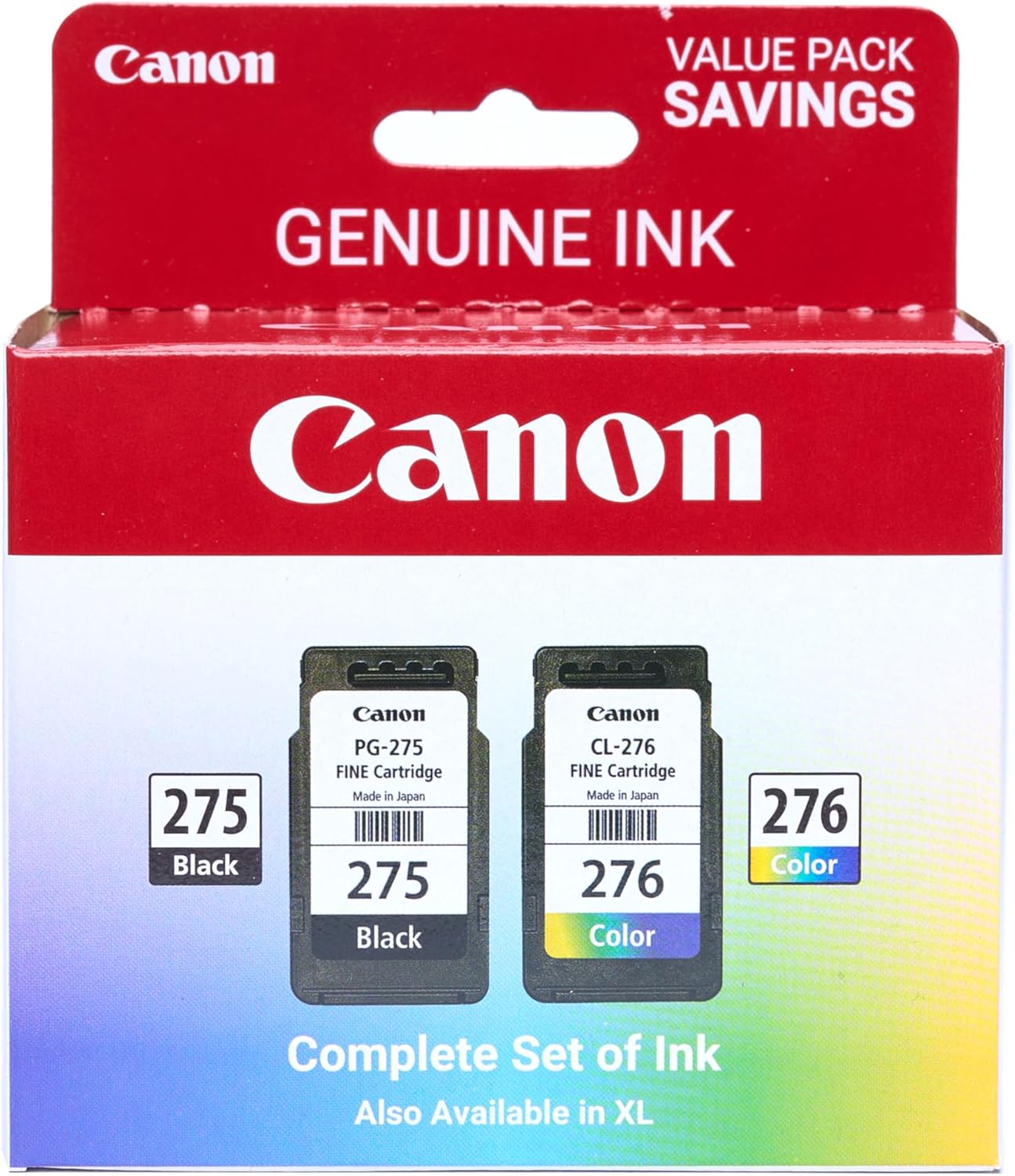
Canon PG-275
Canon PG-275 / CL-276 Genuine Ink Value Pack (2 Cartridges), Compatible with TS3520/3522/4722/3720/3722, TR4720