Aseprite Extensions vs. Built-in Features: What You Need to Know
Understanding Aseprite: A Brief Overview
Aseprite is a pixel art tool that has garnered a loyal following among game developers and artists alike. It offers intuitive features for creating animations and sprites, allowing for a smooth workflow. Its built-in capabilities are impressive, but the community-driven extensions can take your experience to a whole new level.
Built-in Features of Aseprite
Aseprite comes equipped with a range of built-in features that cater to both novice and experienced pixel artists. Here’s a breakdown of some of the most notable functionalities:
- Layer Management: Aseprite allows for the organization of artwork with layers, enabling artists to manipulate individual components without affecting others.
- Animation Tools: The built-in timeline and frame management tools make it easy to create smooth animations.
- Color Palettes: Aseprite supports an array of color palettes, allowing for quick access to your favorite color sets.
- Onion Skinning: This feature allows you to see multiple frames at once, aiding in the animation process.
- Export Options: Aseprite supports various export formats, including GIF, PNG, and sprite sheets.
Example: Using Built-in Layer Management
To effectively manage layers in Aseprite, follow these steps:
- Open your project in Aseprite.
- Navigate to the Layers panel.
- Click the ‘+’ icon to create a new layer.
- Use the eye icon to toggle visibility for each layer.
- Drag layers to reorder them as needed.
Aseprite Extensions: Unlocking New Possibilities
While Aseprite’s built-in features are robust, extensions can expand functionality, streamline workflows, and provide tools that cater to specific needs. Here’s a closer look at some popular extensions:
- Aseprite Scripts: Automate repetitive tasks with scripts tailored to your workflow.
- Pixel Art Tools: Extensions like “Aseprite Color Palettes” help manage and create color palettes more efficiently.
- Export Scripts: Custom export scripts can be designed to match your specific project requirements.
Step-by-Step Guide: Installing and Using Aseprite Extensions
To enhance your pixel art experience with Aseprite extensions, follow these steps:
- Visit the Aseprite extensions repository online.
- Download the desired extension files.
- Open Aseprite and navigate to File > Scripts > Open Scripts Folder.
- Drag and drop your downloaded extension files into this folder.
- Restart Aseprite to load the new extensions.
Comparing Built-in Features and Extensions
When deciding between built-in features and extensions, consider the following comparison:
| Feature | Built-in Features | Extensions |
|---|---|---|
| Ease of Use | Highly intuitive and user-friendly. | May require initial setup and familiarity. |
| Flexibility | Limited to what is provided by Aseprite. | Highly customizable based on user needs. |
| Community Support | Official support from Aseprite developers. | Community-driven support and updates. |
| Functionality | Core functions for general use. | Specialized tools for specific workflows. |
Checklist: When to Use Extensions vs. Built-in Features
Use this checklist to determine whether to utilize extensions or built-in features:
- Are you performing a repetitive task? Consider using a script extension.
- Do you need specific export options? Look for an export script tailored to your needs.
- Are you new to pixel art? Start with the built-in features for a smoother learning curve.
- Is your project becoming too complex? Explore extensions that can simplify workflow.
Related Content: Aseprite Extensions: Enhance Your Pixel Art Experience
For more details on how to enrich your pixel art experience with Aseprite extensions, check out our article: Aseprite Extensions: Enhance Your Pixel Art Experience.
Conclusion: Striking the Right Balance
In the world of pixel art, both Aseprite’s built-in features and extensions play critical roles. Understanding when to use each can significantly enhance your workflow and creative output. Whether you’re a beginner or a seasoned artist, leveraging the strengths of both will empower you to produce stunning pixel art.
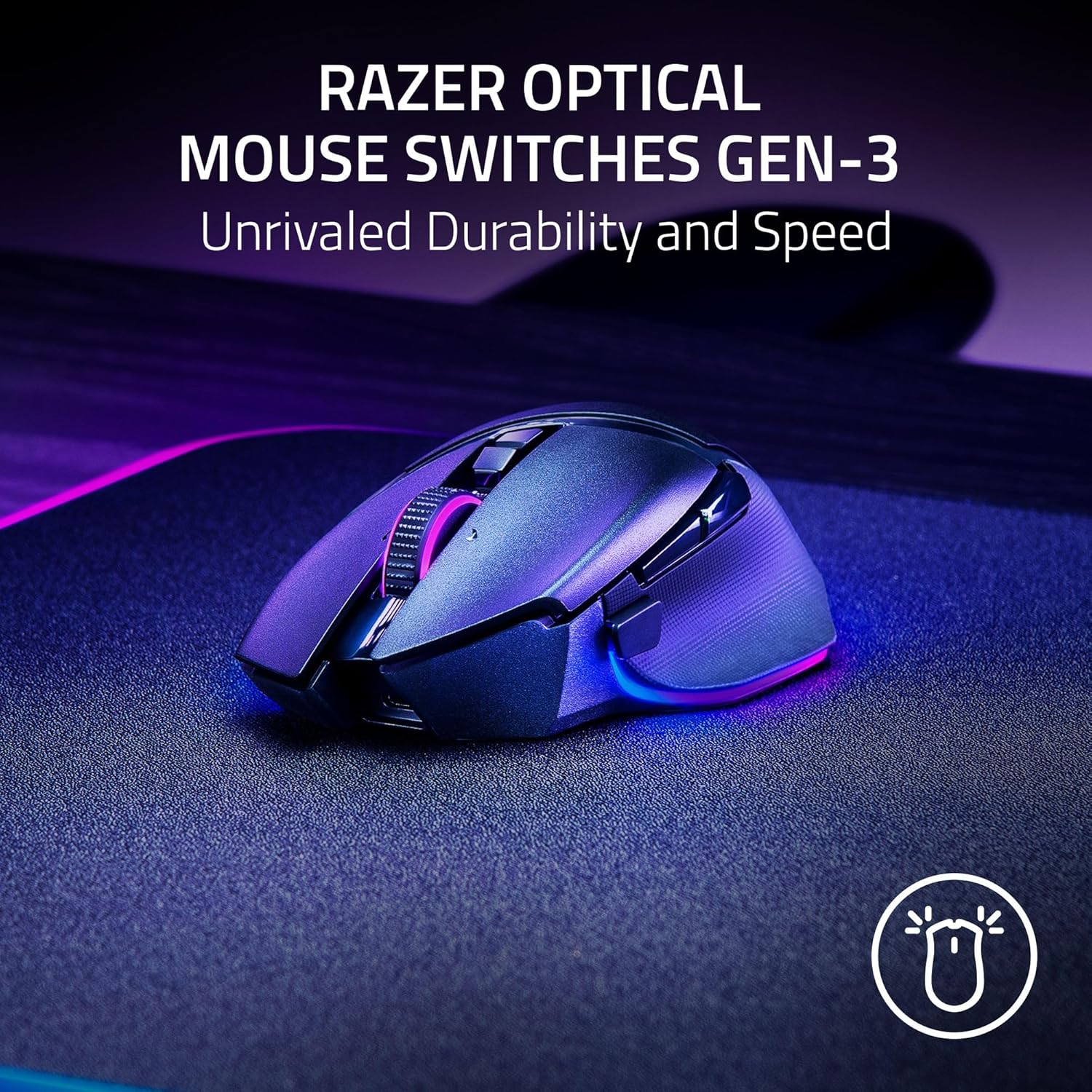
Razer
Razer Basilisk V3 Pro 35K Wireless Gaming Mouse: HyperScroll Tilt Wheel – 35K DPI Optical Sensor Gen 2-13 Customizable Controls – Chroma RGB – Optical Switches Gen 3 – Up to 140 Hr Battery – Black

Panvola
Panvola Debugging Definition Computer Programmer Student Teacher Geek Coder Tech Support Programming IT Insulated Coffee Mug with Handle and Lid Camping Travel Thermal Mugs 14 oz Black
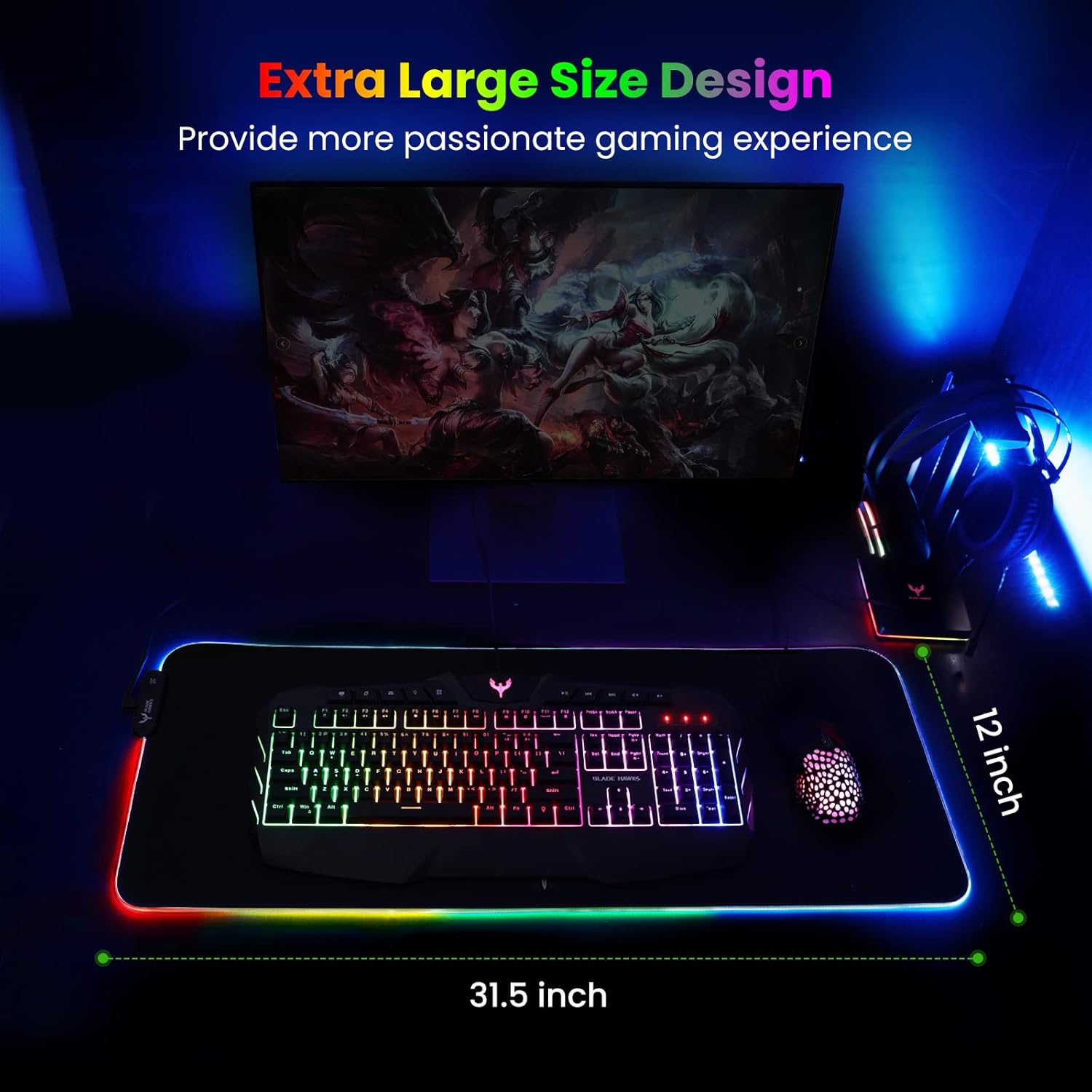
Mouse Pad
BladeHawks Extra Large RGB Gaming Mouse Pad-14 Light Modes, Extended Soft LED Mouse Pad, Anti-Slip Rubber Base, Computer Keyboard Mousepad Mat (31.5 x 12 Inch)
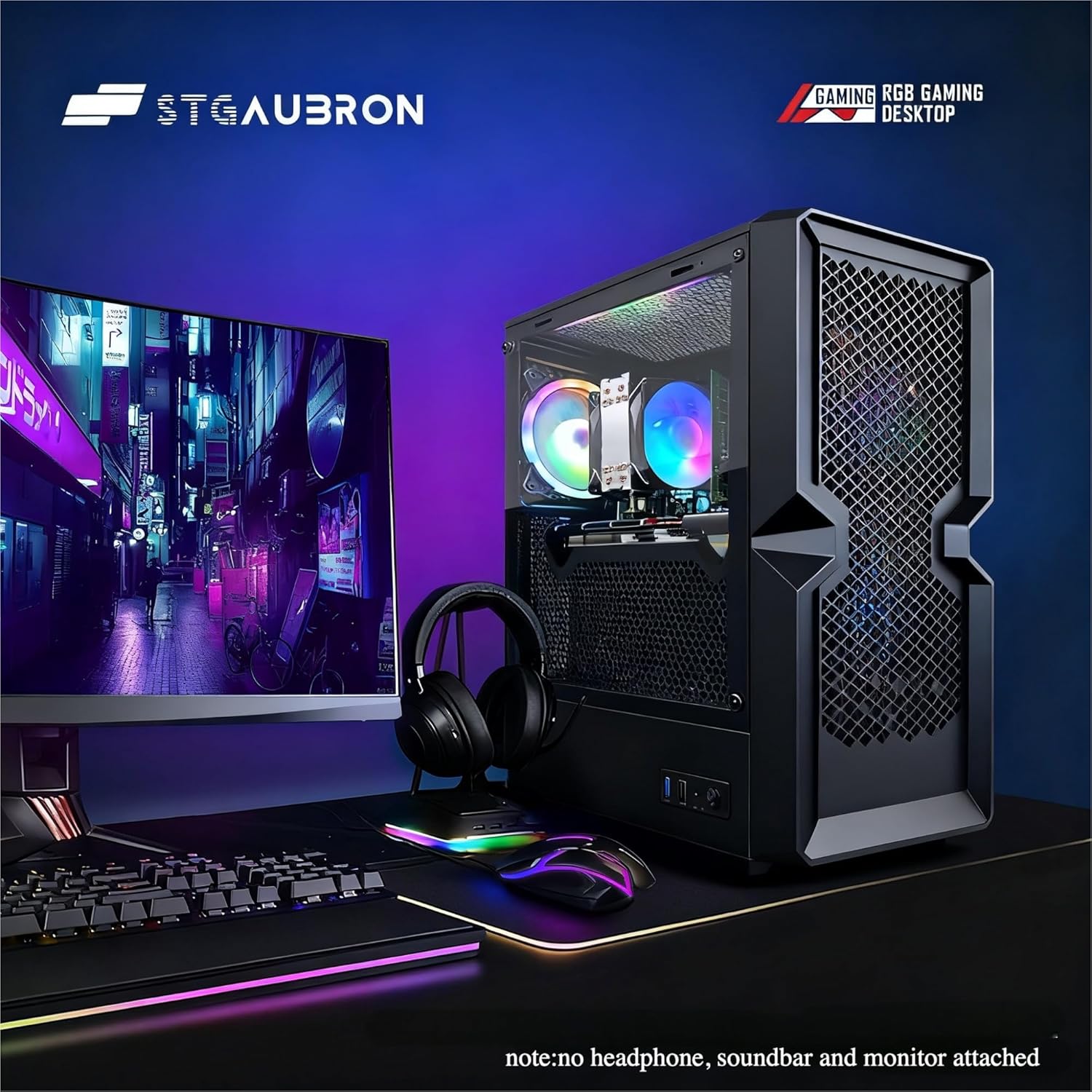
STGAubron Gaming PC Desktop
STGAubron Gaming PC Desktop Computer, Intel Core i5 up to 3.6G, Radeon RX 590 8G, 16GB RAM, 1TB SSD, 600M WiFi, BT 5.0, RGB Fan x3, Windows 11 Home
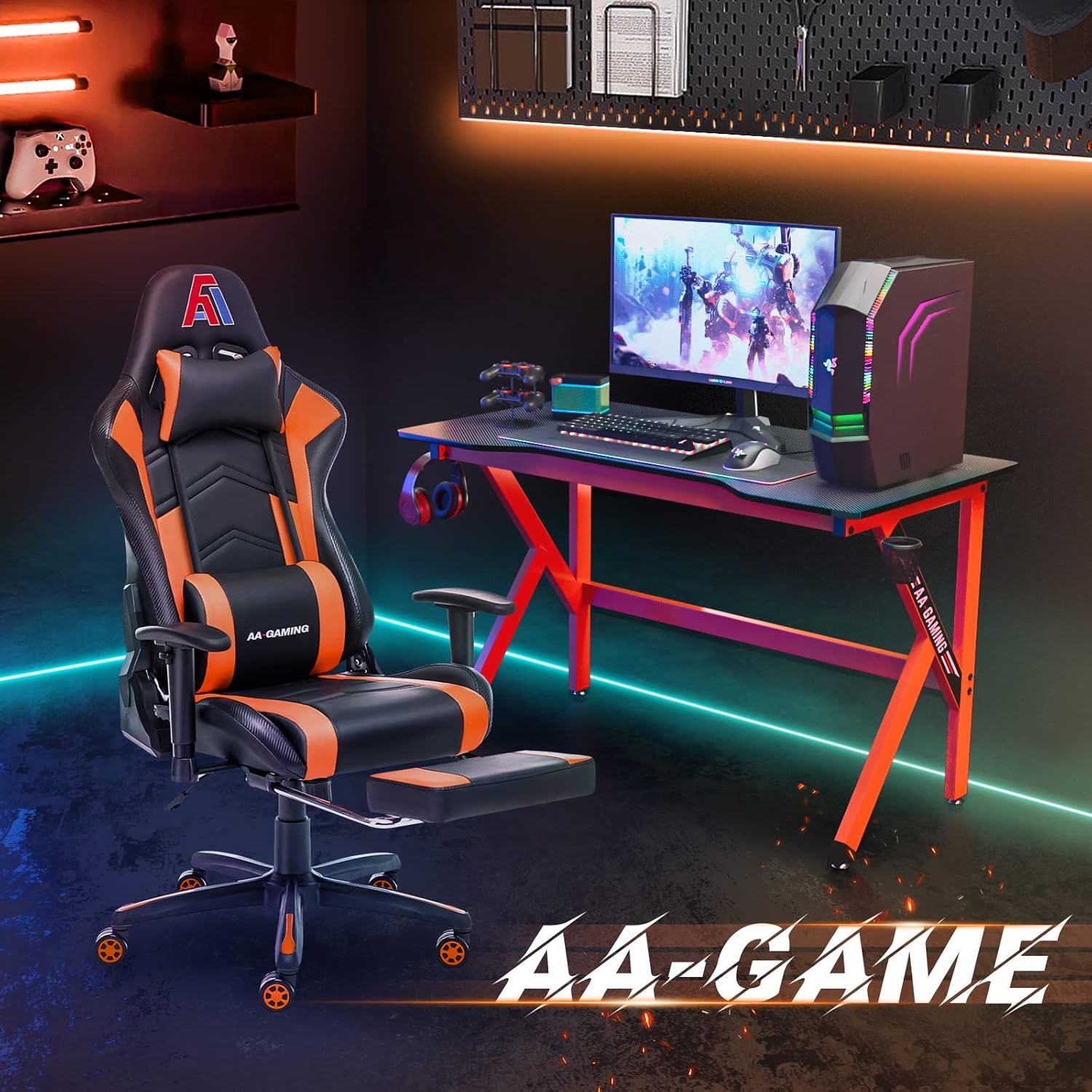
AA Products High Back Ergonomic Gaming Chair
AA Products Gaming Chair Ergonomic High Back Computer Racing Chair Adjustable Office Chair with Footrest, Lumbar Support Swivel Chair – BlackOrange
ESR for MagSafe Wallet
ESR for MagSafe Wallet, 5-Card Holder With RFID Blocking, MagSafe Sticker Included, Slim Magnetic Wallet for iPhone 17/16/15/14/13/12 Series and Selected Samsung Devices, Not for 13/12 Mini, Black