Community Favorites: The Most Popular Aseprite Extensions
Why Use Aseprite Extensions?
Aseprite extensions are designed to improve your pixel art experience by adding functionalities that streamline your workflow, enhance your creativity, and save you time. Whether you’re looking to automate repetitive tasks, manage color palettes more effectively, or add unique effects to your art, there’s an extension for you.
Community Favorites
Let’s dive into some community favorites that have been widely praised for their utility and ease of use.
1. Aseprite Color Palette Manager
The Aseprite Color Palette Manager is a must-have for pixel artists who work with multiple palettes. It allows you to organize, swap, and manage your color palettes efficiently.
Features:
- Easy palette organization
- Quick swapping between palettes
- Import/export palette support
How to Use:
- Download the extension from the Aseprite website.
- Follow the installation instructions provided.
- Open your Aseprite project and access the Color Palette Manager from the extensions menu.
- Create, edit, and manage your palettes as needed.
2. Aseprite Animation Preview
For animators, the Aseprite Animation Preview extension is invaluable. It allows you to preview your animations in real-time, ensuring smooth transitions and accurate timing.
Features:
- Real-time animation playback
- Frame-by-frame navigation
- Adjustable playback speed
How to Use:
- Install the Animation Preview extension.
- Open your animation project in Aseprite.
- Access the extension to start the preview.
- Adjust playback settings to suit your needs.
3. Aseprite Tilemap Exporter
For game developers, the Aseprite Tilemap Exporter makes it easy to export tilemaps for use in game engines. This extension simplifies the process of exporting tilesets and associated data.
Features:
- Export tilemaps in various formats
- Customizable export settings
- Easy integration with popular game engines
How to Use:
- Download the Tilemap Exporter extension.
- Open your tilemap project in Aseprite.
- Access the export option from the extensions menu.
- Select your desired format and settings, then export.
Step-by-Step Guide to Installing Extensions
- Visit the official Aseprite extensions repository.
- Browse through the available extensions and select the ones you want to install.
- Download the extension files, usually in a .zip format.
- Extract the files to the Aseprite extensions folder, typically located in your Aseprite installation directory.
- Restart Aseprite to see the installed extensions in the extensions menu.
Checklist for Choosing Aseprite Extensions
| Criteria | Questions to Consider |
|---|---|
| Functionality | Does this extension solve a specific problem or enhance my workflow? |
| Community Feedback | What do other users say about this extension? Are there reviews or ratings? |
| Compatibility | Is this extension compatible with my version of Aseprite? |
| Support and Updates | Is the developer actively maintaining the extension with regular updates? |
Conclusion
Incorporating the right Aseprite extensions into your workflow can elevate your pixel art projects, making them more efficient and enjoyable. The extensions listed in this article are just the tip of the iceberg, with countless tools available to suit your specific needs. For more detailed insights into enhancing your pixel art experience, check out our related content: Aseprite Extensions: Enhance Your Pixel Art Experience.

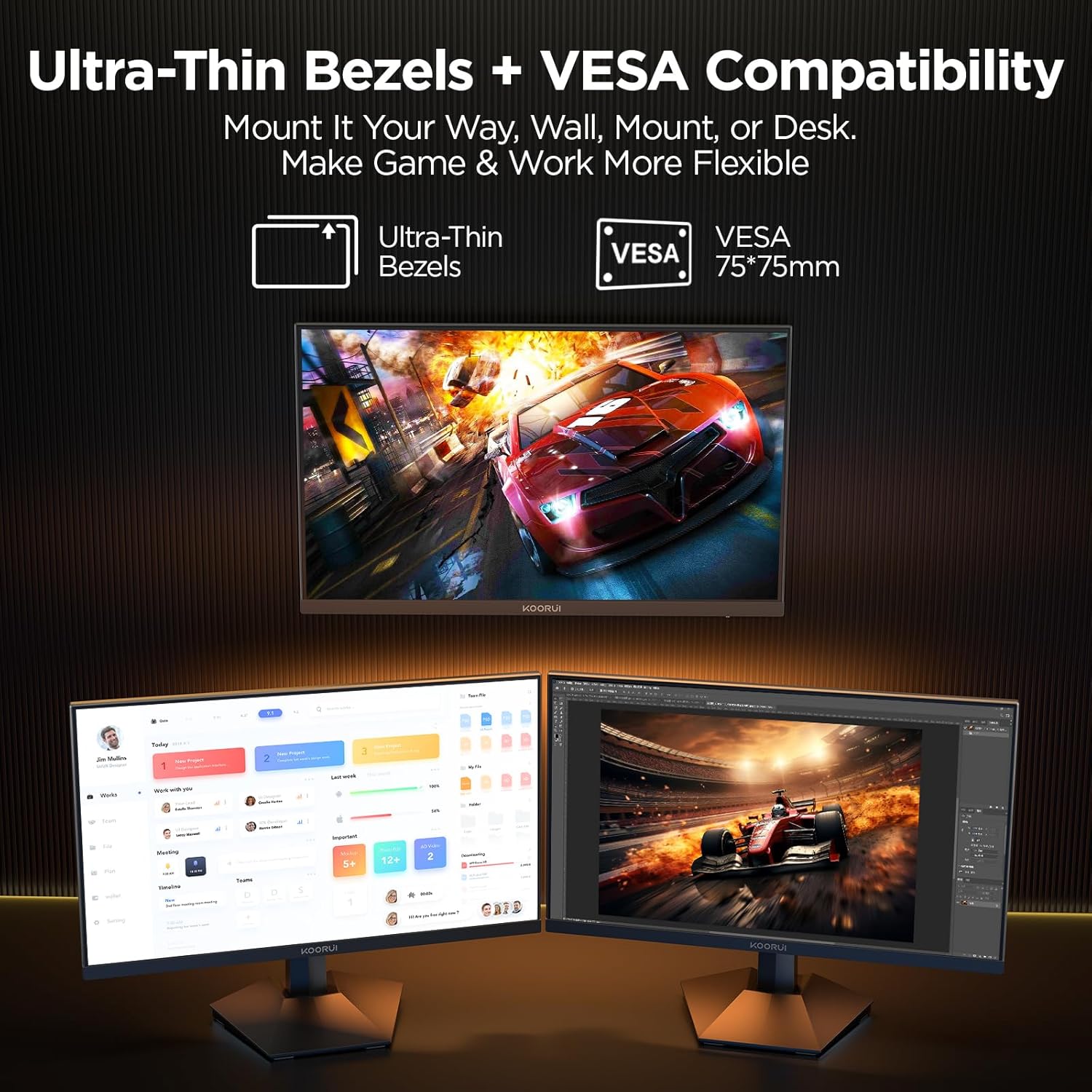
KOORUI
KOORUI 24.5 Inch Gaming Monitor 200Hz, 1ms, FHD(1920 * 1080p) IPS Display, HDR400, 90% DCI-P3 Color Gamut with Adaptive Sync, HDMI & DP Port, Black, G2511P
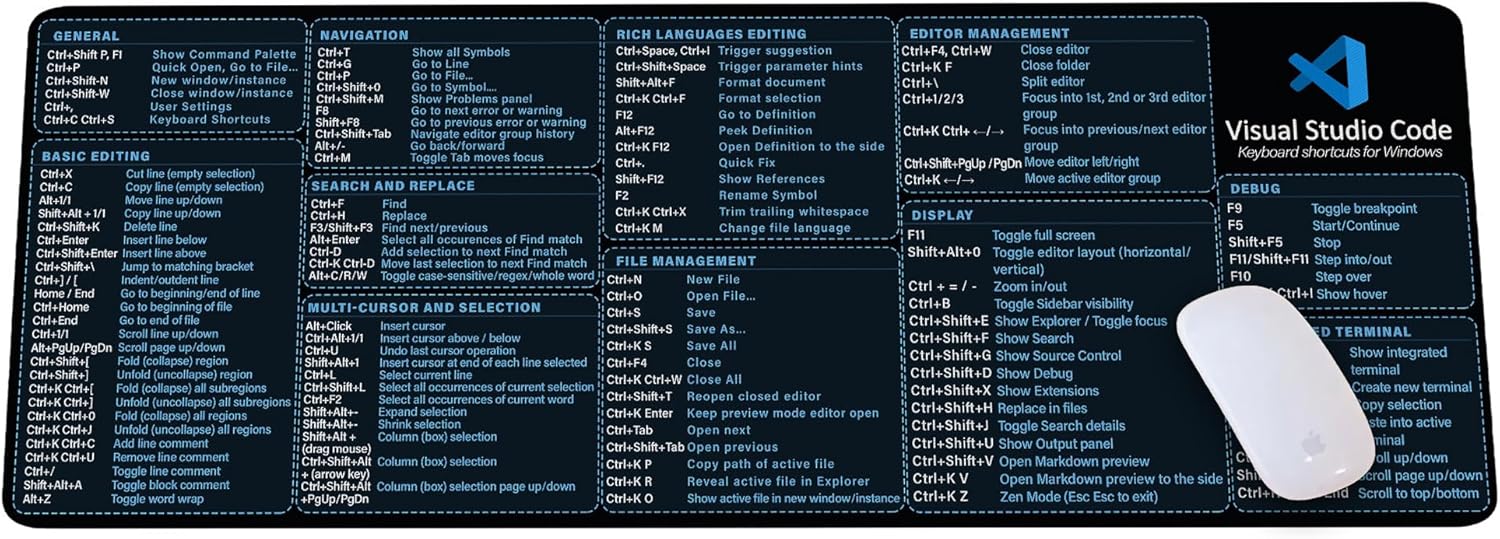
Visual Studio Code Shortcuts Mouse Pad
Visual Studio Code Shortcuts Mouse Pad – Desk Mat for Programmers, Coders & Beginners, Great Office Gift for Developers & Tech Enthusiasts, Computer Accessory for Study, Work, and Learning KMH
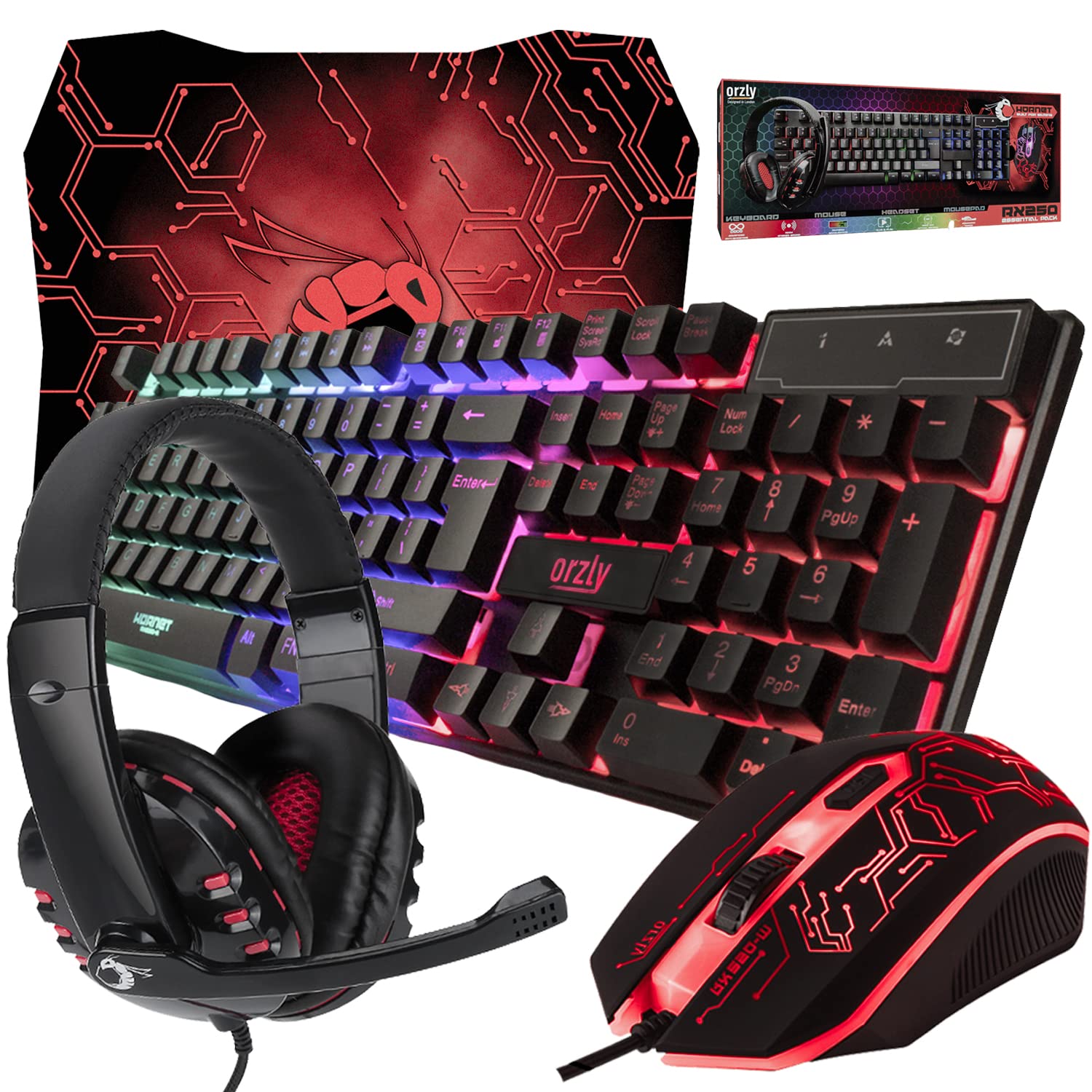
Gaming Keyboard and Mouse and Mouse pad and Gaming Headset, Wired LED RGB Backlight Bundle
Gaming Keyboard and Mouse and Mouse pad and Gaming Headset, Wired LED RGB Backlight Bundle for PC Gamers and Xbox and PS4 Users – 4 in 1 Edition Hornet RX-250
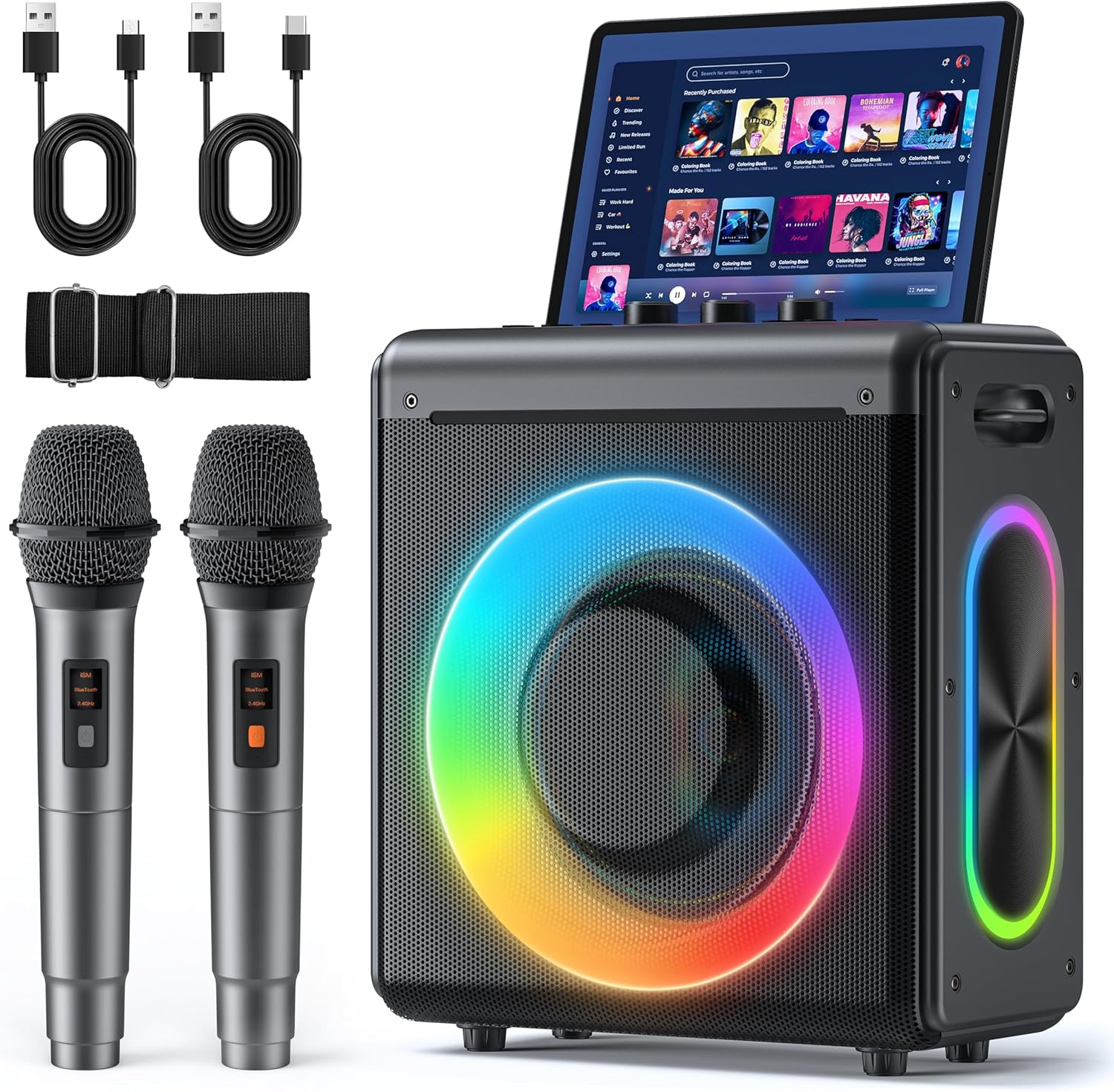
Karaoke Machine
Karaoke Machine with 2 Wireless Rechargeable Microphones: Portable Bluetooth Speaker for Adults & Kids – PA System with Lights Supports TWS/TF Card/USB/AUX for Home Party

MMO Mug
MMO Mug – Legendary Coffee Mug Level 110 – Large Ceramic Black15oz – Gaming, Gamer Cup