In today’s digital landscape, image optimization is crucial for web performance. Slow-loading images can lead to high bounce rates and reduced user engagement. In this article, we will explore how to effectively optimize images for the web using Adobe Photoshop, ensuring that your images are not only visually appealing but also efficient for online use.
Understanding Image Optimization
Image optimization involves reducing the file size of images without sacrificing quality. This is essential for improving load times and enhancing user experience. There are several factors to consider when optimizing images:
- File format
- Image dimensions
- Compression levels
- Color profiles
Choosing the Right File Format
Choosing the appropriate file format is a key step in image optimization. Here’s a quick overview of the most common formats:
| File Format | Best For | Features |
|---|---|---|
| JPEG | Photographs | Good compression, supports millions of colors, lossy format. |
| PNG | Graphics & Images with Transparency | Lossless format, supports transparency, larger file size. |
| GIF | Simple Animations | Supports animation, limited to 256 colors. |
| SVG | Logos & Icons | Scalable vector graphics, resolution-independent. |
Step-by-Step Guide to Optimizing Images in Photoshop
Let’s dive into the process of optimizing an image using Photoshop. Follow these steps to ensure your images are web-ready:
Step 1: Open Your Image
Launch Photoshop and open the image you wish to optimize by navigating to File > Open.
Step 2: Resize the Image
Resizing your image is essential for optimizing it for web use. Follow these steps:
- Go to Image > Image Size.
- Ensure that the Constrain Proportions option is checked.
- Enter the desired width or height; Photoshop will automatically adjust the other dimension.
- Click OK to apply the changes.
Step 3: Save for Web
Now that your image is resized, it’s time to save it for the web:
- Go to File > Export > Save for Web (Legacy).
- Select the appropriate file format from the dropdown menu (JPEG, PNG, etc.).
- Adjust the quality slider to reduce file size while maintaining an acceptable quality level.
- Check the estimated file size in the bottom left corner.
- Click Save, choose your location, and name the file.
Step 4: Use Image Compression Tools
For additional optimization, consider using online image compression tools such as TinyPNG or ImageOptim after saving your images from Photoshop. These tools can further reduce file sizes without noticeable quality loss.
Checklist for Image Optimization
Use the following checklist to ensure you’ve covered all aspects of image optimization:
- Selected the appropriate file format?
- Resized the image to the correct dimensions?
- Adjusted the quality settings for the best balance between quality and size?
- Used additional compression tools if needed?
- Tested load times and image appearance on multiple devices?
Best Practices for Image Optimization
In addition to the steps mentioned above, here are some best practices to keep in mind:
- Use descriptive file names that relate to the image content for better SEO.
- Utilize alt text for accessibility and search engine optimization.
- Consider using responsive images with the srcset attribute for better performance on various devices.
- Regularly audit your images to ensure they are optimized and relevant.
Troubleshooting Common Issues
Even with proper optimization, you may encounter some issues. Here are solutions to common problems:
- Image Quality Deterioration: If the image looks pixelated, try a higher quality setting during export.
- Long Load Times: Check file sizes and consider further compression or using a CDN (Content Delivery Network).
- Images Not Displaying: Ensure that the file paths are correct and that the images are uploaded successfully to your web host.
Conclusion
Optimizing images for the web in Photoshop is a crucial skill for web designers and developers alike. By following the steps outlined in this guide, you can significantly improve your website’s performance and user experience. For more in-depth insights on using Photoshop for web design, check out our Ultimate Guide to Photoshop for Web Design.
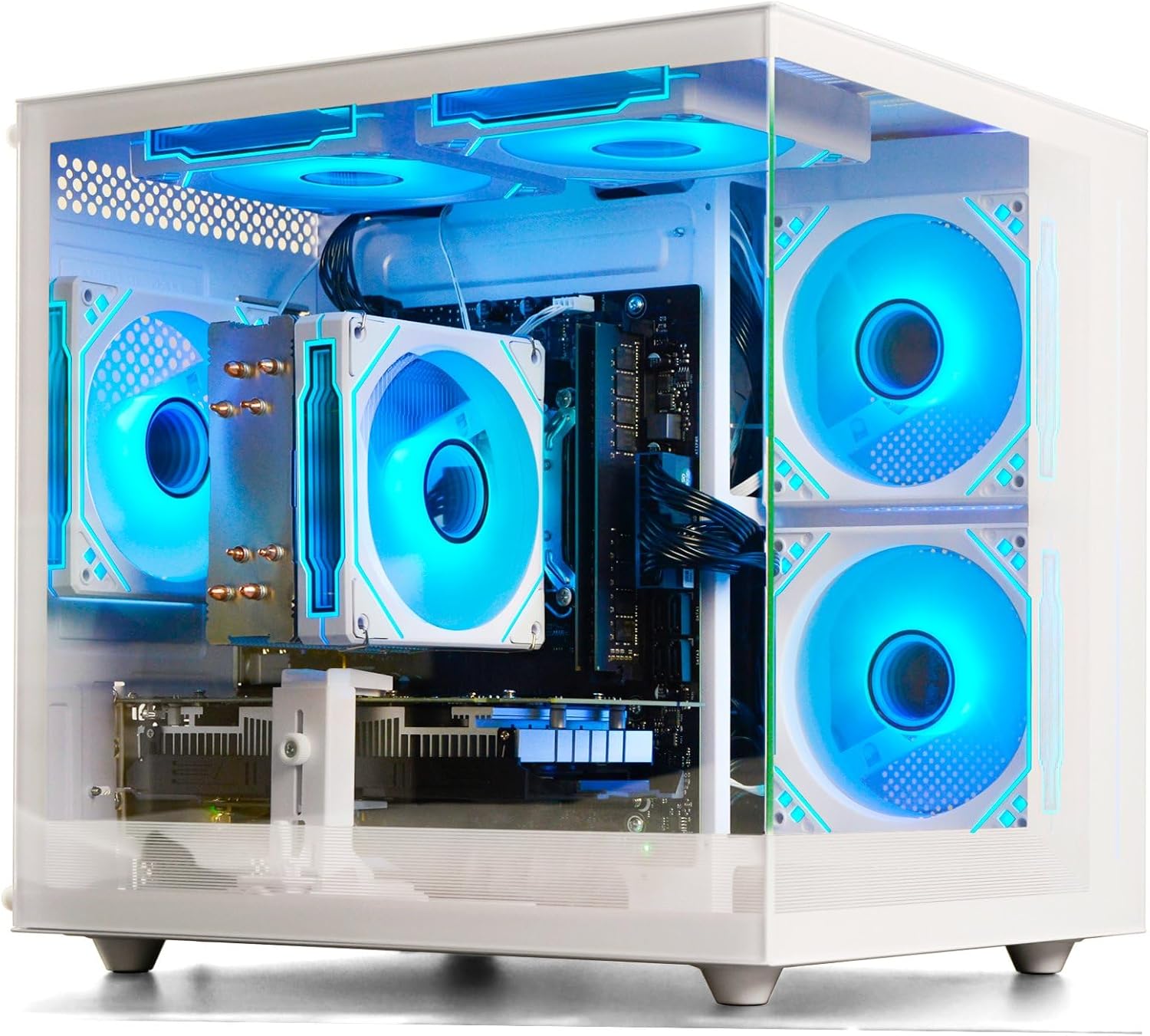
Prebuilt Gaming Desktop Computer
Prebuilt Gaming Desktop Computer | 16G Memory | 512G SSD | AMD Ryzen5 6Cores 3.6G Up to 4.1G | RX 560 4G Graphics Card | Wi-Fi 6 | Gamer PC White
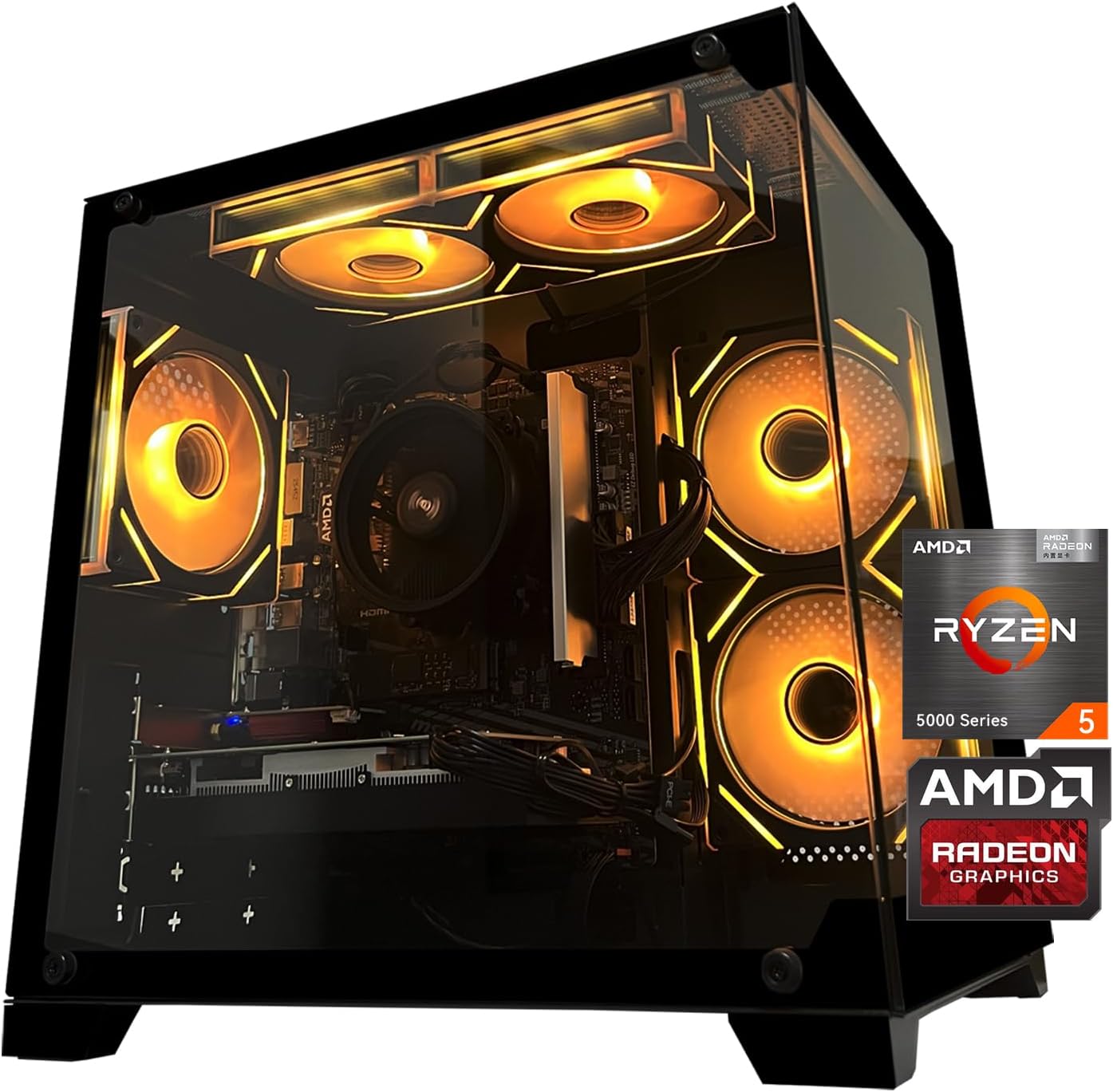
Gaming PC Desktop Computer, AMD
Gaming PC Desktop Computer, AMD Ryzen 5 5500, RX6500XT 4GB Graphics, 16GB DDR4 RAM, 512GB NVMe SSD, ARGB Fans, Game Design Office
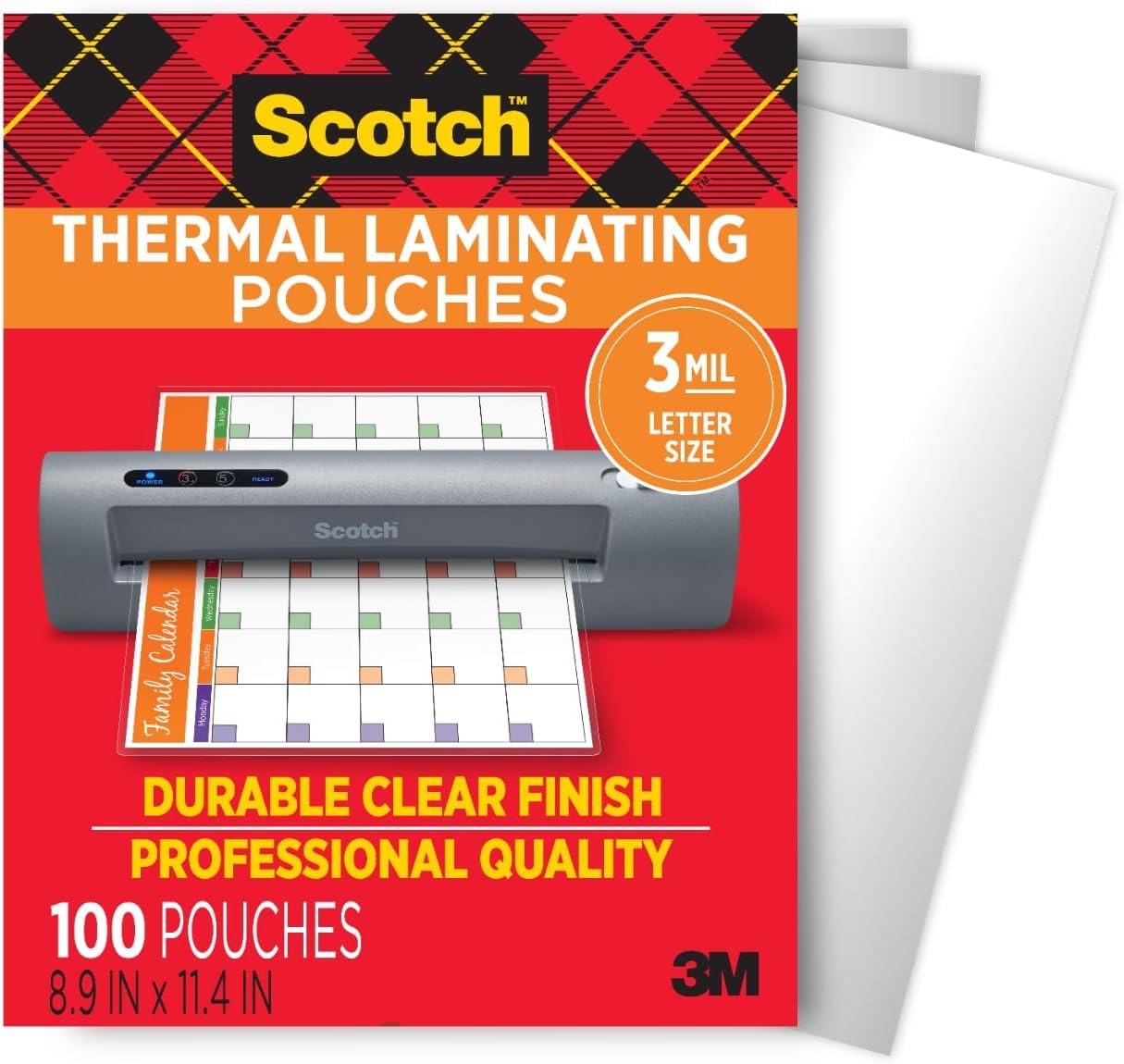
Scotch Thermal Laminating Pouches
Scotch Thermal Laminating Pouches, for Use with Thermal Laminators, 8.9 x 11.4 Inches, Letter Size Sheets, 100-Pack
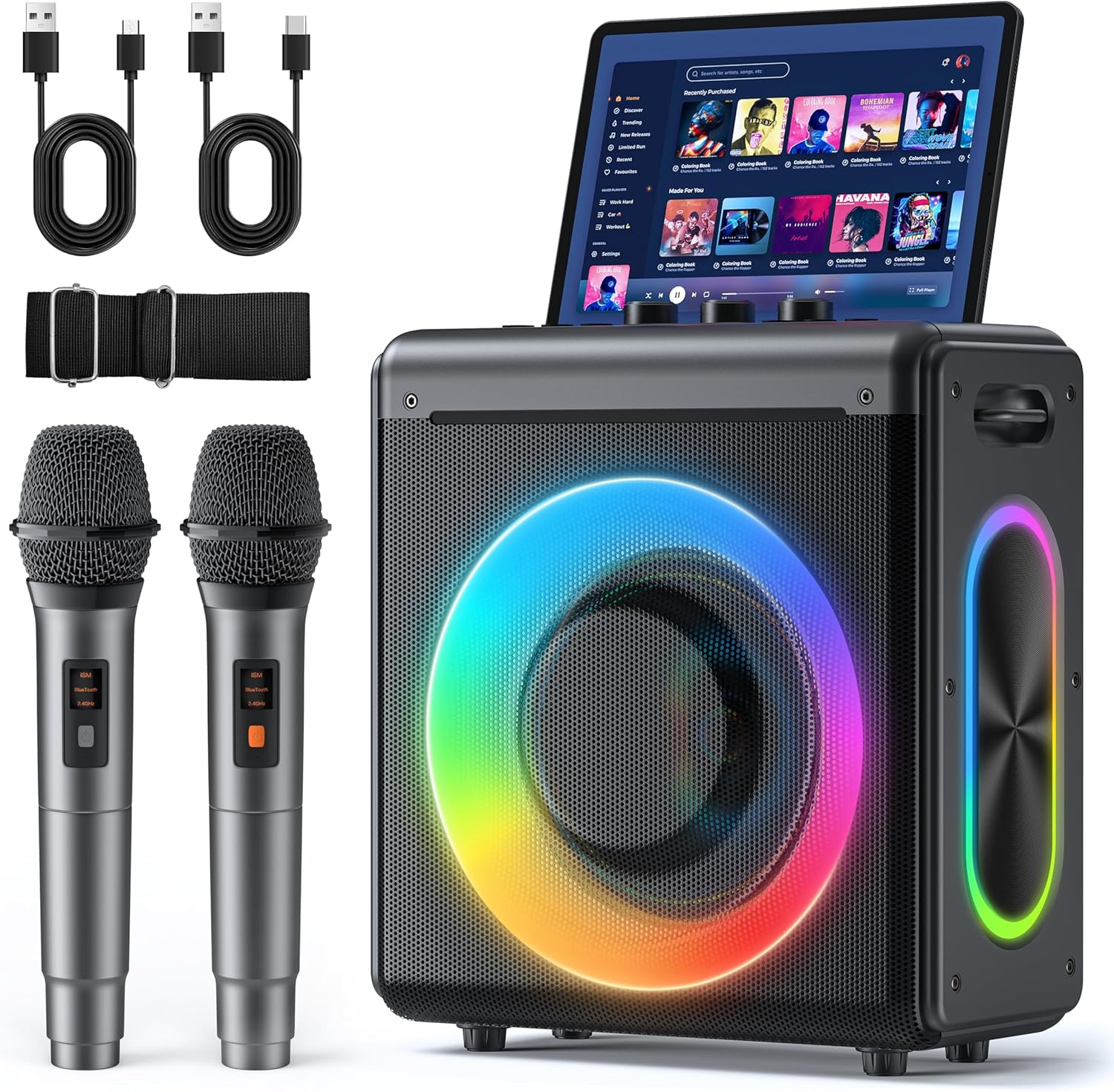
Karaoke Machine
Karaoke Machine with 2 Wireless Rechargeable Microphones: Portable Bluetooth Speaker for Adults & Kids – PA System with Lights Supports TWS/TF Card/USB/AUX for Home Party

Panvola
Panvola Debugging Definition Computer Programmer Gifts Student Teacher Coder Boyfriend Girlfriend IT Vacuum Insulated Tumbler Tech Support Travel Mug Stainless Steel With Straw Removable Lid (30 oz)

6 Pcs Computer Programmer Gifts for Men
6 Pcs Computer Programmer Gifts for Men Debugging Definition Programmer Gifts 12oz Stainless Steel Cup Socks Keychain Pen Notebook Box for IT Developers Computer Geeks Nerd Hackers Coders