
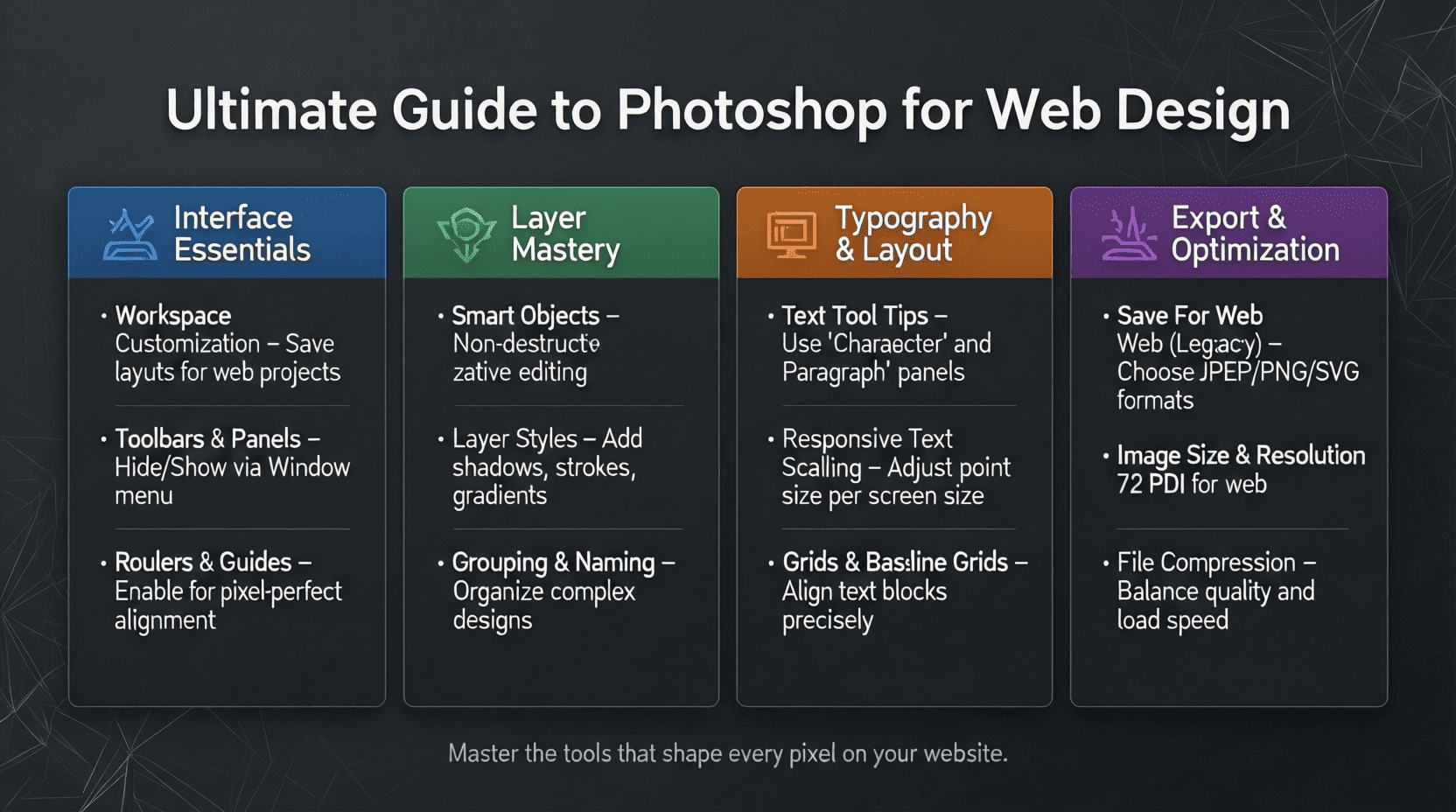
Photoshop remains a powerful tool for web designers, enabling the creation of stunning graphics, layouts, and overall user experiences. This comprehensive guide will take you through essential techniques, tips, and best practices that can elevate your web design projects. Whether you are just starting or looking to refine your skills, this guide will provide valuable insights.
Understanding the Basics of Photoshop for Web Design
Before diving into advanced techniques, it’s crucial to grasp the foundational elements of using Photoshop in web design. For beginners, check out our article on Photoshop Basics for Web Design, which covers the essential tools and features.
Key Features to Know
- Layers: Organize your design elements effectively.
- Guides and Grids: Align elements precisely for a clean layout.
- Text Tools: Create and style text for web use.
- Shapes and Pen Tool: Design custom shapes for unique graphics.
Creating Stunning Web Graphics with Photoshop
Graphics play a significant role in web design. In this section, we will explore how to create visually appealing graphics using Photoshop. For detailed steps, refer to our guide on Creating Web Graphics with Photoshop.
Step-by-Step Guide to Create a Web Banner
- Create a New Document: Open Photoshop and create a new document (width: 1200px, height: 400px).
- Add a Background: Use the Paint Bucket Tool or Gradient Tool to fill the background layer.
- Insert Text: Use the Text Tool to add your message. Customize the font, size, and color.
- Add Images or Logos: Drag and drop your images onto the canvas. Resize and position them as needed.
- Apply Effects: Experiment with layer styles like drop shadows or glows to enhance your elements.
- Save Your Work: Save your banner as a PSD file for future edits.
Optimizing Images for the Web
Image optimization is essential for fast-loading websites. Large image files can slow down your site, affecting user experience and SEO. For detailed techniques, visit our article on Optimizing Images for the Web in Photoshop.
Image Optimization Checklist
- Use the “Save for Web” feature for optimal file formats.
- Choose JPEG for photographs, PNG for images with transparency.
- Adjust quality settings: Aim for a balance between quality and file size.
- Consider using WebP format for improved performance.
Utilizing Photoshop Layers for Web Design
Layers are the backbone of any design in Photoshop. Mastering layers will significantly improve your design workflow. For a deep dive into layers, check out our article on Using Photoshop Layers for Web Design.
Layer Management Tips
- Rename layers for easy identification.
- Group similar layers to keep your workspace organized.
- Use layer masks for non-destructive editing.
- Utilize adjustment layers for color correction without altering original images.
Exporting Web-Ready Files from Photoshop
Once your design is complete, exporting the right file type is crucial. This process can make or break the quality of your web graphics. For an in-depth look at exporting, refer to our guide on Exporting Web-Ready Files from Photoshop.
Exporting Process Overview
- Select the Right File Format: Determine the best format based on the graphic type.
- Use the Export As Option: Navigate to File > Export > Export As for more control.
- Adjust Settings: Fine-tune the image settings for optimal quality and size.
- Save and Organize: Save your files in a dedicated web assets folder for easy access.
Advanced Photoshop Techniques for Modern Web Design
To stay competitive in web design, mastering advanced techniques in Photoshop is essential. For additional strategies, check out our article on Advanced Photoshop Techniques for Modern Web Design.
Techniques to Explore
| Technique | Description |
|---|---|
| Smart Objects | Allows you to resize and edit images without losing quality. |
| Actions | Record repetitive tasks to automate your workflow. |
| 3D Tools | Create 3D effects for more dynamic web elements. |
Conclusion
Photoshop is an invaluable tool in the web designer’s arsenal. By mastering its features and best practices, you can create stunning, optimized designs that enhance user experience and engagement. Dive deeper into each related topic to expand your knowledge and skills. Remember, practice is key to becoming proficient in Photoshop for web design.
For further reading, explore the related articles linked throughout this guide. Happy designing!
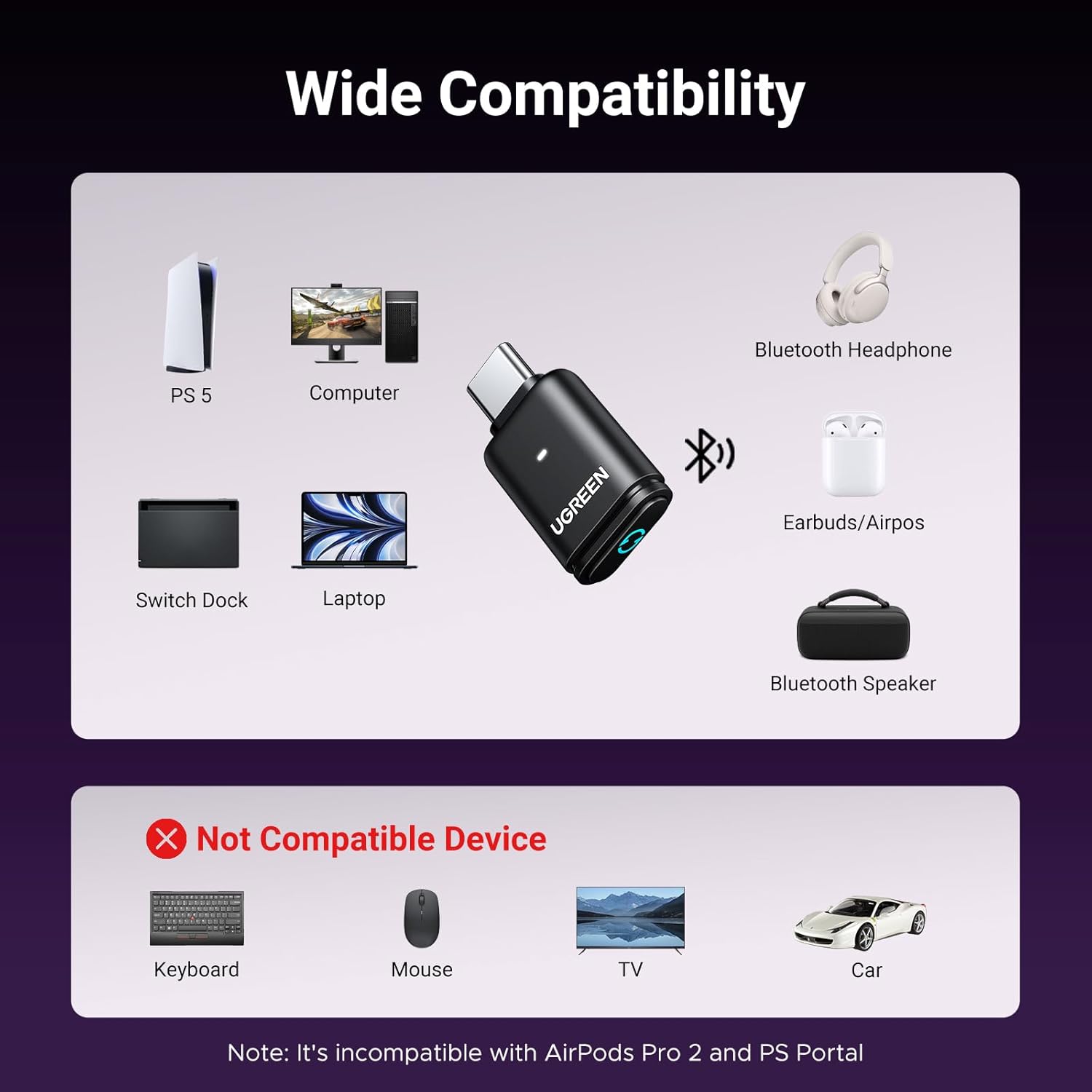
UGREEN USB-C Bluetooth Adapter for PS5
UGREEN USB-C Bluetooth Adapter for PS5, Bluetooth 5.3 Audio Adapter with APTX Low Latency & aptX-Adaptive, Wireless Audio Transmitter to Connect Wireless Headphones & Earbuds
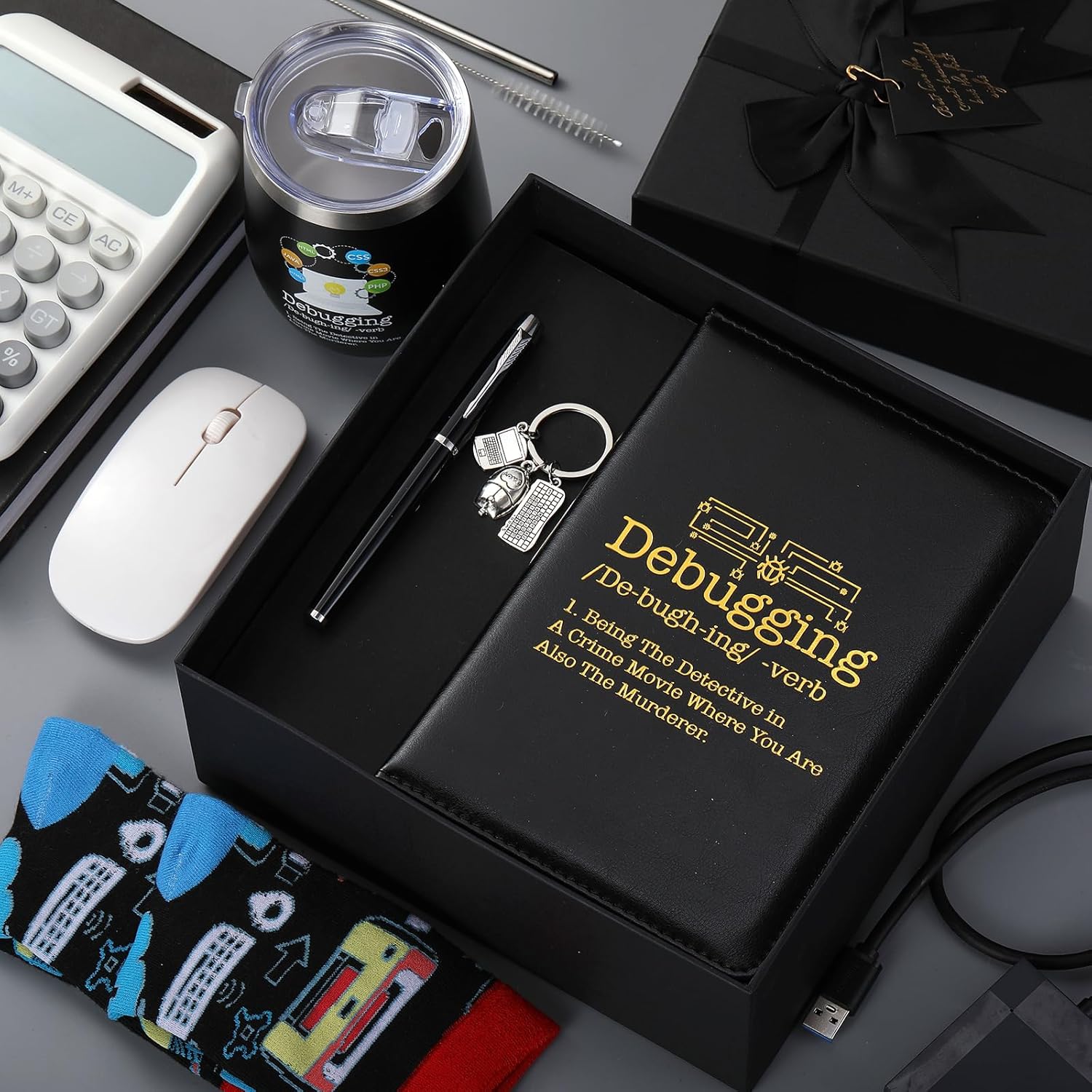
6 Pcs Computer Programmer Gifts for Men
6 Pcs Computer Programmer Gifts for Men Debugging Definition Programmer Gifts 12oz Stainless Steel Cup Socks Keychain Pen Notebook Box for IT Developers Computer Geeks Nerd Hackers Coders
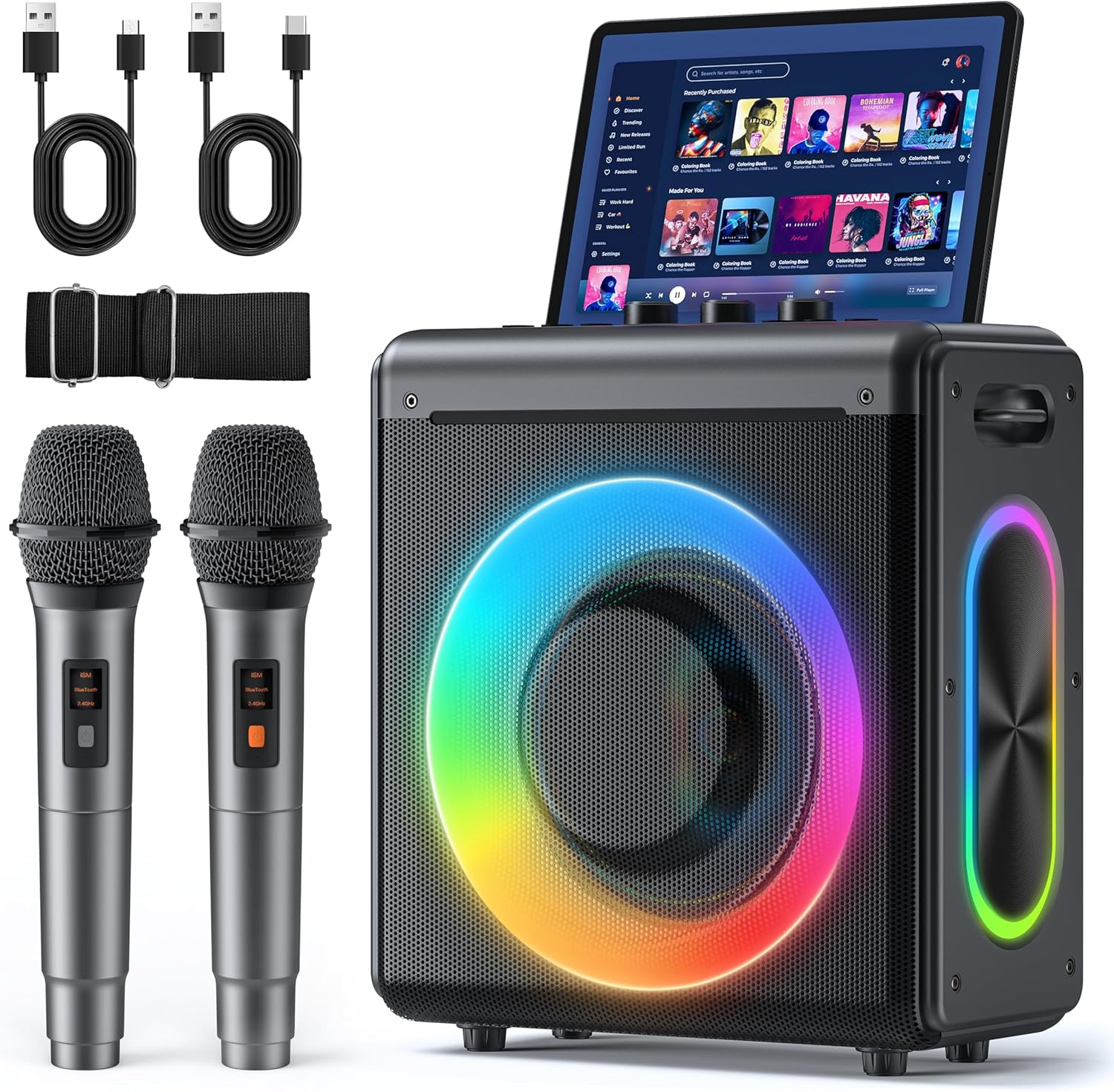
Karaoke Machine
Karaoke Machine with 2 Wireless Rechargeable Microphones: Portable Bluetooth Speaker for Adults & Kids - PA System with Lights Supports TWS/TF Card/USB/AUX for Home Party
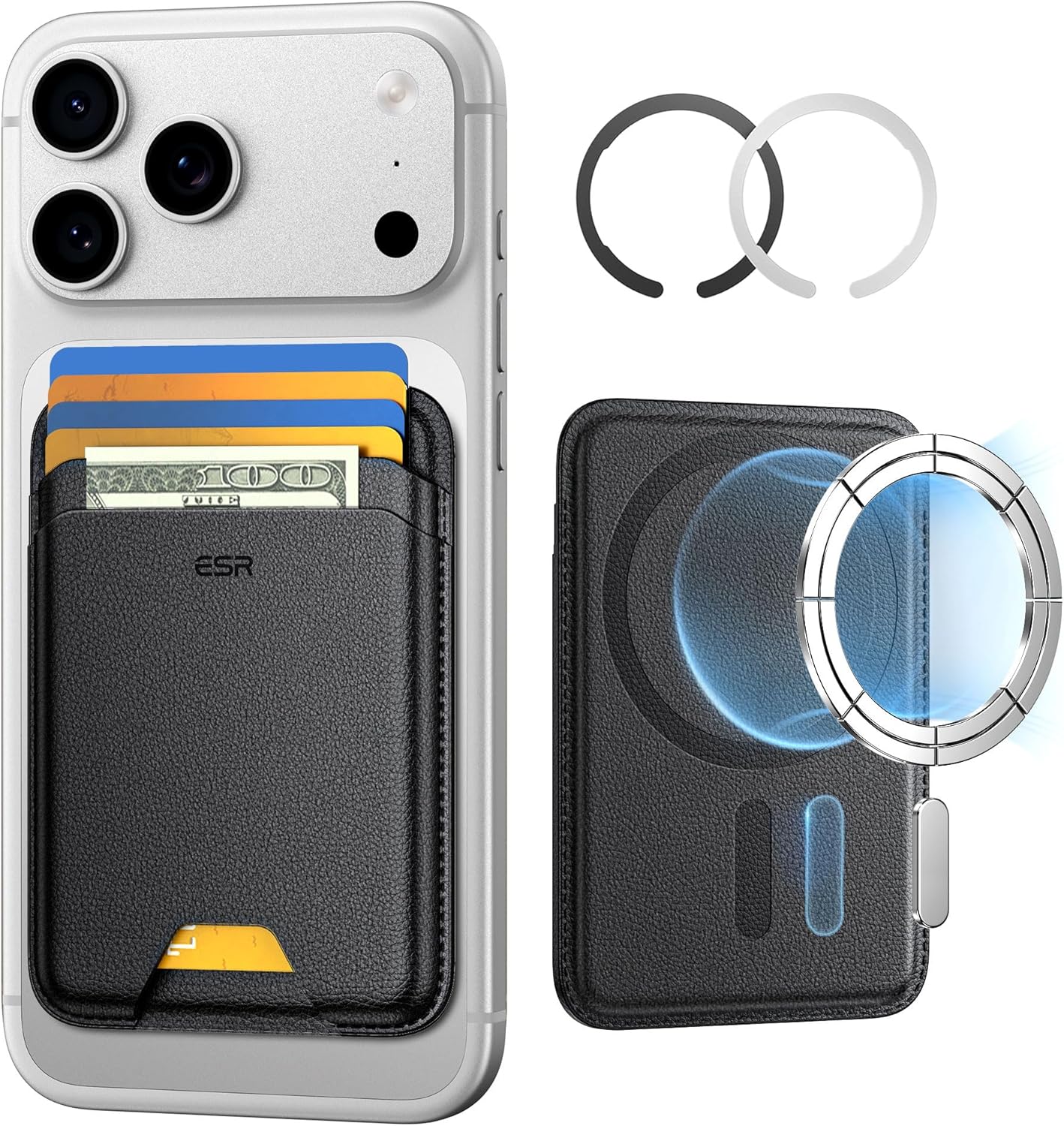
ESR for MagSafe Wallet
ESR for MagSafe Wallet, 5-Card Holder With RFID Blocking, MagSafe Sticker Included, Slim Magnetic Wallet for iPhone 17/16/15/14/13/12 Series and Selected Samsung Devices, Not for 13/12 Mini, Black