Understanding the Fundamentals
Before diving into advanced techniques, it’s crucial to have a solid understanding of the fundamentals of Photoshop. Familiarity with layers, masks, and basic tools is essential. If you’re looking for a comprehensive guide on the basics, check out the Ultimate Guide to Photoshop for Web Design.
1. Mastering Layer Styles
Layer styles are one of the most powerful features in Photoshop. They allow you to add effects like shadows, glows, and textures without permanently altering your layers. Here’s how to effectively use layer styles:
Step-by-Step Guide to Using Layer Styles
- Open your project in Photoshop.
- Select the layer you wish to apply a style to.
- Right-click the layer and select Blending Options.
- Experiment with options like Drop Shadow, Bevel & Emboss, and Gradient Overlay.
- Adjust the settings until you achieve the desired effect.
Layer styles not only enhance aesthetics but also help maintain a non-destructive workflow, which is crucial for modern web design.
2. Creating Responsive Design Elements
With the rise of mobile devices, creating responsive design elements has become essential. Photoshop allows you to design for multiple screen sizes effectively. Here’s a checklist to guide your responsive design process:
Responsive Design Checklist
- Define breakpoints for different screen sizes.
- Create artboards for each breakpoint in Photoshop.
- Use Smart Objects for scalable images.
- Test your designs in different resolutions.
- Export assets in various sizes optimized for web usage.
3. Advanced Typography Techniques
Typography plays a crucial role in web design. Advanced techniques can help you create visually compelling text that enhances readability and engagement. Here are some tips:
Using Typekit and Custom Fonts
Utilizing Typekit or integrating custom fonts can add a unique touch to your designs. Here’s how to incorporate custom fonts into your workflow:
- Download your desired font, ensuring it’s web-safe.
- Install the font on your system.
- In Photoshop, select the Text Tool and set your custom font.
- Adjust font size, tracking, and leading to improve legibility.
Experimenting with Text Effects
Text effects can also enhance your designs. For example, using a gradient overlay can make your text stand out. Here’s how:
- Select the text layer.
- Right-click and choose Blending Options.
- Select Gradient Overlay and choose your gradient.
- Adjust the angle and scale to fit your design.
4. Utilizing Smart Objects
Smart Objects are powerful tools that enable non-destructive editing and scaling. They allow you to maintain image quality while making adjustments. Here’s how to effectively use Smart Objects in your workflow:
Step-by-Step Guide to Using Smart Objects
- Open your image in Photoshop.
- Right-click the layer and select Convert to Smart Object.
- Make any edits you desire, such as applying filters.
- Double-click the Smart Object thumbnail to edit the original image if needed.
5. Advanced Photo Manipulation Techniques
Photo manipulation is a crucial skill for web designers, especially for creating unique visuals. Here are some advanced techniques:
Layer Masks for Complex Compositions
Layer masks allow for precise control over which parts of your images are visible. Here’s how to use them effectively:
- Select the layer you want to mask.
- Click on the Add Layer Mask icon at the bottom of the Layers panel.
- Use a soft brush to paint with black on the mask to hide parts of the layer.
- Switch to white to reveal parts of the layer.
6. Exporting for the Web
Once your design is complete, exporting it correctly is crucial. Photoshop offers various formats for web images, each suited for different needs. Here’s a quick guide:
Export Options
| Format | Best Use | Pros | Cons |
|---|---|---|---|
| JPEG | Photos and complex images | High quality, adjustable compression | No transparency support |
| PNG | Images with transparency | Supports transparency, lossless quality | Larger file size |
| GIF | Simple graphics and animations | Supports animation | Limited color palette |
Step-by-Step Guide to Exporting
- Go to File > Export > Save for Web (Legacy).
- Select your desired format and settings.
- Preview the image in the dialog to ensure quality.
- Click Save and choose your destination.
Conclusion
Mastering advanced Photoshop techniques is essential for modern web design. From utilizing layer styles to creating responsive designs and advanced typography, these skills can significantly enhance your workflow and final product. Remember to always keep learning and experimenting, as the design world is ever-evolving. For more resources and in-depth tutorials, check out the Ultimate Guide to Photoshop for Web Design.
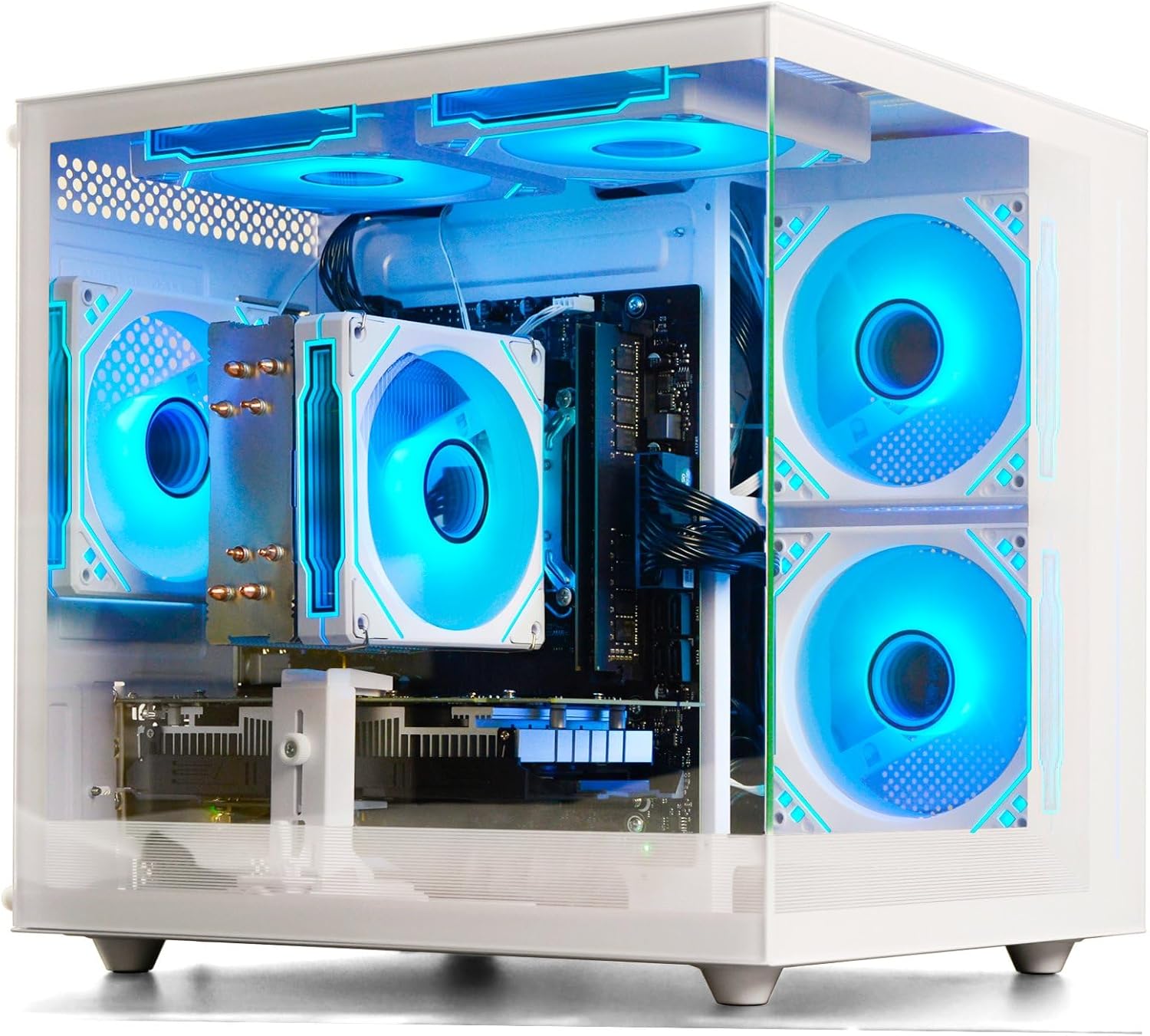
Prebuilt Gaming Desktop Computer
Prebuilt Gaming Desktop Computer | 16G Memory | 512G SSD | AMD Ryzen5 6Cores 3.6G Up to 4.1G | RX 560 4G Graphics Card | Wi-Fi 6 | Gamer PC White
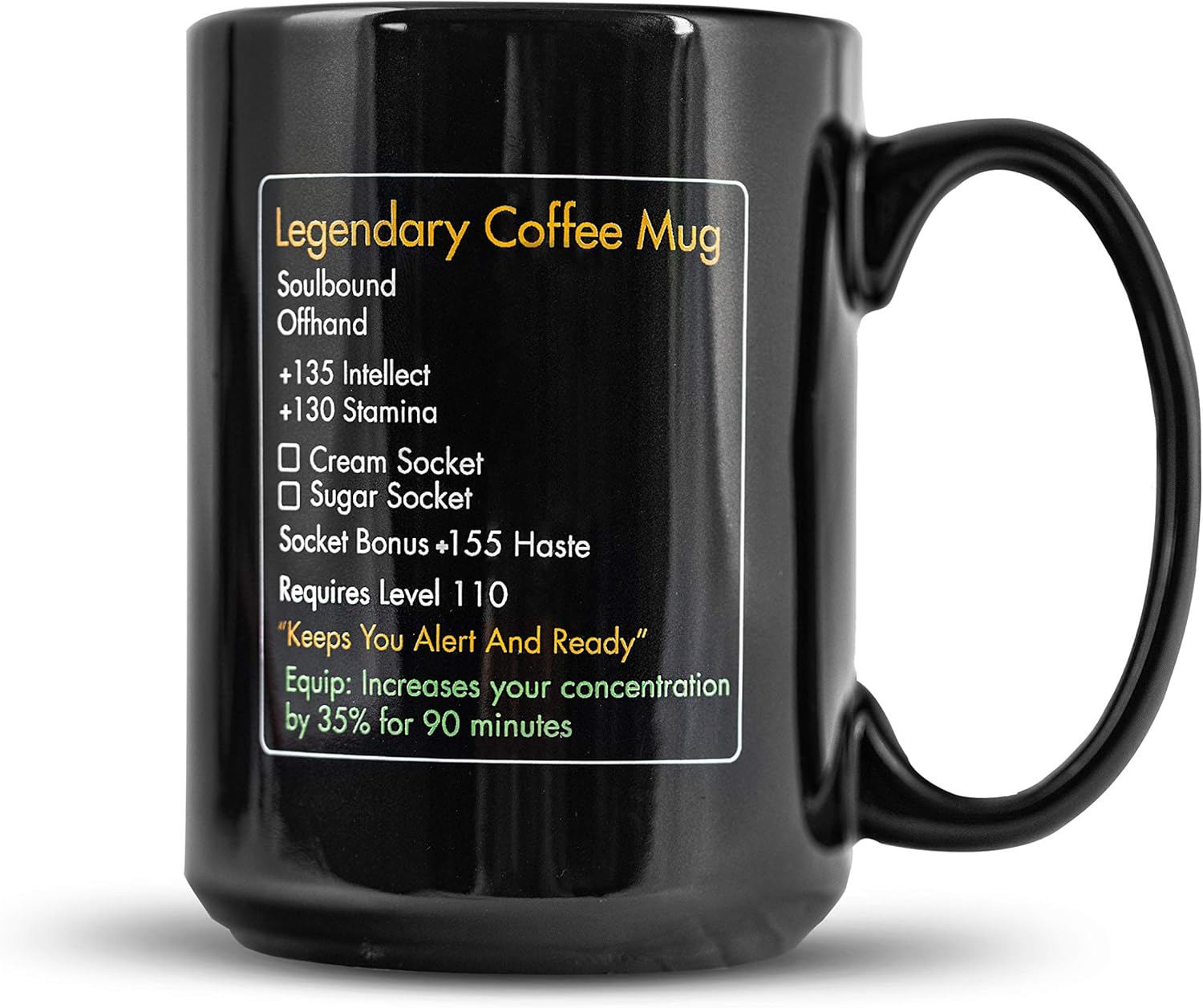
MMO Mug
MMO Mug – Legendary Coffee Mug Level 110 – Large Ceramic Black15oz – Gaming, Gamer Cup

beyerdynamic DT 770 PRO 80 Ohm Over-Ear Studio Headphones in Gray
beyerdynamic DT 770 PRO 80 Ohm Over-Ear Studio Headphones in Gray. Enclosed Design, Wired for Professional Recording and Monitoring

Panvola
Panvola Debugging Definition Computer Programmer Gifts Student Teacher Coder Boyfriend Girlfriend IT Vacuum Insulated Tumbler Tech Support Travel Mug Stainless Steel With Straw Removable Lid (30 oz)
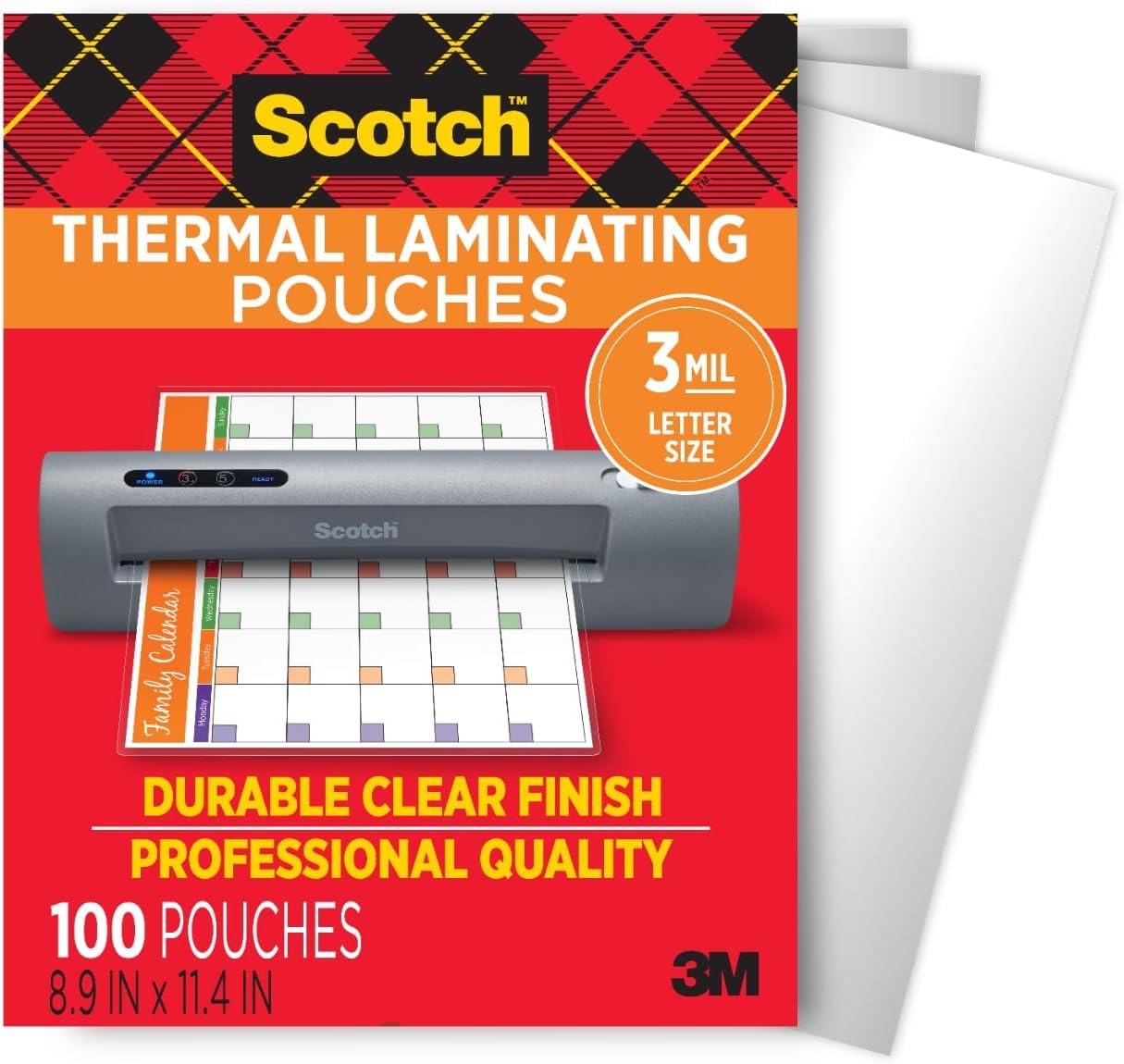
Scotch Thermal Laminating Pouches
Scotch Thermal Laminating Pouches, for Use with Thermal Laminators, 8.9 x 11.4 Inches, Letter Size Sheets, 100-Pack
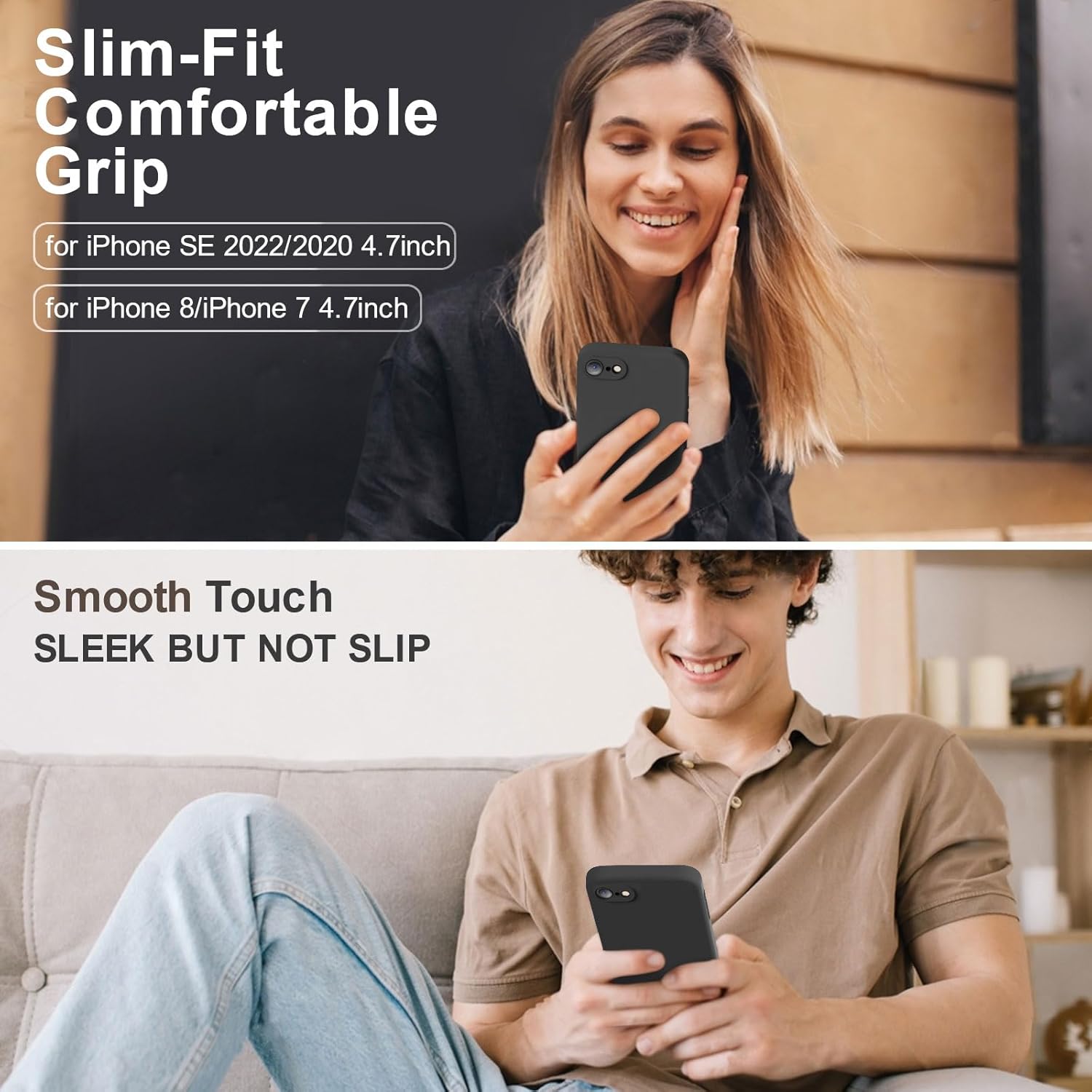
Vooii for iPhone SE
Vooii for iPhone SE Case 2022/3rd/2020,iPhone 8/7 Case, Upgraded Liquid Silicone with [Flat Edges] [Camera Protection] [Soft Anti-Scratch Microfiber Lining] Phone Case for iPhone SE – Black