Advanced Techniques for Mixing and Mastering in Audacity
For audio enthusiasts and professionals alike, mastering and mixing are crucial steps in the production process. Audacity, a free, open-source audio editor, offers a plethora of tools that can help you achieve professional-sounding results. In this article, we will explore advanced techniques for mixing and mastering in Audacity, ensuring your audio tracks stand out.
Understanding the Basics of Mixing and Mastering
Before diving into advanced techniques, it’s essential to understand the basic concepts of mixing and mastering:
- Mixing: The process of combining multiple audio tracks into a single coherent piece. This includes adjusting levels, panning, equalization, and effects.
- Mastering: The final step in audio production, where your mixed track is polished to ensure it sounds great across all playback systems. This involves compression, limiting, and various enhancements.
Getting Started with Audacity
To get started, make sure you have the latest version of Audacity installed. Here’s a quick checklist to prepare your workspace:
- Download and install the latest version of Audacity from the official website.
- Set up your audio interface and configure it in Audacity under Preferences.
- Import your audio tracks by dragging them into the Audacity interface or using the File > Import option.
Advanced Mixing Techniques
1. Using Equalization (EQ)
Equalization is vital for shaping the sound of individual tracks. Here’s a step-by-step guide on how to apply EQ in Audacity:
- Select the track you want to EQ.
- Go to Effect > Equalization.
- Choose a preset or create your custom curve by adjusting the sliders.
- Listen to the changes and adjust as necessary. A good rule of thumb is to cut frequencies instead of boosting them to avoid muddiness.
- Click OK to apply the EQ settings.
For more advanced EQ techniques, consider using a multiband EQ plugin. This allows for more granular control over specific frequency bands.
2. Panning for Stereo Width
Panning helps create a sense of space in your mix. Here’s how to effectively pan tracks in Audacity:
- Identify the elements in your mix (e.g., vocals, guitars, drums).
- Select a track, and locate the Pan slider on the left side of the track.
- Adjust the slider left or right to position the sound in the stereo field. A good starting point for drums is to pan the snare to center, while hi-hats can be slightly to one side.
- Listen to your mix in stereo and adjust the pans to achieve a balanced sound.
3. Compression Techniques
Compression is essential for controlling the dynamics of your tracks. Follow these steps to apply compression in Audacity:
- Select the track to compress.
- Go to Effect > Compressor.
- Adjust the Threshold, Ratio, and Attack/Release settings. A common setting is a ratio of 3:1 with a threshold of -10 dB.
- Preview the changes and adjust as needed.
- Click OK to apply the effect.
Mastering Your Track
Once your mix is complete, it’s time to master your track. Here are important steps to follow:
1. Preparing Your Mix for Mastering
Ensure your mix is clean and balanced before starting the mastering process. Consider these points:
- Check for unwanted noise or artifacts and remove them.
- Make sure your mix peaks around -6 dB to allow headroom for mastering.
- Export your mix as a WAV file for mastering (File > Export > Export as WAV).
2. Applying Mastering Effects
In Audacity, you can use various effects to enhance your track:
- Equalization: Apply a gentle boost in the high frequencies to add brightness.
- Compression: Use light compression to glue your mix together.
- Limiter: Apply a limiter as the last step to prevent clipping while increasing loudness. Go to Effect > Limiter, set the input gain, and threshold levels appropriately.
Visual Aids for Mixing and Mastering
Utilizing visual aids can significantly enhance your mixing and mastering process. Here’s a simple table of some essential visual tools and their purposes:
| Tool | Purpose |
|---|---|
| Waveform Display | Visual representation of audio levels and dynamics. |
| Frequency Analyzer | Helps identify frequency issues in your mix. |
| Metering Plugins | Monitor levels, loudness, and dynamic range. |
Final Touches and Exporting Your Master
Once you’re satisfied with your mastered track, it’s time to export it. Use the following checklist to ensure you don’t miss anything:
- Listen to your track on different playback systems (earphones, speakers, etc.).
- Ensure your track is not clipping and sounds balanced.
- Go to File > Export > Export as WAV or Export as MP3 based on your needs.
Related Content
For a deeper dive into mastering techniques, check out our comprehensive guide: Mastering Audacity Online: A Comprehensive Guide.
Conclusion
Mastering the art of mixing and mastering in Audacity requires practice and experimentation. By following the techniques outlined in this article, you can enhance the quality of your audio projects significantly. Remember, the key to great sound is not just the tools you use but how you use them. Happy mixing!


6 Pcs Computer Programmer Gifts for Men
6 Pcs Computer Programmer Gifts for Men Debugging Definition Programmer Gifts 12oz Stainless Steel Cup Socks Keychain Pen Notebook Box for IT Developers Computer Geeks Nerd Hackers Coders
interface sounds OGG
interface sounds, UI sound effects, UX sound effects, game UI sounds, mobile UI audio, notification sound effects, button click SFX, menu sounds, toggle switch sounds, error alert sounds
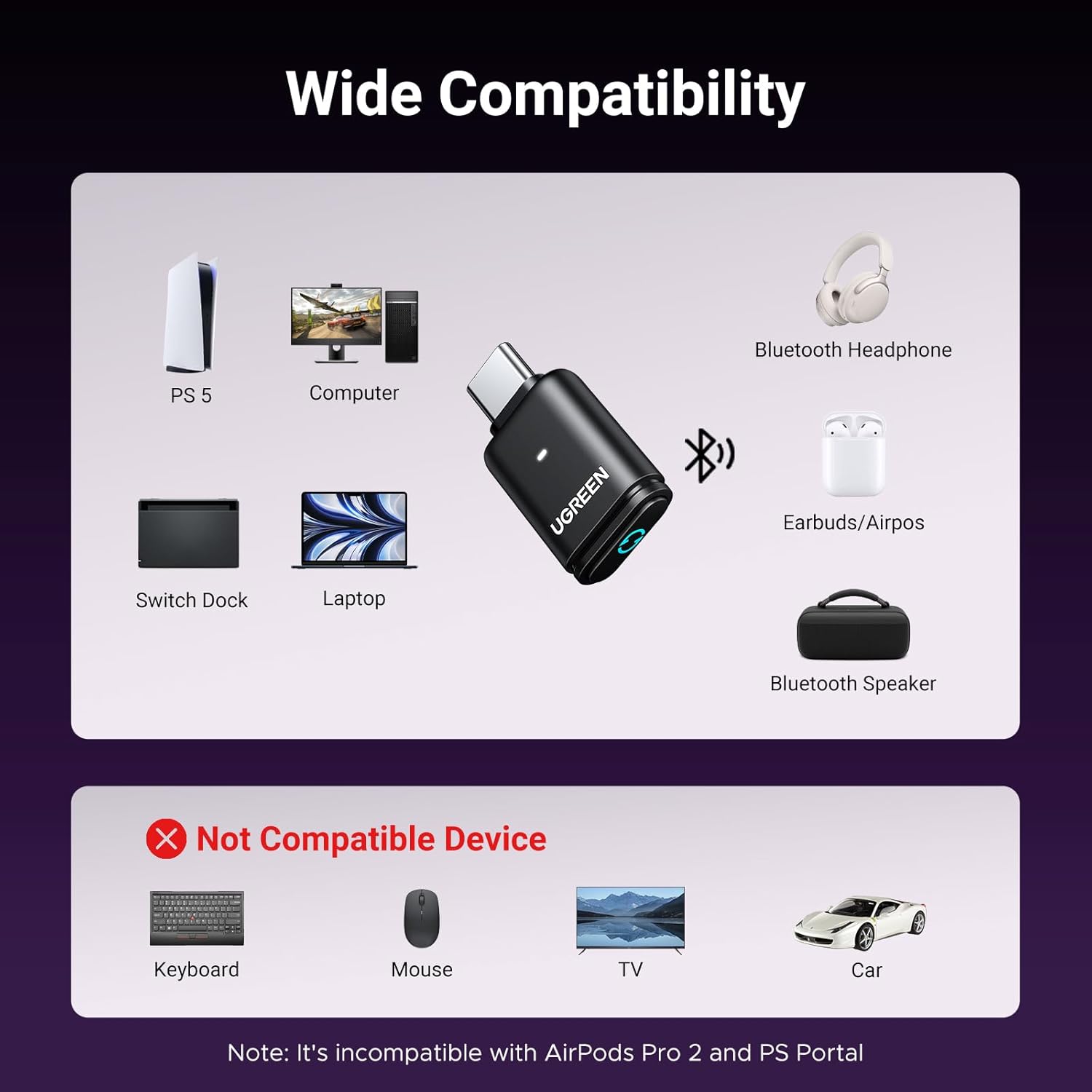
UGREEN USB-C Bluetooth Adapter for PS5
UGREEN USB-C Bluetooth Adapter for PS5, Bluetooth 5.3 Audio Adapter with APTX Low Latency & aptX-Adaptive, Wireless Audio Transmitter to Connect Wireless Headphones & Earbuds

Panvola
Panvola Debugging Definition Computer Programmer Gifts Student Teacher Coder Boyfriend Girlfriend IT Vacuum Insulated Tumbler Tech Support Travel Mug Stainless Steel With Straw Removable Lid (30 oz)

NUBWO U3 Gaming Headset
NUBWO U3 Gaming Headset with Microphone, Safe Volume Limited, Kids Headphones for Switch, Super Lightweight, Rich Sound, 3.5mm Jack for NS, PS4, PS5, Xbox, Tablet, iPad Computer, Red