Mastering Audacity Online: A Comprehensive Guide
Introduction
Audacity is a powerful, free, open-source audio editing software used by audio enthusiasts and professionals alike. Whether you’re a podcaster, musician, or just someone who wants to manipulate audio, mastering Audacity can significantly enhance your projects. In this guide, we will cover everything from installation to advanced techniques, ensuring you have the skills you need to excel.
Getting Started with Audacity: Installation and Setup
Before diving into editing, it’s crucial to install and set up Audacity correctly. For detailed instructions, refer to our guide on Getting Started with Audacity: Installation and Setup.
Essential Audacity Tools and Features You Need to Know
Understanding the essential tools and features of Audacity is fundamental for effective audio editing. Here’s a checklist of must-know features:
- Selection Tool: For selecting audio parts to edit.
- Envelope Tool: For adjusting volume levels throughout the track.
- Time Shift Tool: To move audio clips along the timeline.
- Record Button: To capture audio directly into Audacity.
- Effects Menu: Offers a range of effects like reverb, echo, and equalization.
For a deeper exploration of these features, check out our guide on Essential Audacity Tools and Features You Need to Know.
How to Edit Audio Like a Pro with Audacity
Editing audio can be intimidating, but with the right techniques, you can achieve professional results. Here’s a step-by-step guide on how to edit audio effectively:
- Import Your Audio: Use File > Import > Audio to bring in your audio file.
- Trim Unwanted Sections: Use the Selection Tool to highlight the sections you want to remove and press the Delete key.
- Apply Effects: Select the audio segment and choose an effect from the Effects menu.
- Adjust Levels: Use the Envelope Tool to balance the volume levels throughout your track.
- Export Your Project: Once satisfied, go to File > Export to save your edited audio.
For more advanced editing techniques, explore our article on How to Edit Audio Like a Pro with Audacity.
Creating Podcasts Using Audacity: A Step-by-Step Guide
Many podcasters rely on Audacity for its robust editing capabilities. Follow this step-by-step guide to create your podcast:
- Plan Your Episodes: Outline the content and structure of your podcast.
- Record Your Audio: Use a good microphone and record your audio in a quiet environment.
- Edit Your Recording: Trim, add music, and enhance your audio using the techniques discussed above.
- Add Intro/Outro: Import and place your intro and outro music on separate tracks.
- Export Your Final Podcast: Save your project in the desired format (MP3 is popular for podcasts).
For a more detailed breakdown, check out our guide on Creating Podcasts Using Audacity: A Step-by-Step Guide.
Advanced Techniques for Mixing and Mastering in Audacity
Once you’ve mastered the basics, it’s time to delve into advanced mixing and mastering techniques. Consider the following practices:
- Use Multiple Tracks: Layer different audio tracks to create a rich sound.
- Apply Compression: Use compression to control the dynamic range of your audio.
- Utilize EQ: Adjust the equalization to enhance specific frequencies.
- Panning: Distribute audio across the stereo field for a more immersive experience.
For an in-depth look at these techniques, refer to our article on Advanced Techniques for Mixing and Mastering in Audacity.
Troubleshooting Common Audacity Issues
Even experienced users can face challenges. Here’s a quick checklist to troubleshoot common issues:
- Audio Not Recording: Check your input settings and ensure your microphone is selected.
- Playback Issues: Verify your output settings and ensure your speakers are connected.
- Software Crashes: Ensure you have the latest version of Audacity installed and your system meets the requirements.
- Export Failures: Check your file format settings and ensure you have the necessary libraries installed.
For more troubleshooting tips, see our article on Troubleshooting Common Audacity Issues.

Scotch Thermal Laminating Pouches
Scotch Thermal Laminating Pouches, for Use with Thermal Laminators, 8.9 x 11.4 Inches, Letter Size Sheets, 100-Pack

iFIT Pro
iFIT Pro – Monthly Membership – 1 month free trial included [Subscription]
interface sounds OGG
interface sounds, UI sound effects, UX sound effects, game UI sounds, mobile UI audio, notification sound effects, button click SFX, menu sounds, toggle switch sounds, error alert sounds

Razer
Razer Basilisk V3 Pro 35K Wireless Gaming Mouse: HyperScroll Tilt Wheel – 35K DPI Optical Sensor Gen 2-13 Customizable Controls – Chroma RGB – Optical Switches Gen 3 – Up to 140 Hr Battery – Black
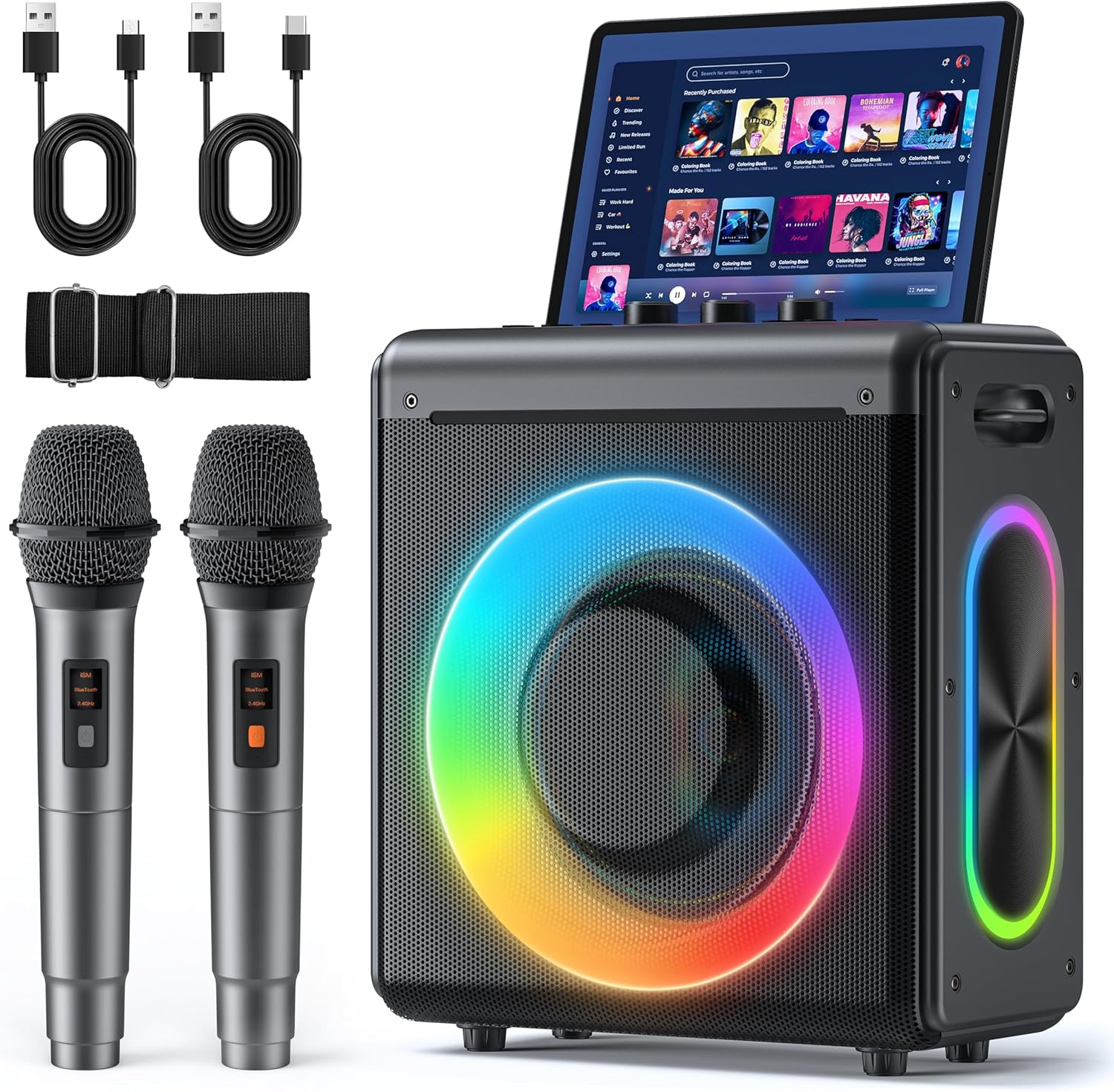
Karaoke Machine
Karaoke Machine with 2 Wireless Rechargeable Microphones: Portable Bluetooth Speaker for Adults & Kids – PA System with Lights Supports TWS/TF Card/USB/AUX for Home Party

Panvola
Panvola Debugging Definition Computer Programmer Student Teacher Geek Coder Tech Support Programming IT Insulated Coffee Mug with Handle and Lid Camping Travel Thermal Mugs 14 oz Black