How to Edit Audio Like a Pro with Audacity
Editing audio can be a daunting task, especially for beginners. However, with the right tools and techniques, you can create professional-sounding audio projects in no time. One of the best tools available for audio editing is Audacity, a free, open-source software that offers a wealth of features for both novice and experienced users. In this article, we will guide you through the process of editing audio like a pro using Audacity.
Getting Started with Audacity
Before diving into audio editing, you first need to download and install Audacity on your computer. Here’s how to get started:
- Visit the Audacity website.
- Select your operating system (Windows, macOS, or Linux) and download the appropriate version.
- Follow the installation instructions specific to your OS.
- Once installed, launch Audacity and familiarize yourself with the interface.
Understanding Audacity’s Interface
The Audacity interface may seem overwhelming at first, but it is quite user-friendly once you get the hang of it. Key components include:
- Menu Bar: Contains options for file management, editing, and effects.
- Tool Toolbar: Provides quick access to tools like selection, envelope, and label.
- Track Control Panel: Located on the left side, it allows you to manage individual audio tracks.
- Timeline: Shows the audio waveform and allows you to navigate through the audio.
Basic Audio Editing Techniques
Now that you’re familiar with the interface, let’s cover some basic audio editing techniques:
1. Importing Audio Files
To edit audio, you first need to import your audio files. Here’s how:
- Go to File > Import > Audio…
- Select your audio file and click Open.
2. Cutting, Copying, and Pasting
You can easily cut, copy, and paste sections of audio. Here’s how:
- Select the portion of the audio waveform you want to edit.
- Use the keyboard shortcuts: Ctrl + X to cut, Ctrl + C to copy, and Ctrl + V to paste.
3. Deleting Unwanted Sections
If you want to remove unwanted sections of audio:
- Select the section you want to delete.
- Press the Delete key on your keyboard.
4. Adjusting Volume Levels
To ensure your audio sounds balanced, you may need to adjust volume levels:
- Select the section of audio you want to adjust.
- Go to Effect > Amplify…
- Adjust the amplification level and click OK.
Enhancing Your Audio with Effects
Audacity comes with a variety of built-in effects to enhance your audio. Here are some popular options:
1. Noise Reduction
To remove background noise:
- Select a portion of the audio that contains only the noise.
- Go to Effect > Noisey Reduction.
- Click Get Noise Profile.
- Select the entire audio track, return to Effect > Noise Reduction, and click OK.
2. Equalization
To enhance certain frequencies:
- Select the audio track.
- Go to Effect > Equalization….
- Adjust the sliders to enhance or reduce frequencies and click OK.
3. Reverb
To add depth to your audio:
- Select the audio track.
- Go to Effect > Reverb….
- Adjust the settings to your liking and click OK.
Exporting Your Final Product
Once you’re satisfied with your edits, it’s time to export your audio:
- Go to File > Export.
- Select your desired format (e.g., WAV, MP3).
- Choose a location to save your file and click Save.
- Fill in the metadata fields if desired, and click OK.
Tips for Editing Audio Like a Pro
- Listen Critically: Always listen to your audio in its entirety after editing to catch any mistakes.
- Use Labels: Label your tracks and important sections to stay organized.
- Work in Layers: Use multiple tracks for different elements (e.g., music, voiceovers) to maintain flexibility.
- Practice: The more you practice, the better you’ll become at using Audacity’s features.
Related Content
For a deeper dive into mastering Audacity, check out our detailed guide: Mastering Audacity Online: A Comprehensive Guide.
Conclusion
Editing audio doesn’t have to be an intimidating task. With Audacity, you have all the tools you need to create professional-quality audio projects. By mastering the basic techniques and effects outlined in this guide, you’ll be well on your way to editing audio like a pro. Remember to keep practicing and exploring the vast features of Audacity, and soon enough, you’ll find that audio editing becomes second nature.

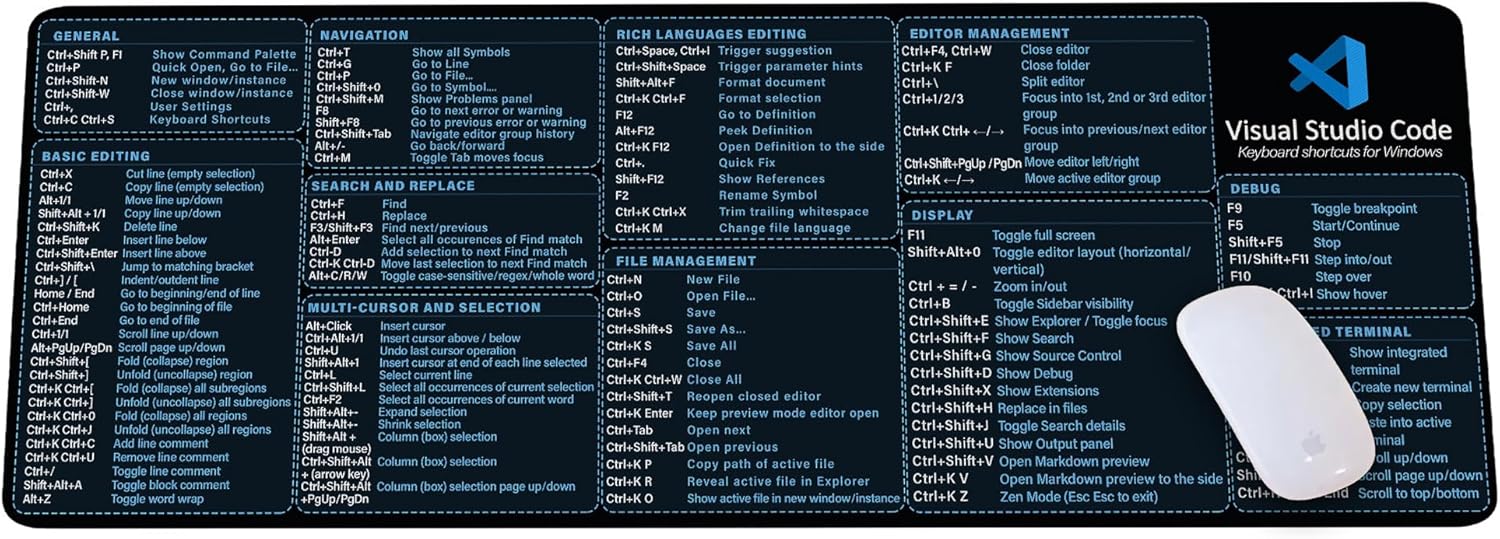
Visual Studio Code Shortcuts Mouse Pad
Visual Studio Code Shortcuts Mouse Pad – Desk Mat for Programmers, Coders & Beginners, Great Office Gift for Developers & Tech Enthusiasts, Computer Accessory for Study, Work, and Learning KMH

iFIT Pro
iFIT Pro – Monthly Membership – 1 month free trial included [Subscription]

Prebuilt Gaming Desktop Computer
Prebuilt Gaming Desktop Computer | 16G Memory | 512G SSD | AMD Ryzen5 6Cores 3.6G Up to 4.1G | RX 560 4G Graphics Card | Wi-Fi 6 | Gamer PC White
Results
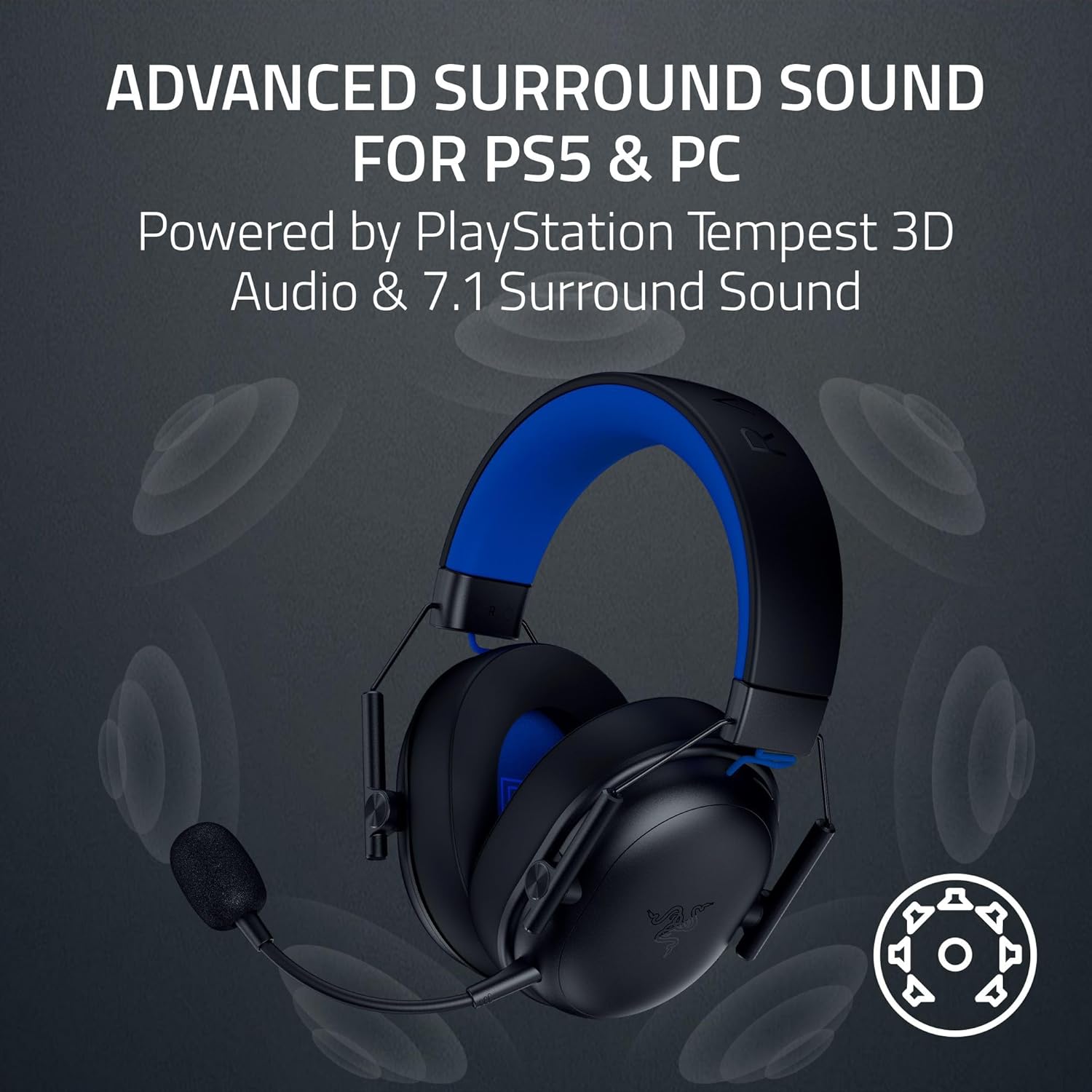
Razer BlackShark V3 X HyperSpeed Wireless Gaming Headset for PS5: 50mm Drivers – Cardioid Mic – 2.4 GHz, Bluetooth – Works with PC, Mac, Nintendo Switch, Smartphone – Long Battery Life – Black

Razer
Razer Basilisk V3 Pro 35K Wireless Gaming Mouse: HyperScroll Tilt Wheel – 35K DPI Optical Sensor Gen 2-13 Customizable Controls – Chroma RGB – Optical Switches Gen 3 – Up to 140 Hr Battery – Black