Troubleshooting Common Audacity Issues
Audacity is a powerful open-source audio editing tool, widely used by podcasters, musicians, and audio engineers. Despite its robust features, users often encounter various issues that can disrupt their workflow. This article aims to provide a detailed guide on troubleshooting common Audacity problems, helping you get back on track with your audio projects.
Understanding Common Issues
Before diving into troubleshooting, it’s essential to recognize some frequent issues users face with Audacity:
- Audio not playing or recording
- Playback and recording glitches
- Import/export errors
- Plugin issues
- Crashes and freezes
1. Audio Not Playing or Recording
Check Your Device Settings
Often, the problem stems from incorrect device settings. Here’s a step-by-step guide to troubleshoot:
- Open Audacity and navigate to Preferences (Edit > Preferences on Windows, Audacity > Preferences on Mac).
- Select the Devices tab.
- Ensure the correct playback and recording devices are selected. If you’re using external hardware, make sure it’s connected properly.
- Click OK to save your settings.
Check Volume Levels
Sometimes, low volume levels can cause audio playback issues. Check the following:
- Ensure your speaker volume is turned up.
- Look at the Audacity mixer toolbar and ensure the playback volume is set to an audible level.
2. Playback and Recording Glitches
Buffer Settings
Playback and recording glitches can often be resolved by adjusting buffer settings:
- Go to Preferences again.
- Select the Recording tab.
- Adjust the Buffer length to a higher value (try 100 ms to 200 ms).
- Click OK and test the playback and recording again.
Disable Audio Enhancements
Sometimes, audio enhancements can interfere with playback. Here’s how to disable them:
- Right-click the speaker icon in your system tray and select Playback devices.
- Right-click your default playback device and select Properties.
- Go to the Enhancements tab and check Disable all enhancements.
- Click OK and test Audacity again.
3. Import/Export Errors
Check File Formats
Audacity supports various file formats, but importing or exporting can fail if the format isn’t supported. Ensure you are using the correct format:
- For audio files, use common formats like .WAV, .AIFF, .MP3, etc.
- For exporting, ensure you have the required libraries installed (like LAME for MP3).
Install FFmpeg Library
For advanced file formats, such as .M4A or .AAC, you may need to install the FFmpeg library:
- Go to LAME’s website for the latest version.
- Download and install the FFmpeg library.
- In Audacity, go to Preferences > Libraries and ensure the FFmpeg library is recognized.
4. Plugin Issues
Check Plugin Compatibility
Plugins can enhance Audacity’s functionality, but they can also cause issues if not compatible. Follow these steps:
- Check if your plugins are updated to the latest version.
- Disable any recently installed plugins to determine if they are the cause of the problem.
- To disable plugins, go to Effect > Manage Plug-ins.
5. Crashes and Freezes
Update Audacity
Frequent crashes might indicate that you need the latest version of Audacity. Here’s how to update:
- Visit the Audacity download page.
- Download the latest version and install it.
System Resources
Ensure your system has adequate resources for running Audacity:
- Close any unnecessary applications to free up RAM.
- Check your CPU usage using Task Manager (Windows) or Activity Monitor (Mac).
Checklist for Troubleshooting
| Issue | Suggested Action |
|---|---|
| Audio Not Playing | Check device settings and volume levels. |
| Playback Glitches | Adjust buffer settings and disable audio enhancements. |
| Import/Export Errors | Ensure file format compatibility and install FFmpeg. |
| Plugin Issues | Update plugins and disable recent additions. |
| Crashes | Update Audacity and check system resources. |
Conclusion
While issues with Audacity can be frustrating, most problems have straightforward solutions. By following the steps outlined in this guide, you should be able to resolve common issues and enhance your audio editing experience. For further mastery of Audacity, consider checking out our detailed resource: Mastering Audacity Online: A Comprehensive Guide.

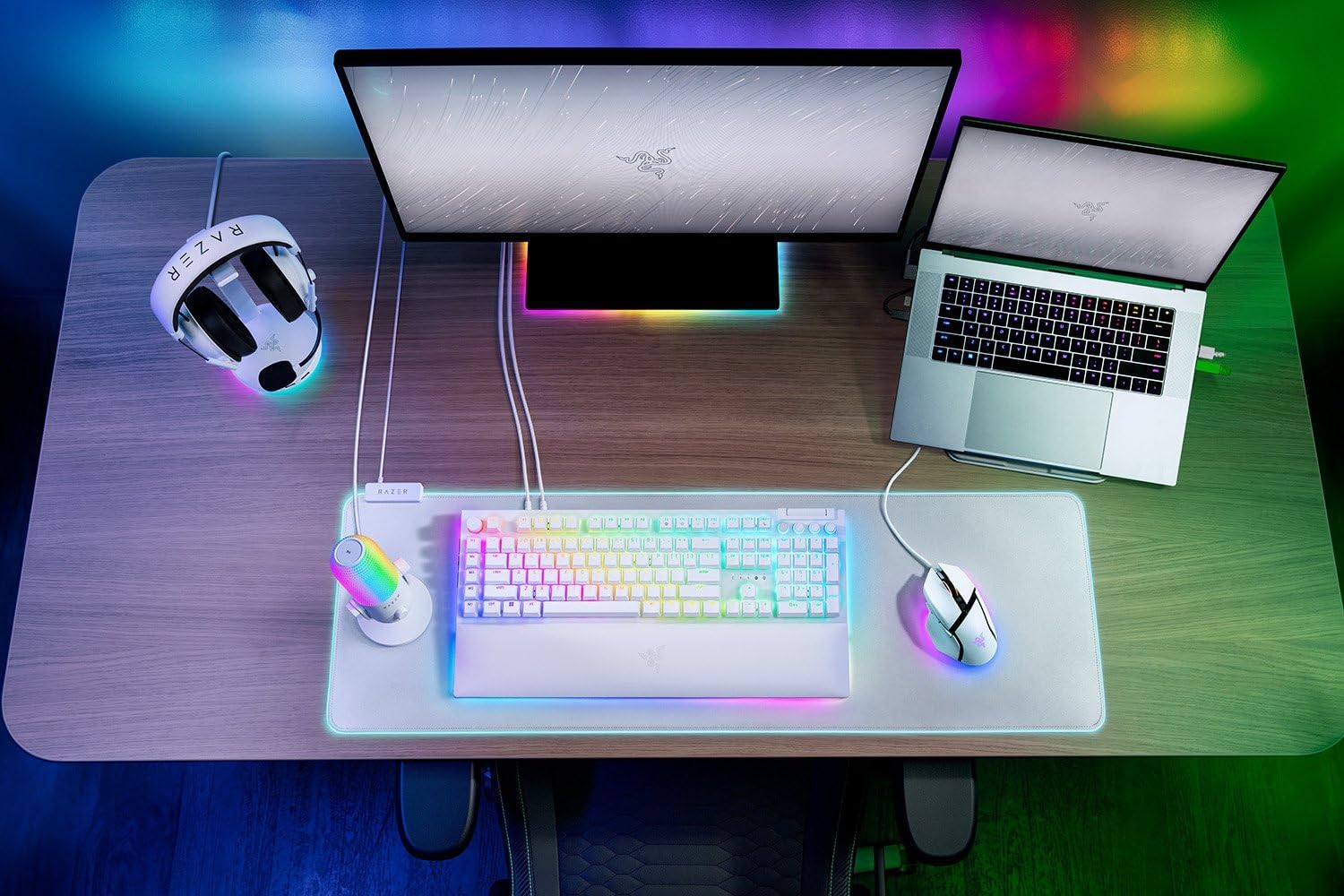
Razer
Razer Basilisk V3 Pro 35K Wireless Gaming Mouse: HyperScroll Tilt Wheel – 35K DPI Optical Sensor Gen 2-13 Customizable Controls – Chroma RGB – Optical Switches Gen 3 – Up to 140 Hr Battery – Black
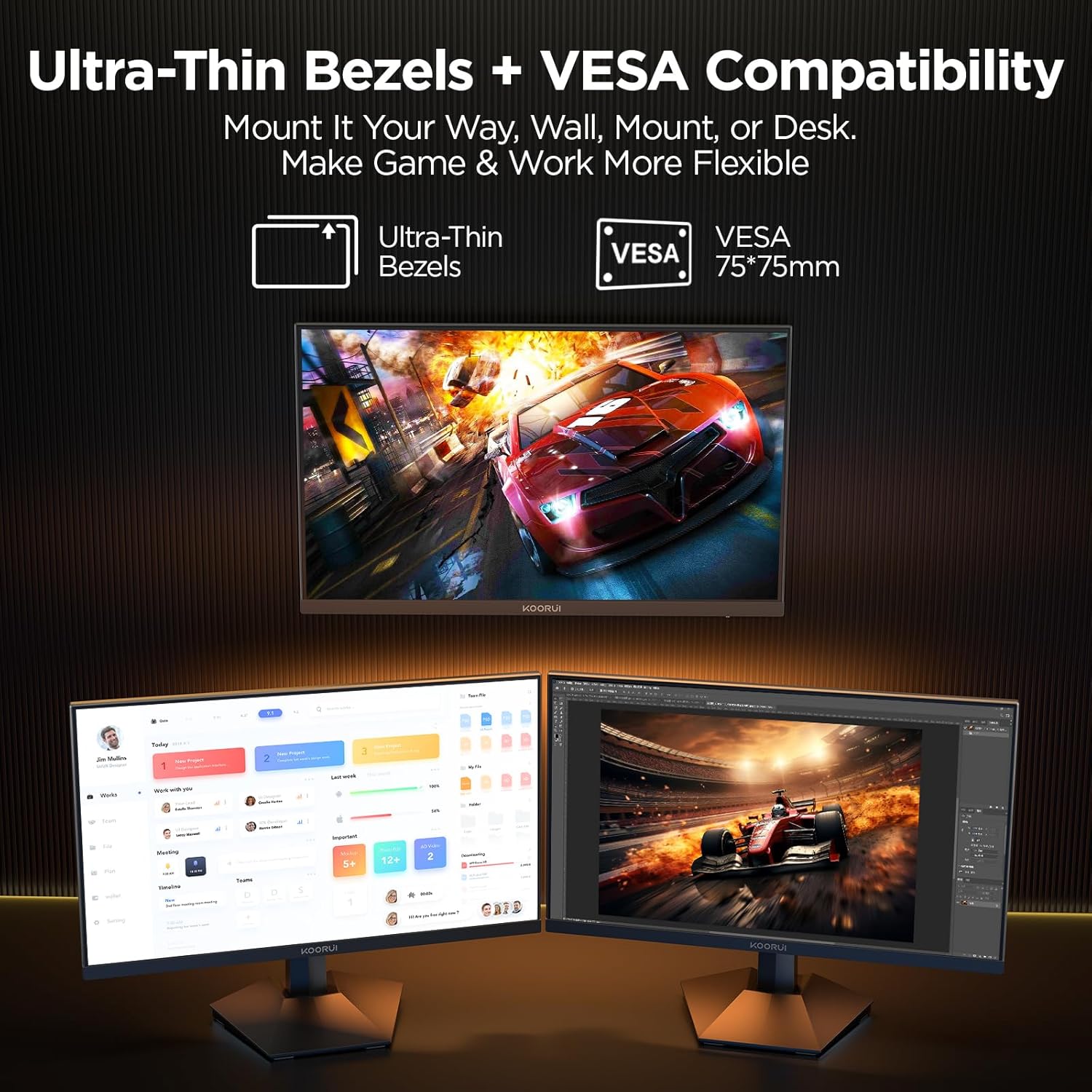
KOORUI
KOORUI 24.5 Inch Gaming Monitor 200Hz, 1ms, FHD(1920 * 1080p) IPS Display, HDR400, 90% DCI-P3 Color Gamut with Adaptive Sync, HDMI & DP Port, Black, G2511P
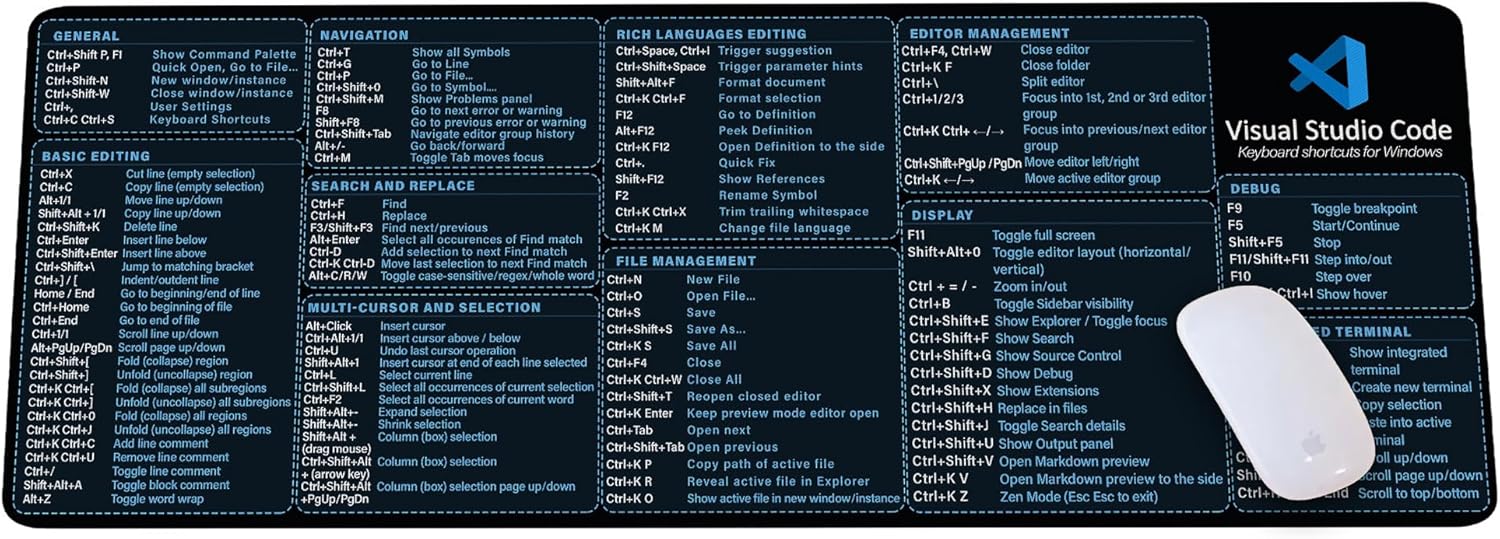
Visual Studio Code Shortcuts Mouse Pad
Visual Studio Code Shortcuts Mouse Pad – Desk Mat for Programmers, Coders & Beginners, Great Office Gift for Developers & Tech Enthusiasts, Computer Accessory for Study, Work, and Learning KMH
Sound Healing 432 Hz
song transports the listener to a relaxed state of mindfulness and inner peace.
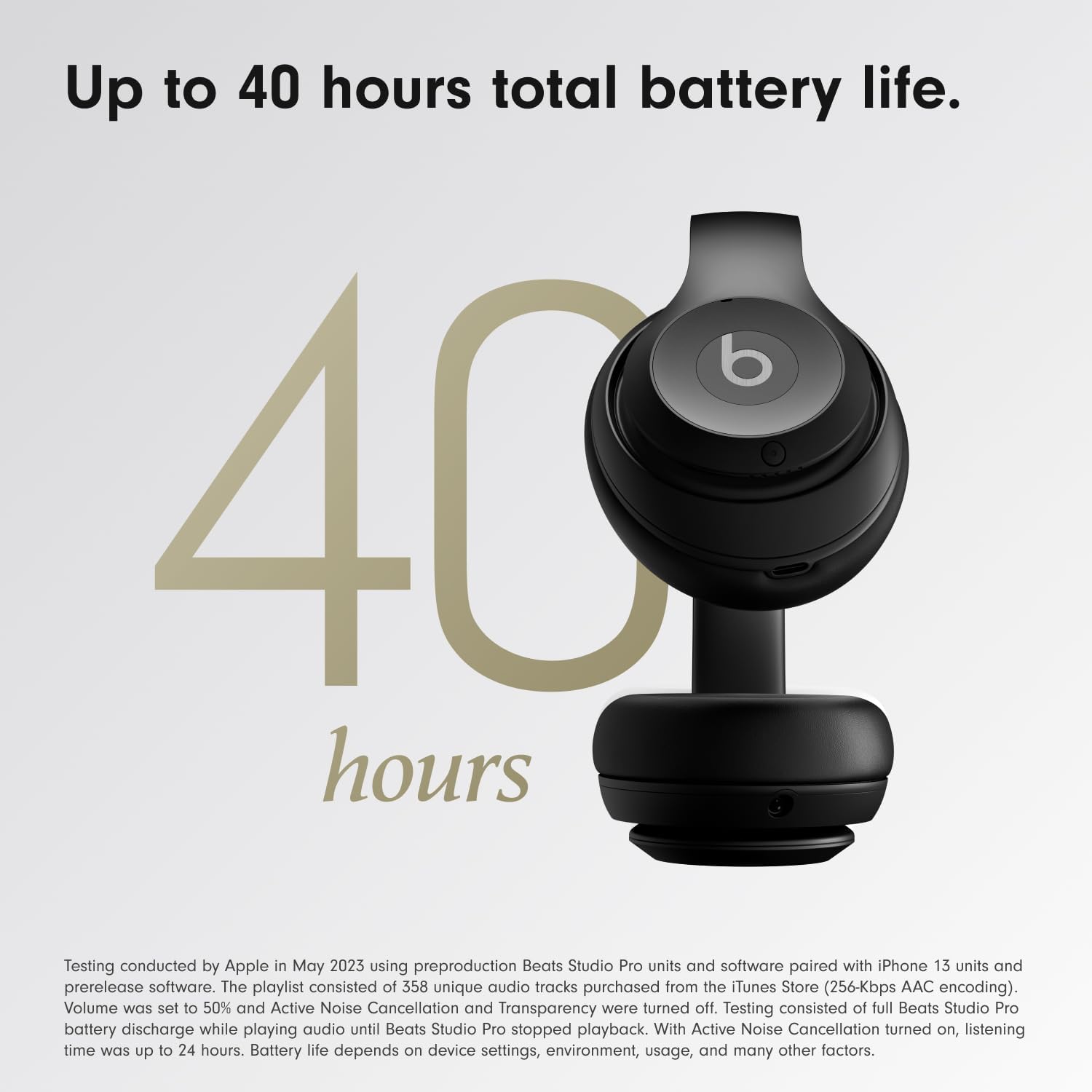
Beats-Studio Pro Cancelling Headphones
Beats Studio Pro – Wireless Bluetooth Noise Cancelling Headphones with USB-C Charging Cable (20 cm) – Jet Black