Getting Started with FL Studio 21
FL Studio 21 is a powerful digital audio workstation (DAW) that has become a staple for music producers worldwide. Whether you’re a seasoned musician or just starting your journey in music production, FL Studio 21 offers tools and features that cater to all levels of expertise. In this article, we will explore how to get started with FL Studio 21, including installation, interface navigation, and basic music production techniques.
1. Installing FL Studio 21
Before diving into music production, you need to install FL Studio 21 on your computer. Here’s a step-by-step guide to help you through the installation process.
Step-by-Step Installation Guide
- Visit the Official Website: Go to the FL Studio website to download the software.
- Choose Your Version: Select the appropriate version based on your needs. FL Studio 21 comes in several editions: Fruity, Producer, Signature, and All Plugins Bundle.
- Download the Installer: Click the download link for your operating system (Windows or macOS).
- Run the Installer: Once the download is complete, run the installer. Follow the prompts to install the software on your computer.
- Activate Your License: If you purchased a license, enter your registration details. Otherwise, you can use the trial version to explore the features.
2. Navigating the FL Studio 21 Interface
After installation, it’s essential to familiarize yourself with the FL Studio 21 interface. The layout may seem overwhelming at first, but understanding its components will enhance your workflow.
Key Components of the Interface
- Channel Rack: Where you manage your instruments and samples.
- Piano Roll: A powerful tool for composing melodies and harmonies.
- Playlist: The area where you arrange your music tracks.
- Mixer: Used for mixing and adding effects to your audio tracks.
- Toolbar: Contains tools for playback, recording, and other essential functions.
Visual Overview of the Interface

3. Creating Your First Project
Now that you’re familiar with the interface, it’s time to create your first project in FL Studio 21.
Step-by-Step Project Creation
- Open FL Studio: Launch the application, and select “New Project” from the File menu.
- Add Instruments: In the Channel Rack, click the + button to add an instrument. You can choose from built-in plugins like Sytrus or 3xOSC.
- Create a Pattern: Use the step sequencer to create a basic drum pattern. Click on the squares to activate steps.
- Arrange Your Track: Open the Playlist and drag your pattern to the timeline. You can duplicate it to extend the length.
- Mix Your Track: Open the Mixer, assign your channels, and adjust levels and effects.
- Save Your Project: Don’t forget to save your work frequently!
4. Basic Music Production Techniques
With your first project created, let’s explore some basic music production techniques that will help you improve your skills.
Techniques to Consider
| Technique | Description |
|---|---|
| Layering Sounds | Combine different sounds to create a fuller sound. |
| Automation | Use automation clips to dynamically change effects over time. |
| EQ and Mixing | Use EQ to balance frequencies and create a cleaner mix. |
| Sampling | Incorporate samples from other tracks to add depth. |
Checklist for Music Production
- Have you set your project tempo?
- Are your instruments properly tuned?
- Have you added effects to your mixer channels?
- Is your arrangement structured (intro, verse, chorus, etc.)?
- Did you export your track in the desired format?
5. Additional Resources
To further enhance your skills in FL Studio 21, consider exploring additional resources. A great starting point is our detailed guide on FL Studio 21, titled FL Studio 21: The Ultimate Guide, where you can find in-depth tutorials and tips for mastering the software.
Conclusion
Getting started with FL Studio 21 can be an exciting journey into the world of music production. By following the steps outlined in this article, you’ll be on your way to creating your own tracks in no time. Remember to keep experimenting with different sounds and techniques, and don’t hesitate to refer to resources like FL Studio 21: The Ultimate Guide for more in-depth knowledge.
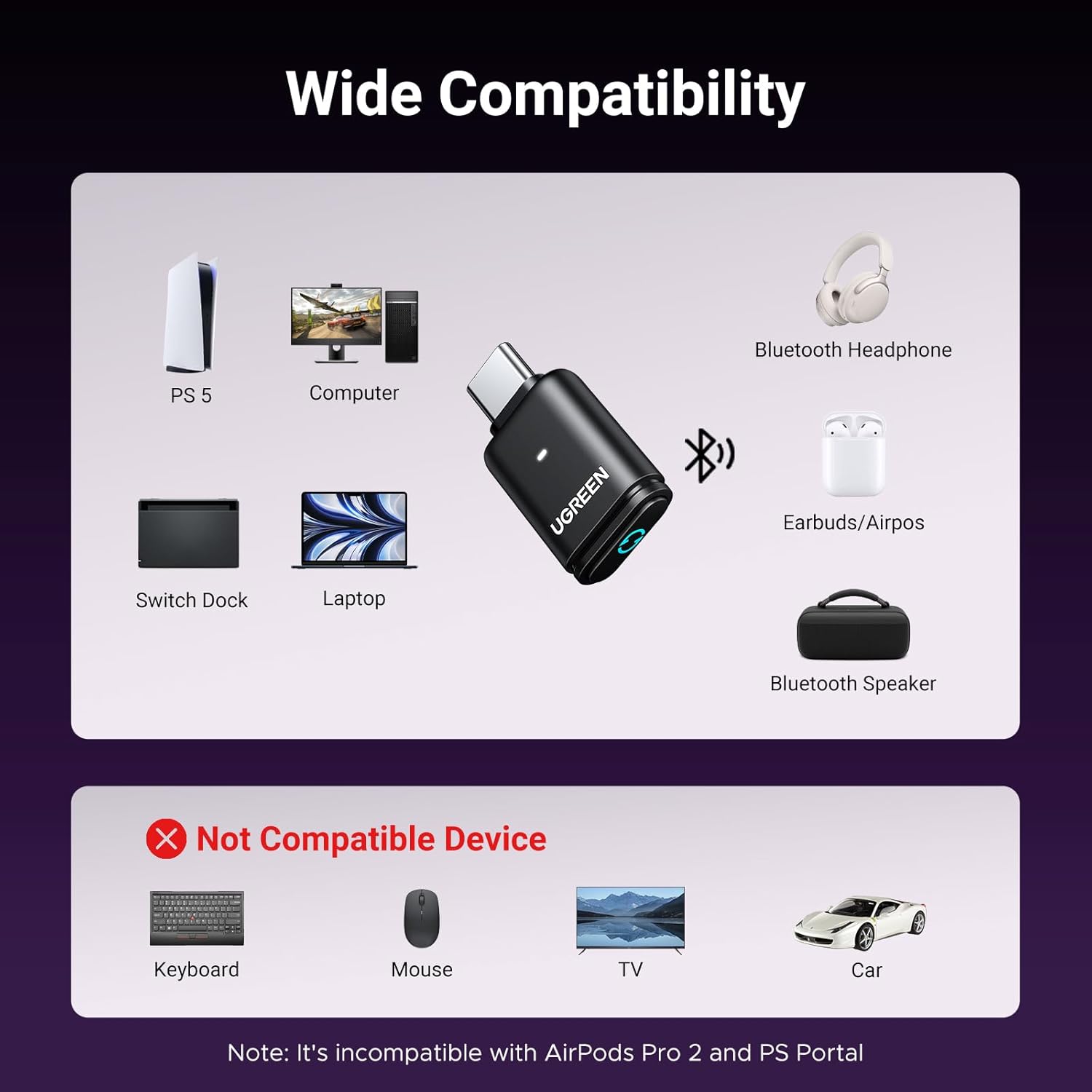
UGREEN USB-C Bluetooth Adapter for PS5
UGREEN USB-C Bluetooth Adapter for PS5, Bluetooth 5.3 Audio Adapter with APTX Low Latency & aptX-Adaptive, Wireless Audio Transmitter to Connect Wireless Headphones & Earbuds
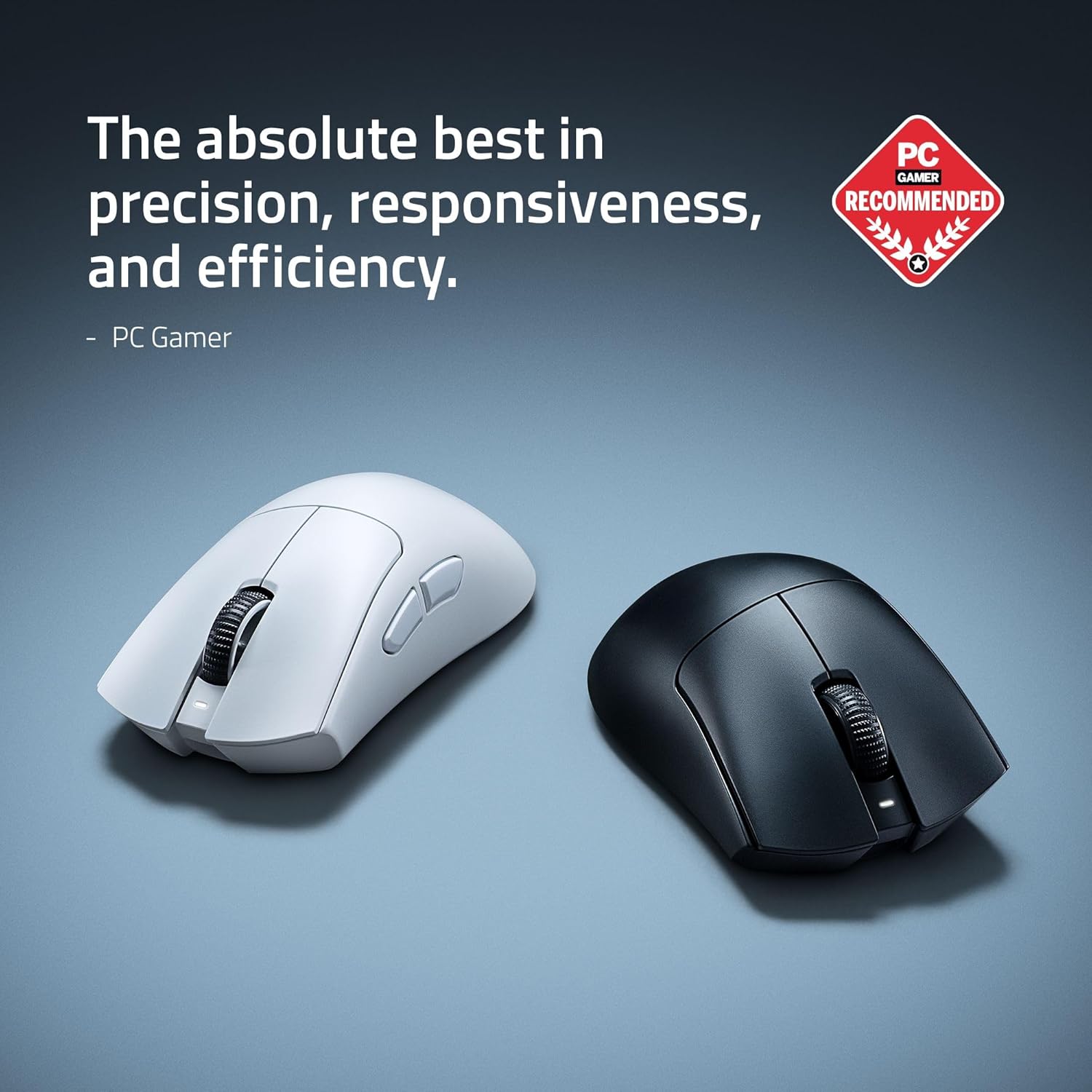
RAWM ES21 Wireless Gaming Mouse
Razer DeathAdder V4 Pro Wireless Gaming Mouse: 56g Lightweight – HyperSpeed Wireless Gen-2 – Optical Scroll Wheel – Optical Switches Gen-4 – Focus Pro 45K Sensor Gen-2 – Up to 150 Hr Battery
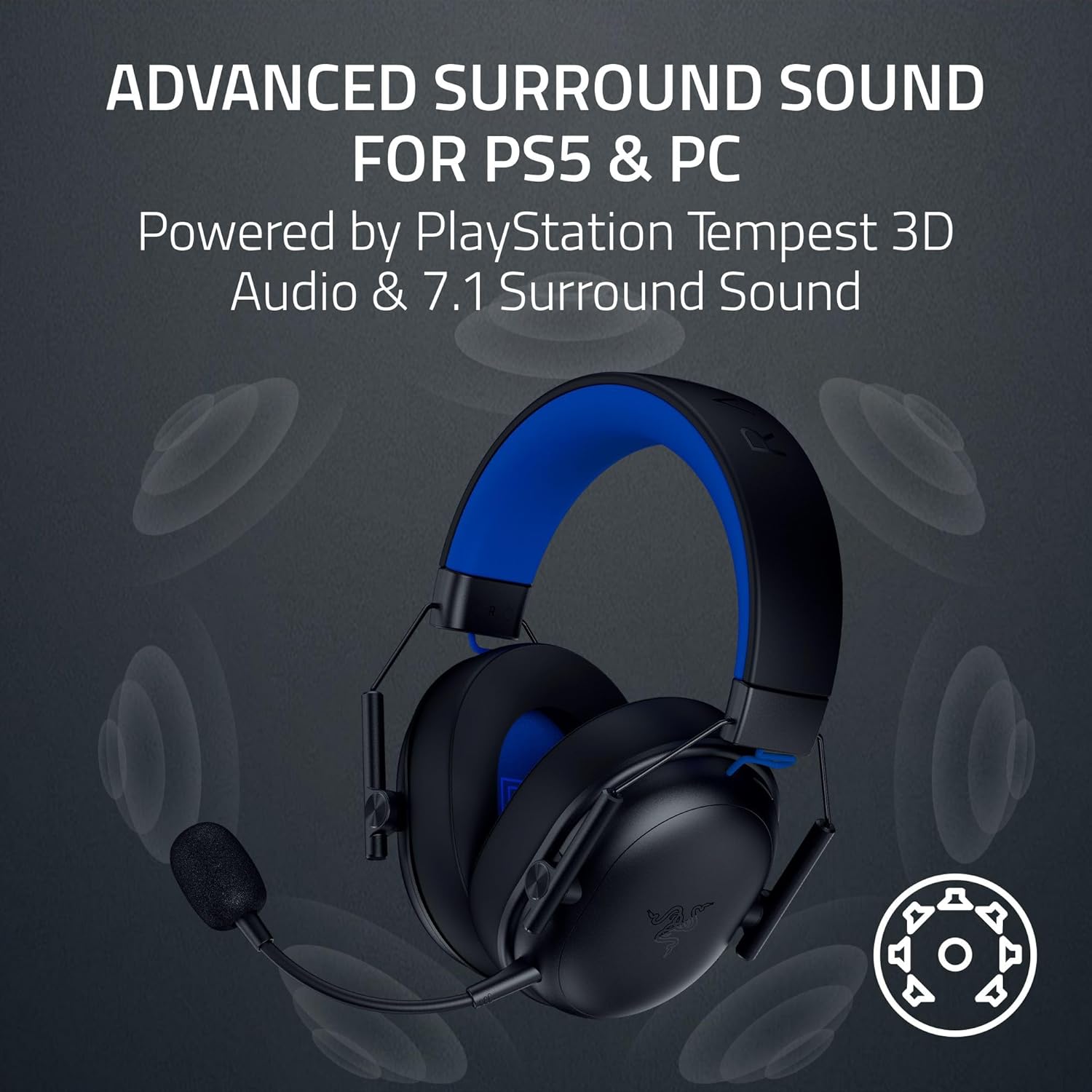
Results
Razer BlackShark V3 X HyperSpeed Wireless Gaming Headset for PS5: 50mm Drivers – Cardioid Mic – 2.4 GHz, Bluetooth – Works with PC, Mac, Nintendo Switch, Smartphone – Long Battery Life – Black
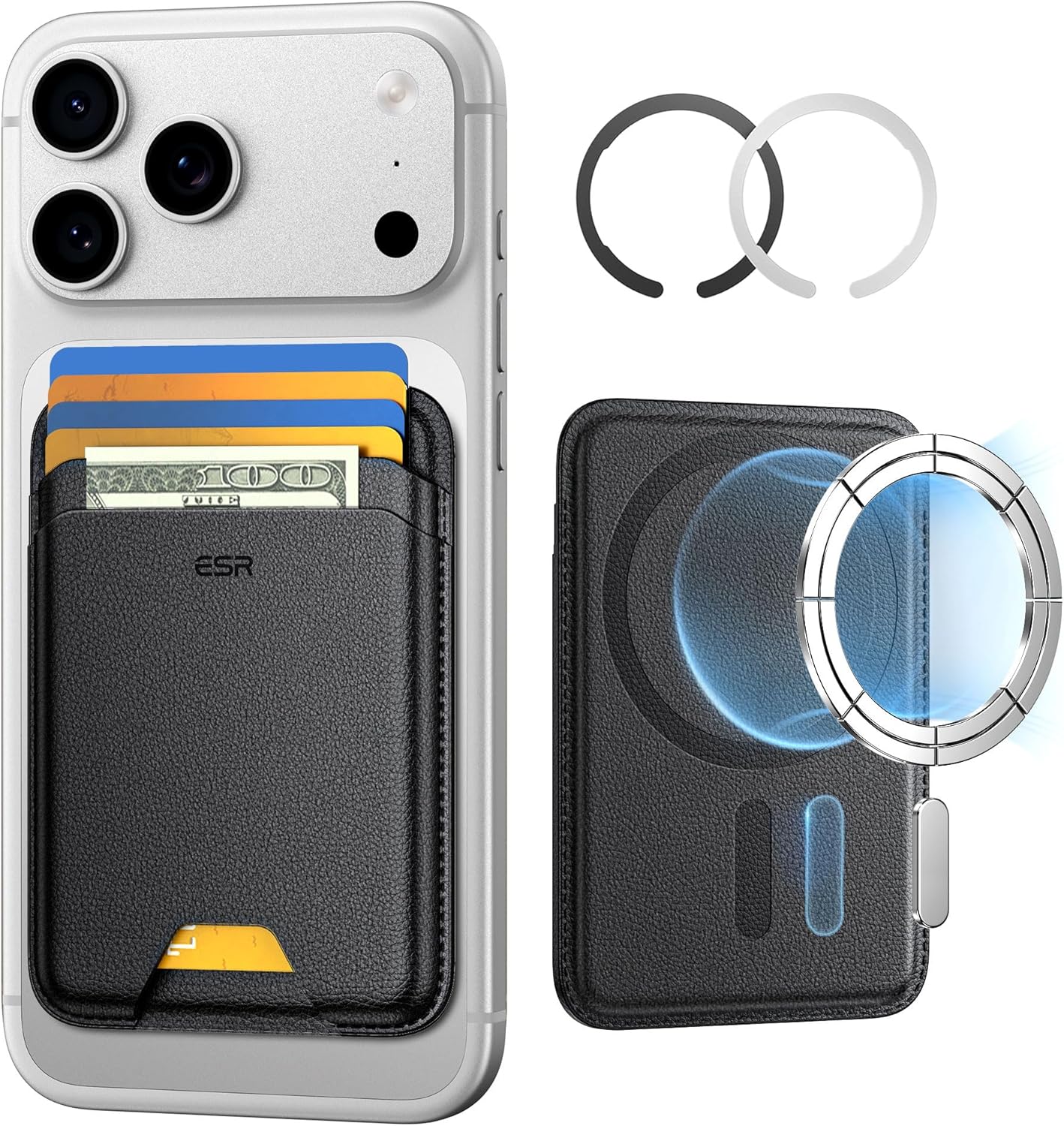
ESR for MagSafe Wallet
ESR for MagSafe Wallet, 5-Card Holder With RFID Blocking, MagSafe Sticker Included, Slim Magnetic Wallet for iPhone 17/16/15/14/13/12 Series and Selected Samsung Devices, Not for 13/12 Mini, Black
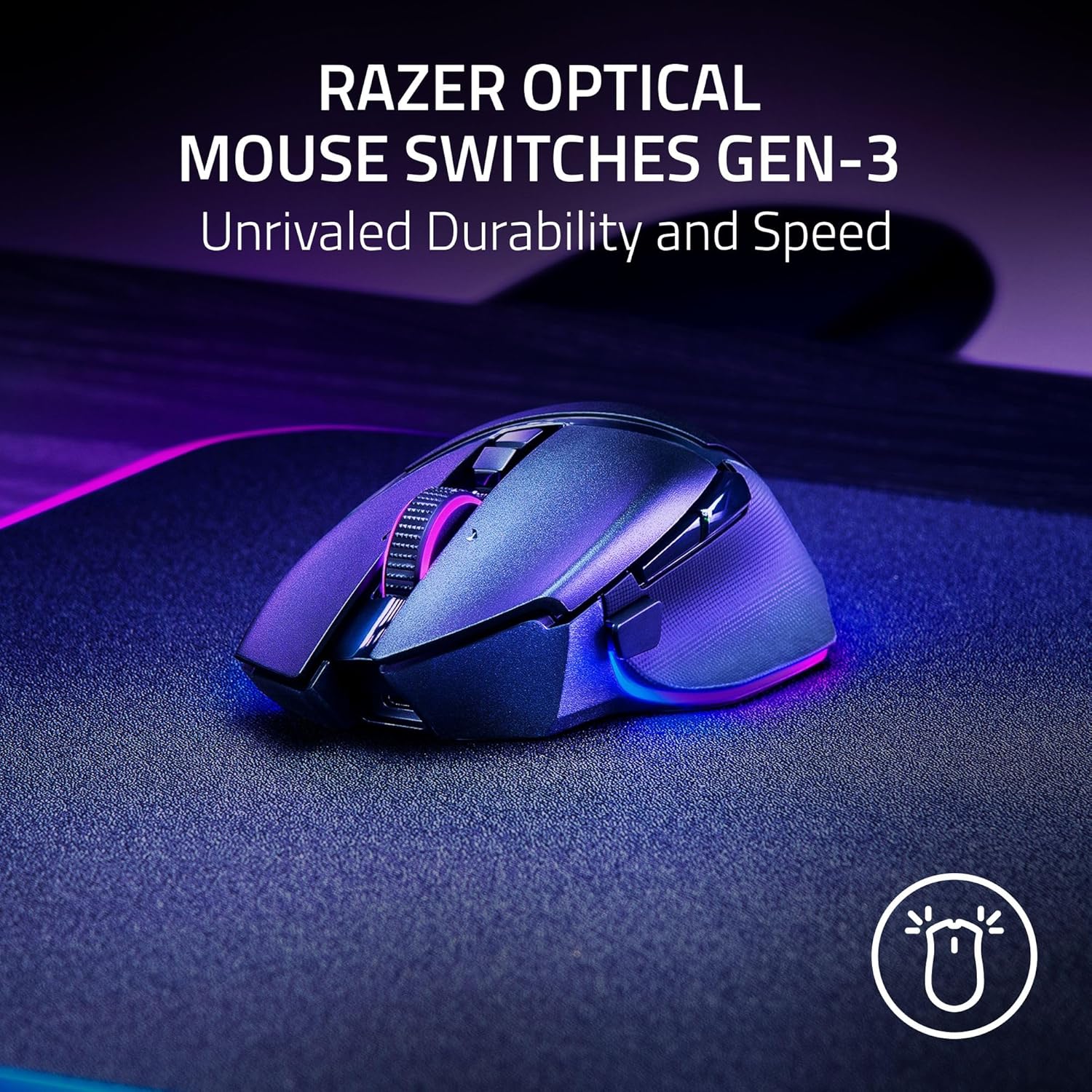
Razer
Razer Basilisk V3 Pro 35K Wireless Gaming Mouse: HyperScroll Tilt Wheel – 35K DPI Optical Sensor Gen 2-13 Customizable Controls – Chroma RGB – Optical Switches Gen 3 – Up to 140 Hr Battery – Black