Introduction
Downloading and installing Unity is the first step toward creating professional-quality games. The Unity platform powers some of the world’s most popular games and provides a flexible environment for developers of all levels. Whether you’re interested in 2D mobile games, complex 3D worlds, or immersive VR experiences, knowing how to properly download and set up Unity ensures a smooth start. This guide will walk you through the process, highlight essential tips, and provide links to trusted resources for learning.
Why You Should Download Unity
Unity is a leading game development engine for several reasons:
Multi Platform Development
Unity allows developers to create games for PC, mobile, consoles, VR, and AR from a single codebase, saving time and increasing efficiency.
Accessibility for Beginners
With its intuitive interface and robust documentation, Unity is beginner friendly. Visual scripting and templates help newcomers quickly start developing games.
Asset Store and Pre Built Templates
Unity’s Asset Store offers thousands of free and paid assets, scripts, and templates to accelerate game development.
Community and Support
Unity boasts a large, active community and official support. Platforms like Unity Learn and Polycode Tech www.polycode.tech provide tutorials, guides, and learning paths for beginners and advanced users.
Step by Step Guide to Download Unity
1. Visit the Official Unity Website
Go to https://unity.com/ to access the latest version of Unity. Always download Unity from the official website to ensure safety and the latest features.
2. Install Unity Hub
Unity Hub is a management tool for handling multiple Unity versions, projects, and modules. Download and install Unity Hub, then follow the on-screen instructions.
3. Select a Unity Version
Within Unity Hub, choose the version of Unity you want to install. It is recommended to use the latest Long-Term Support (LTS) version for stability.
4. Choose Modules
Depending on your target platform, install modules such as Windows, Mac, Android, iOS, WebGL, or VR/AR support. These modules ensure your project can be deployed across multiple devices.
5. Start a New Project
After installation, create a new project using a 2D, 3D, or VR template. This sets up the basic environment and prepares the project for development.
6. Explore Tutorials and Documentation
Before jumping into game creation, explore beginner tutorials on Unity Learn and Polycode Tech to familiarize yourself with the editor and tools.
Advanced Tips for Downloading and Installing Unity
Keep Unity Hub Updated
Always update Unity Hub to the latest version to ensure compatibility with Unity versions and modules.
Install Multiple Unity Versions
If working on multiple projects, it’s common to require different Unity versions. Unity Hub allows simultaneous installations for flexibility.
Use Cloud Services
Unity offers cloud build and collaboration tools that integrate with your local setup. Setting up these services during installation saves time later.
Check System Requirements
Ensure your computer meets the minimum requirements for Unity. Adequate RAM, GPU, and storage are essential for smooth development.
Popular Games Developed with Unity
Understanding the potential of Unity can inspire your projects. Some notable games include:
- Pokémon Go – A groundbreaking AR experience.
- Among Us – Multiplayer 2D/3D game phenomenon.
- Hollow Knight – Beautiful 2D/3D hybrid Metroidvania game.
- Cuphead – Critically acclaimed 2D action platformer.
These games demonstrate Unity’s flexibility for both 2D and 3D projects, mobile, PC, and AR/VR.
Unity Download FAQs
Is downloading Unity free?
Yes, Unity offers a free Personal version for individuals and small studios under a revenue limit.
Which version of Unity should I download?
For stability, it’s recommended to download the latest Long-Term Support (LTS) version.
Can I download Unity on Mac and Windows?
Yes, Unity supports both Mac and Windows. Make sure to select the correct modules during installation.
Do I need a powerful computer to run Unity?
While Unity can run on modest systems, adequate RAM, GPU, and storage are recommended for smooth 3D or VR development.
After downloading Unity, ensure your system is optimized with a high performance SSD from Amazon. Faster storage improves load times and overall performance when handling large Unity projects.

WD_BLACK 1TB SN7100 NVMe Internal Gaming SSD Solid State Drive – Gen4 PCIe, M.2 2280, Up to 7,250 MB/s – WDS100T4X0E [New Version]
🛒 Buy Now
Conclusion
Downloading Unity is the first step toward becoming a game developer. By following this guide, you can set up your development environment efficiently and start building amazing 2D, 3D, or VR games. Unity’s tools, tutorials, and asset libraries make it accessible for beginners and professionals alike.
Start your Unity journey today and explore resources, tutorials, and projects at Polycode Tech. Turn your game ideas into reality with the world’s leading game development platform.
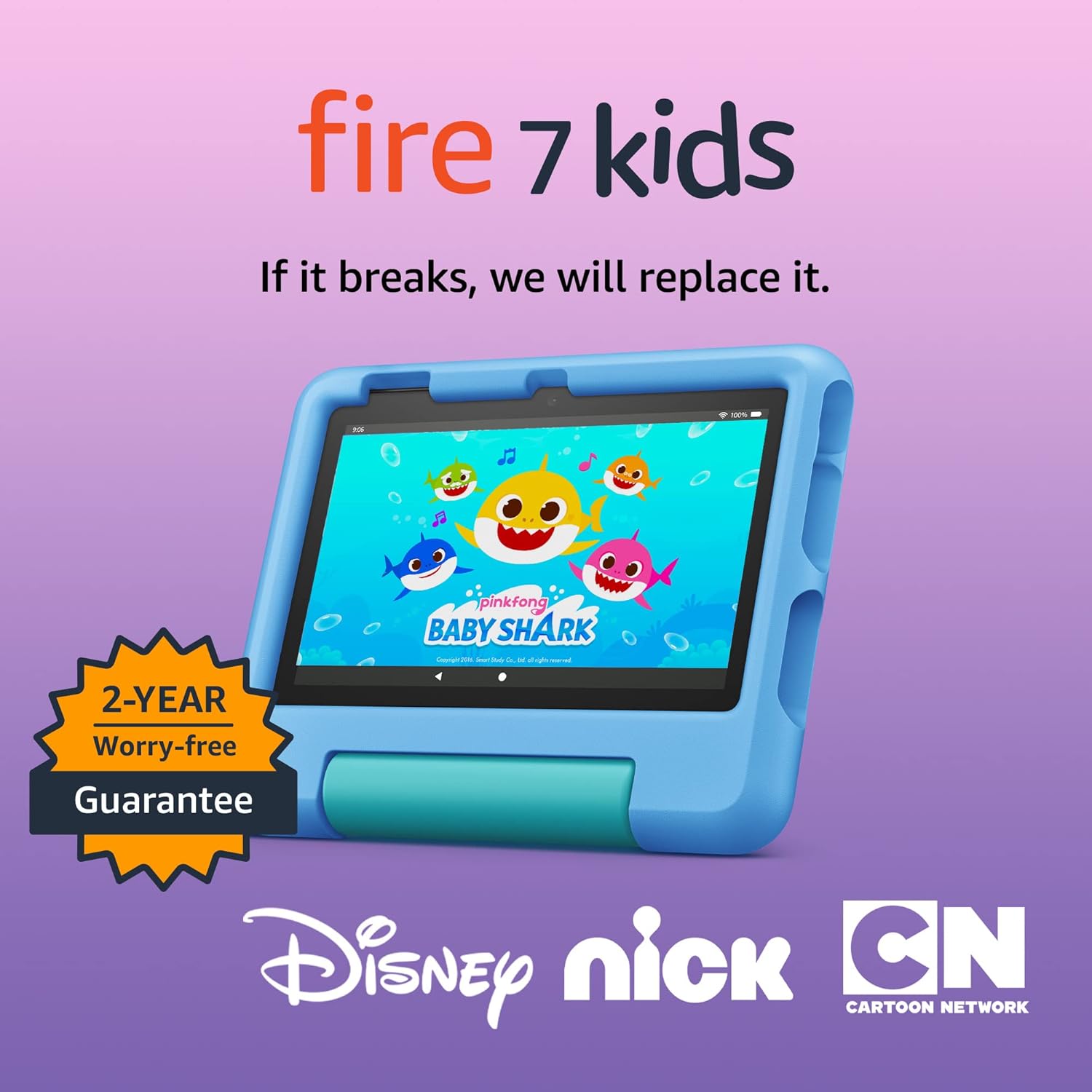
Amazon Fire 7 Kids tablet
Amazon Fire 7 Kids tablet, ages 3-7. Top-selling 7\" kids tablet on Amazon. Includes ad-free and exclusive content, easy parental controls, 10-hr battery, 16 GB, Blue
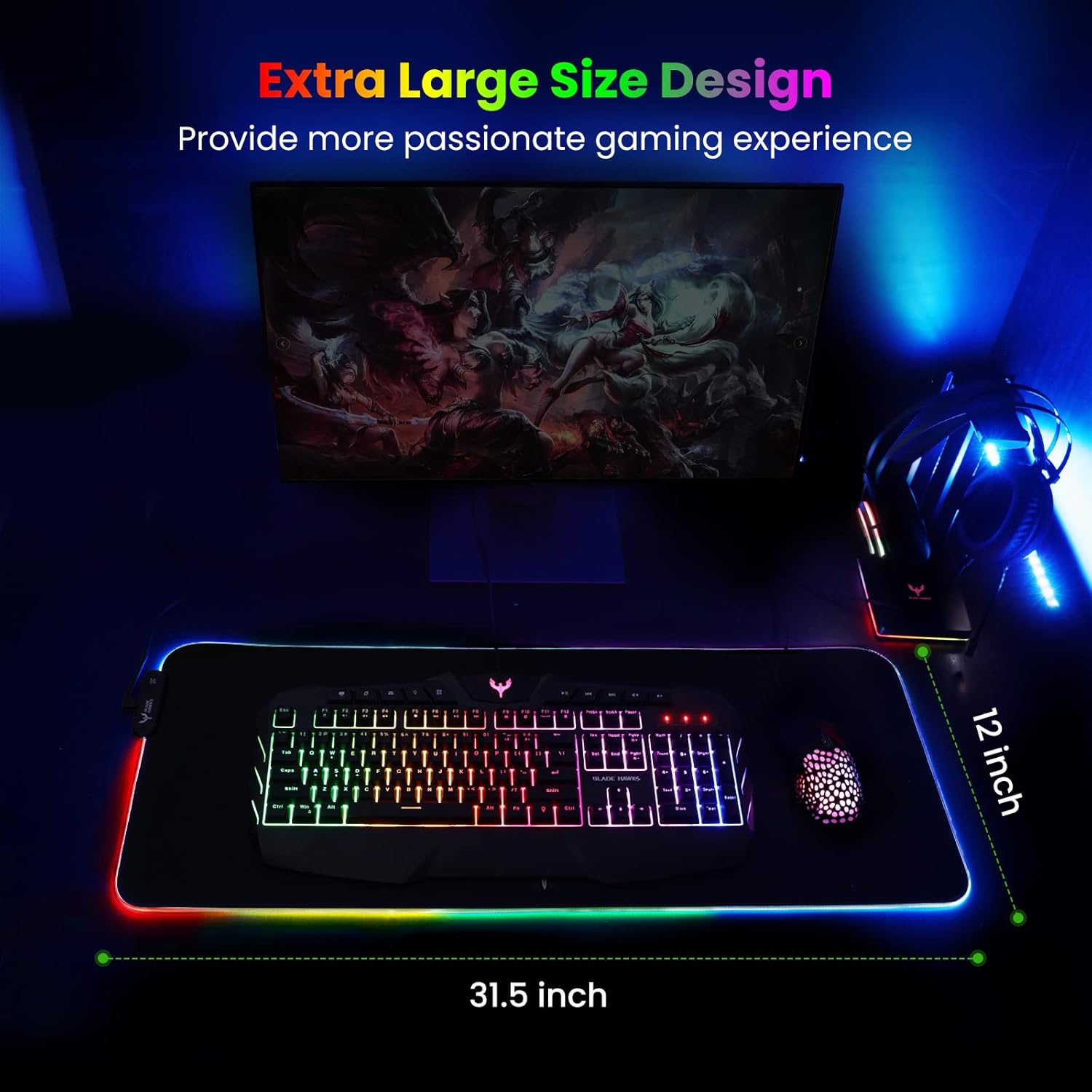
Mouse Pad
BladeHawks Extra Large RGB Gaming Mouse Pad-14 Light Modes, Extended Soft LED Mouse Pad, Anti-Slip Rubber Base, Computer Keyboard Mousepad Mat (31.5 x 12 Inch)
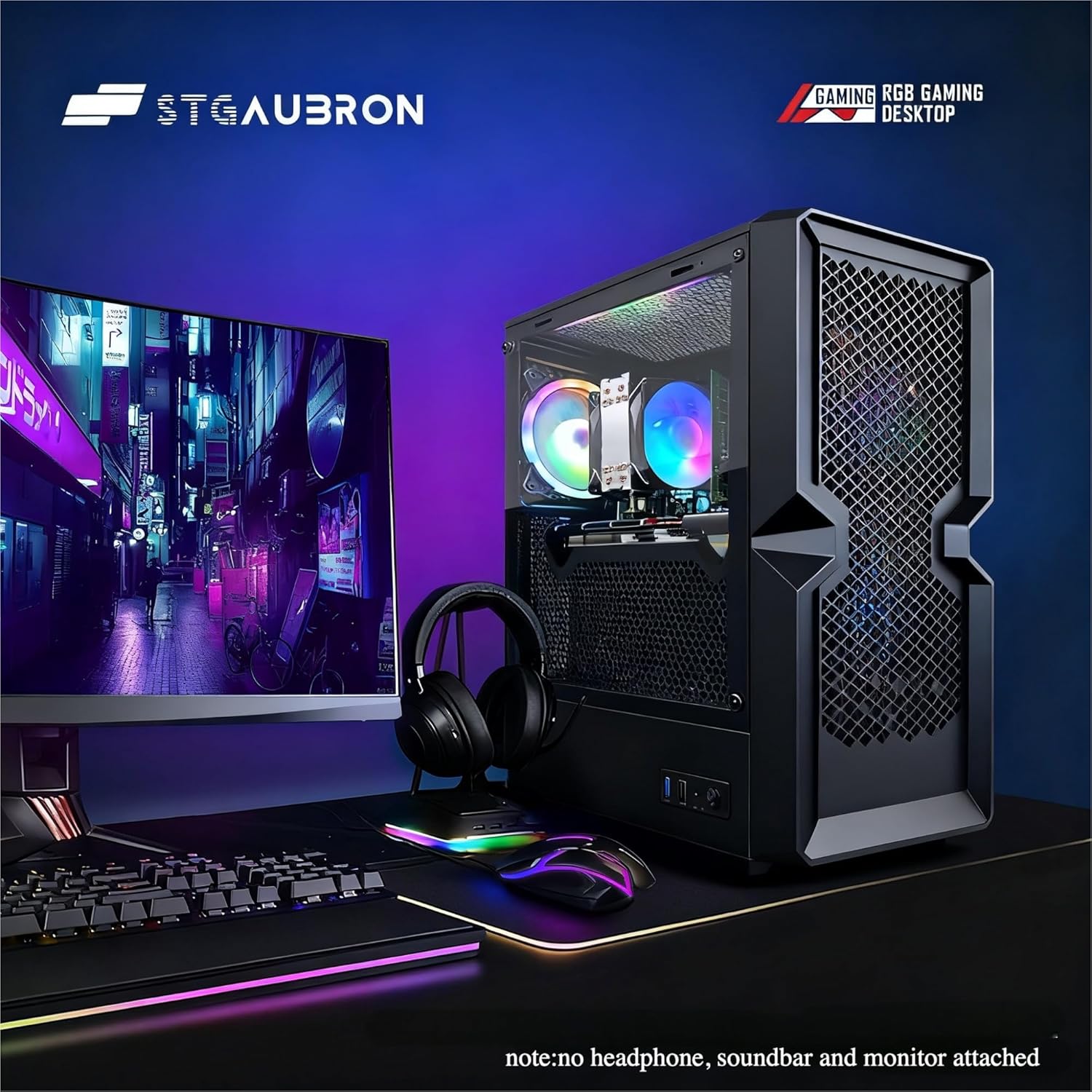
STGAubron Gaming PC Desktop
STGAubron Gaming PC Desktop Computer, Intel Core i5 up to 3.6G, Radeon RX 590 8G, 16GB RAM, 1TB SSD, 600M WiFi, BT 5.0, RGB Fan x3, Windows 11 Home
Make Your First 2D Game in Unity
Want to build your first game but don’t know where to start? This beginner-friendly guide shows you how to create SampleGame2D — a fun Flappy Bird–style project — step by step in Unity. Inside you’ll learn:

Panvola
Panvola Debugging Definition Computer Programmer Student Teacher Geek Coder Tech Support Programming IT Insulated Coffee Mug with Handle and Lid Camping Travel Thermal Mugs 14 oz Black
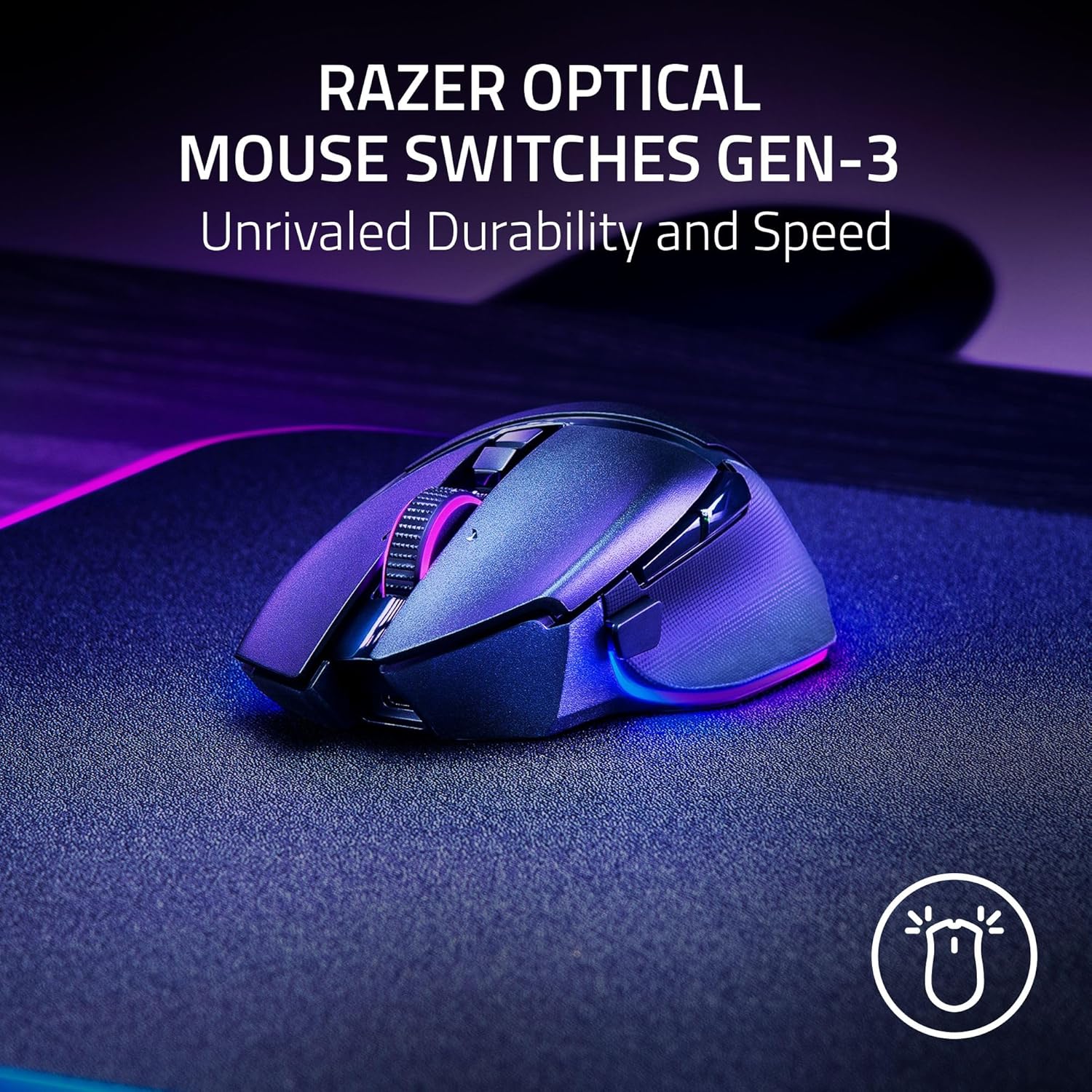
Razer
Razer Basilisk V3 Pro 35K Wireless Gaming Mouse: HyperScroll Tilt Wheel – 35K DPI Optical Sensor Gen 2-13 Customizable Controls – Chroma RGB – Optical Switches Gen 3 – Up to 140 Hr Battery – Black
Leave a Reply