
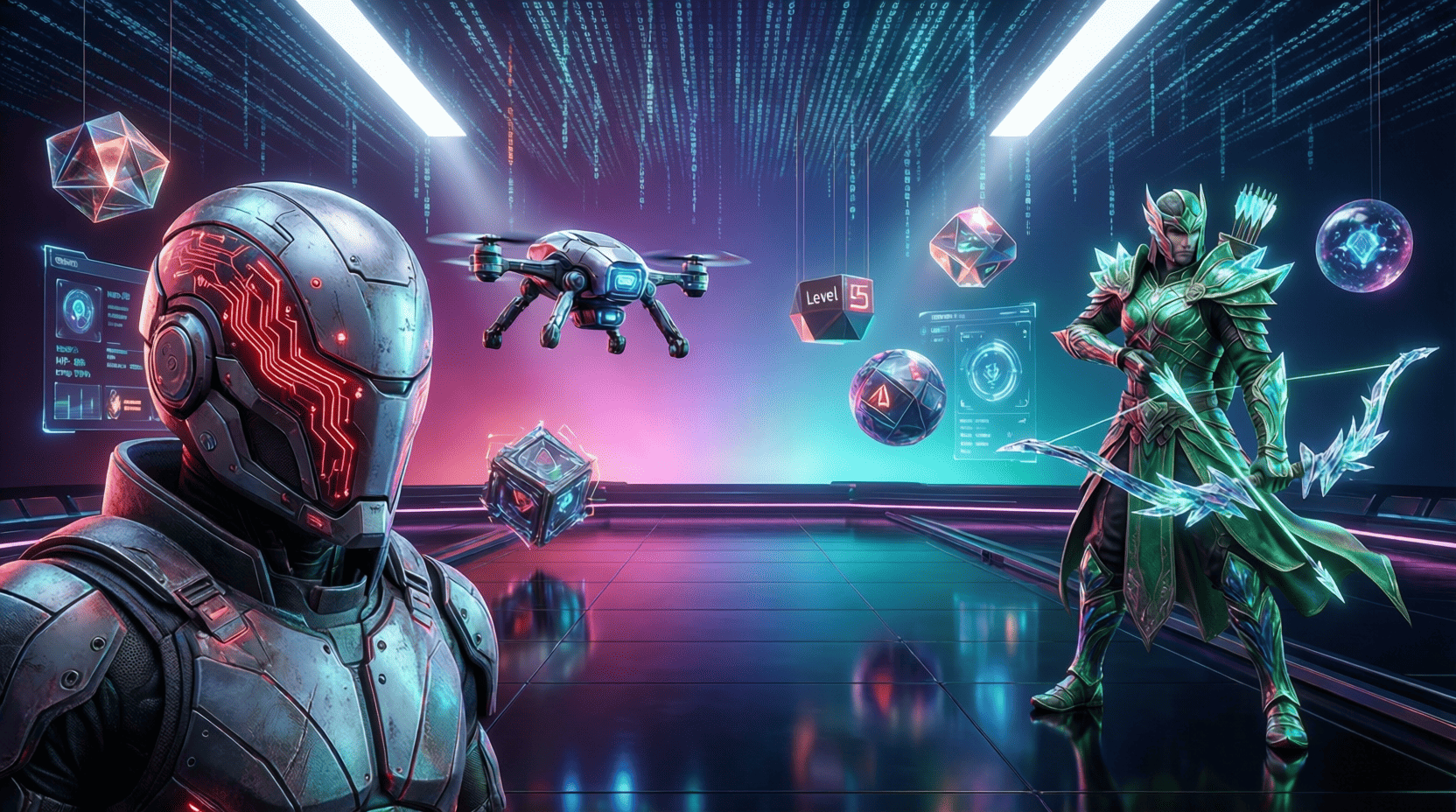
How to Use Free 3D Models in Your Projects
In the world of digital design and development, 3D models play a pivotal role in enhancing visual storytelling. Whether you are a game developer, an architect, or a graphic designer, integrating free 3D models into your projects can save you time and resources. This guide will provide you with a thorough understanding of how to source, implement, and optimize free 3D models in your work.
Understanding the Basics of 3D Models
Before diving into the practical aspects, let’s clarify what 3D models are. A 3D model is a digital representation of a three-dimensional object. These models can range from simple shapes to intricate designs and can be used in various fields such as gaming, animation, architecture, and virtual reality.
Where to Find Free 3D Models
There are countless resources available for free 3D models. Here’s a list of some of the most popular websites:
- TurboSquid: Offers a vast library of high-quality models.
- Sketchfab: Features user-generated content, allowing for a diverse range of models.
- CgTrader: Hosts both free and paid 3D models.
- Free3D: A straightforward platform for downloading free models.
- Blend Swap: Specifically for Blender users, offering free models in .blend format.
Evaluating Model Quality
When selecting models, quality is paramount. Here are some factors to consider:
| Factor | Description |
|---|---|
| Polygon Count | Lower polygon counts are ideal for real-time applications like games. |
| Texture Resolution | Higher resolutions provide better detail but increase file size. |
| File Format | Common formats include .FBX, .OBJ, and .STL. Ensure compatibility with your software. |
How to Download and Import 3D Models
The next step is downloading and importing the model into your project. Here’s a step-by-step guide on how to do it:
- Visit a website offering free 3D models (e.g., TurboSquid).
- Use the search bar to find a specific model.
- Check the model details for quality and format compatibility.
- Click the download button, usually found on the model’s page.
- Extract the files (if in a zip format) to access the model.
Importing Models into Your Software
Here’s how to import your downloaded model into popular software:
For Blender:
- Open Blender.
- Go to File > Import.
- Select the correct file format (e.g., .FBX or .OBJ).
- Navigate to your downloaded file and select it.
- Click Import.
For Unity:
- Open your Unity project.
- Drag and drop the model file into the Assets folder.
- Wait for Unity to process the model.
- Drag the model into your scene from the Assets browser.
Optimizing 3D Models for Your Projects
After importing, you may need to optimize the model for better performance. Here are some tips:
- Reduce Polygon Count: Use tools like Blender’s Decimate Modifier to lower polygon counts without significantly affecting visual quality.
- Texture Management: Use compressed texture formats like .JPEG or .PNG to reduce file size.
- Level of Detail (LOD): Implement LOD techniques to improve performance by using lower detail models at a distance.
Best Practices for Using Free 3D Models
To ensure a smooth workflow, follow these best practices:
- Check Licensing: Always review the model’s licensing terms to ensure proper usage.
- Make Backups: Keep backups of your original files before making modifications.
- Document Your Sources: Maintain a list of where you obtained your models for future reference.
Related Content
For more in-depth strategies and resources, check out our article: Free 3D Models: Your Ultimate Resource for 3D Design.
Conclusion
Incorporating free 3D models into your projects can greatly enhance their quality and save time. By knowing where to find quality models, how to import and optimize them, and following best practices, you can take your projects to the next level. Remember that the world of 3D modeling is ever-evolving, so stay updated with the latest trends and tools to keep your skills sharp.

Arknights: Endfield
3D tactical RPG set in the Arknights universe. Lead a team of operators on a mysterious planet, explore new areas, build and optimize your base, and fight in dynamic battles while completing story-driven missions in a sci-fi world.
Ultimate Mobile Controls – Plug & Play
Take your mobile game to the next level with this ready-to-use Mobile Controls Pack. customizable mobile controls without wasting days on UI and input setup. Perfect for 2D, 3D, FPS, RPG, Platformer, Shooter, and Casual mobile games.
Vooii for iPhone SE
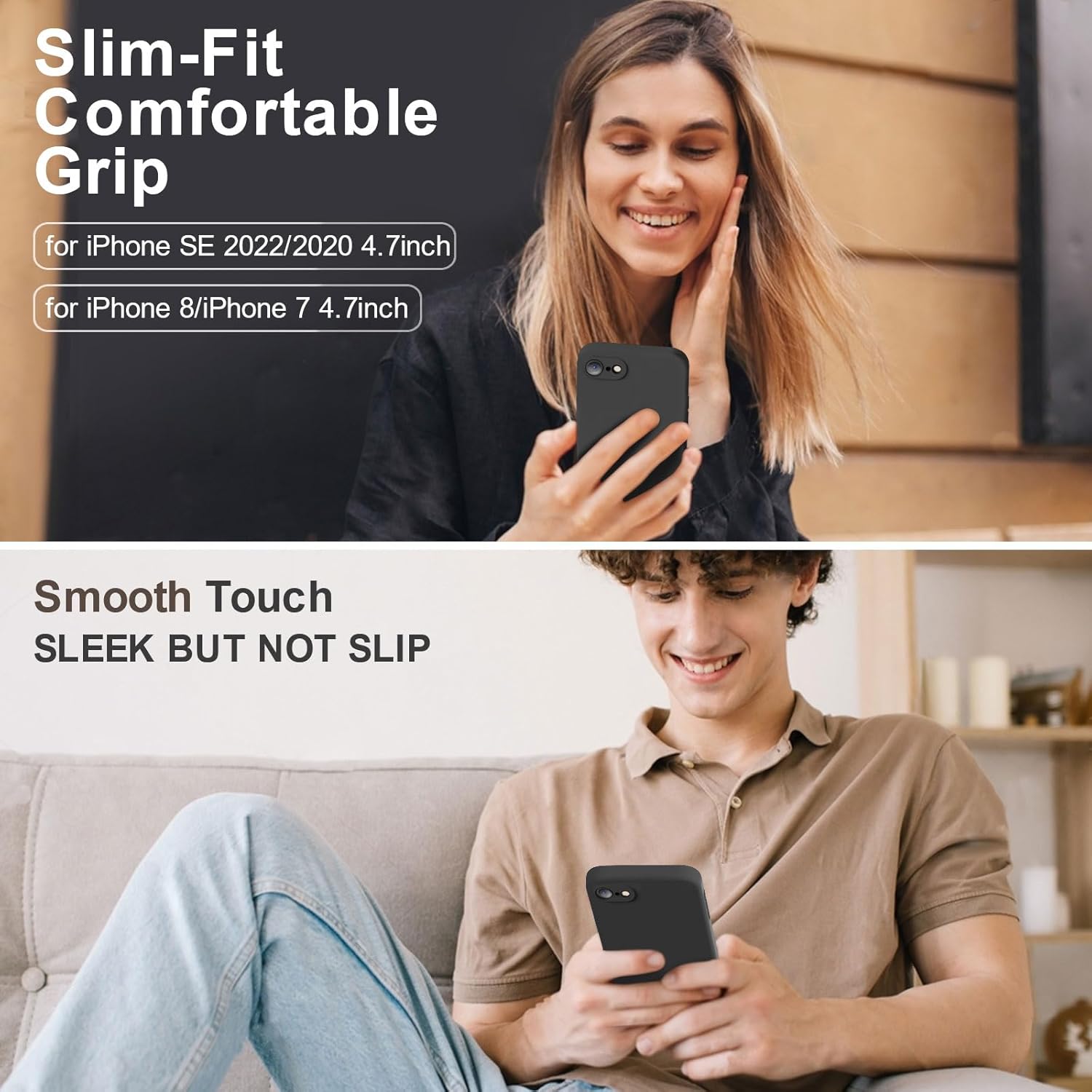
Vooii for iPhone SE Case 2022/3rd/2020,iPhone 8/7 Case, Upgraded Liquid Silicone with [Flat Edges] [Camera Protection] [Soft Anti-Scratch Microfiber Lining] Phone Case for iPhone SE - Black

Razer
Razer Basilisk V3 Pro 35K Wireless Gaming Mouse: HyperScroll Tilt Wheel - 35K DPI Optical Sensor Gen 2-13 Customizable Controls - Chroma RGB - Optical Switches Gen 3 - Up to 140 Hr Battery - Black