
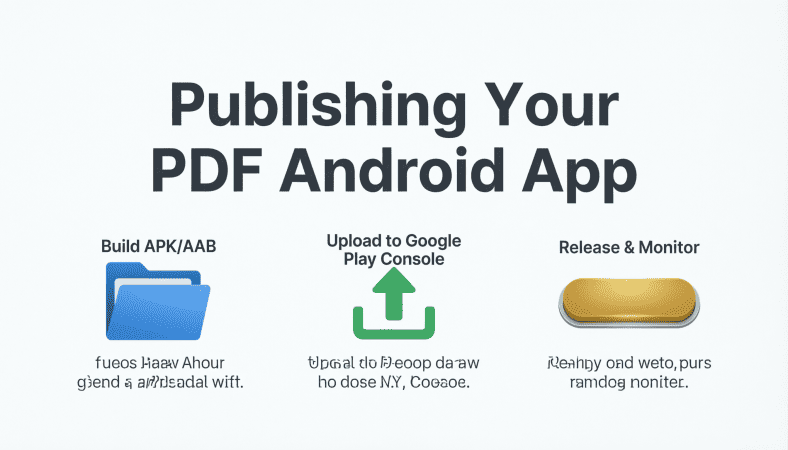
You’ve built your PDF app, tested it thoroughly, and optimized performance. The next big step is publishing it on the Google Play Store. From my experience, this stage can be tricky if you skip small details—errors here can delay approval or reduce visibility. Let’s go step by step.
Step 1: Prepare Your App for Release
Before publishing:
-
Increment versionCode and versionName in
build.gradle. -
Ensure your app runs without errors on all target devices.
-
Remove debug code and log statements to avoid security issues.
-
Sign your APK or App Bundle using a release key.
Practical Tip: I once tried publishing an unsigned APK by mistake. Google Play rejected it immediately. Always double-check your signing key.
Step 2: Generate APK or App Bundle
Google recommends publishing App Bundles (AAB) for optimized downloads.
Steps in Android Studio:
-
Go to Build → Generate Signed Bundle / APK
-
Choose Android App Bundle
-
Select your keystore file and enter credentials
-
Select release variant and finish
Think of it like packaging your book. A neat, signed package is easier to distribute and less likely to face rejection.
Step 3: Prepare Store Listing
Google Play requires a detailed store listing:
-
App Name: Short, clear, and keyword-rich.
-
Description: Highlight PDF features like bookmarks, search, annotations.
-
Screenshots & Promo Video: Show interactive features in action.
-
Category & Content Rating: Choose correct categories to reach your target audience.
I always write descriptions as if explaining to a new user. Avoid jargon, focus on usability, and include keywords like “PDF reader,” “Android PDF app,” “search and bookmarks.”
Step 4: Upload and Review
-
Sign in to Google Play Console.
-
Create a new app and enter store listing info.
-
Upload your AAB file.
-
Complete content rating, pricing, and distribution details.
-
Review and submit.
I once submitted an app without selecting proper content rating. Google Play flagged it and delayed approval for a week. Lesson: complete every field accurately.
Step 5: Common Mistakes to Avoid
-
Using a default package name → conflicts in Play Store
-
Forgetting to sign APK → rejected
-
Poor screenshots or no promo video → fewer downloads
-
Ignoring keyword optimization → lower visibility in search
-
Uploading untested APK → crashes reported immediately
Practical Tip: Create a checklist before submission. It saves time and prevents unnecessary delays.
Step 6: After Publishing – Monitor and Update
-
Check analytics: downloads, ratings, user behavior.
-
Respond to reviews and fix issues promptly.
-
Update the app with new PDFs or features regularly to keep users engaged.
Publishing isn’t the end it’s the start of your app’s life. Monitoring feedback and iterating quickly keeps your app relevant and highly rated.
Step 7: Checklist Before Publishing
✅ Versioning and signing complete
✅ APK / AAB built and tested
✅ Store listing fully optimized
✅ Screenshots and promo materials ready
✅ Content rating and category correctly selected
✅ Tested interactive features
✅ Plan for updates and user feedback
Conclusion
Publishing a PDF Android app is more than just uploading a file. By:
-
Preparing a clean, signed build
-
Optimizing your store listing for SEO and user engagement
-
Testing thoroughly before submission
-
Planning updates and monitoring user feedback
…you maximize your app’s visibility, downloads, and user satisfaction.
For the complete guide to building a full PDF Android app, read the main article here.

Results
Razer BlackShark V3 X HyperSpeed Wireless Gaming Headset for PS5: 50mm Drivers - Cardioid Mic - 2.4 GHz, Bluetooth - Works with PC, Mac, Nintendo Switch, Smartphone - Long Battery Life - Black
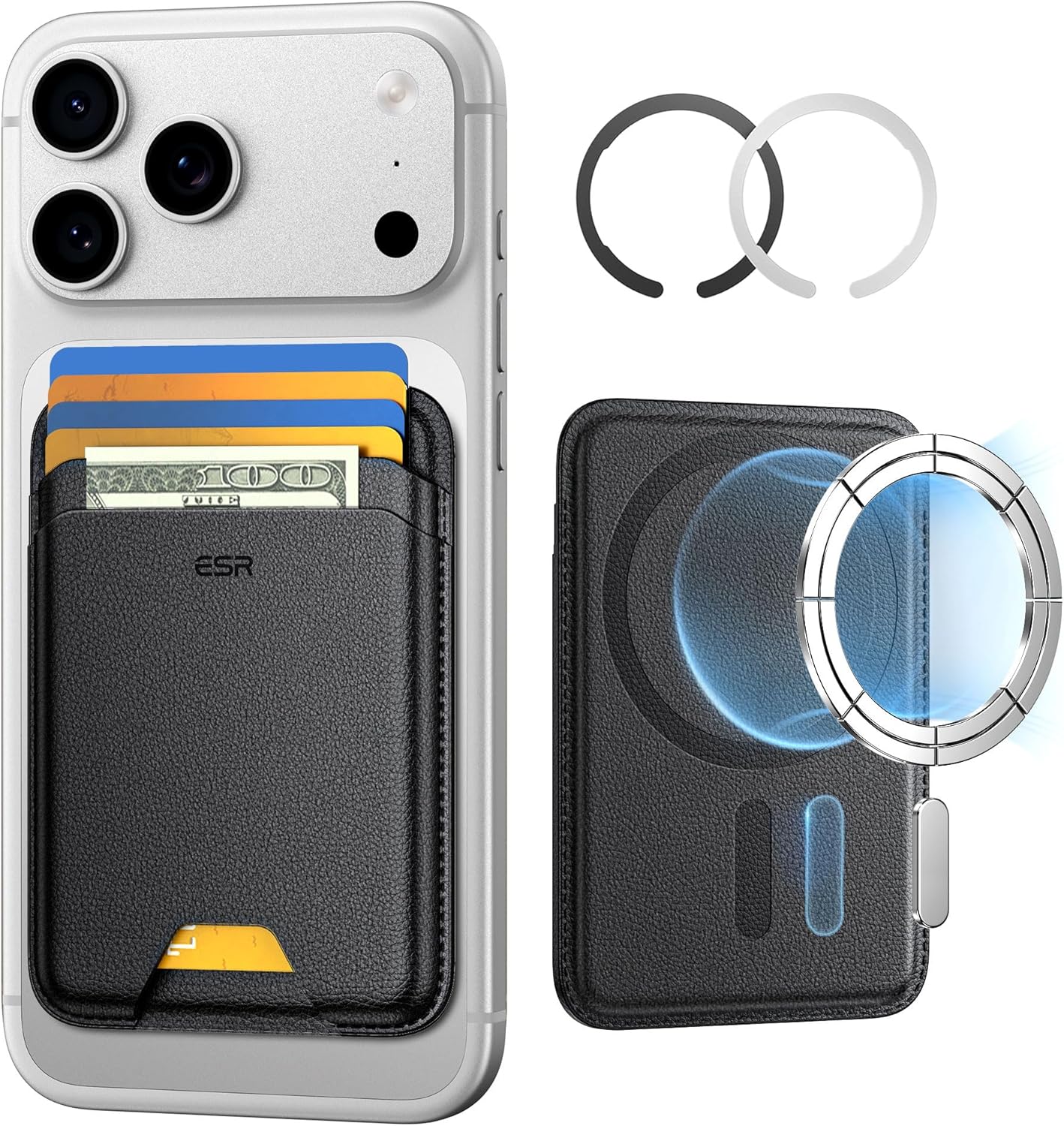
ESR for MagSafe Wallet
ESR for MagSafe Wallet, 5-Card Holder With RFID Blocking, MagSafe Sticker Included, Slim Magnetic Wallet for iPhone 17/16/15/14/13/12 Series and Selected Samsung Devices, Not for 13/12 Mini, Black

Logitech G
Logitech G PRO X SUPERLIGHT 2 Wireless Gaming Mouse
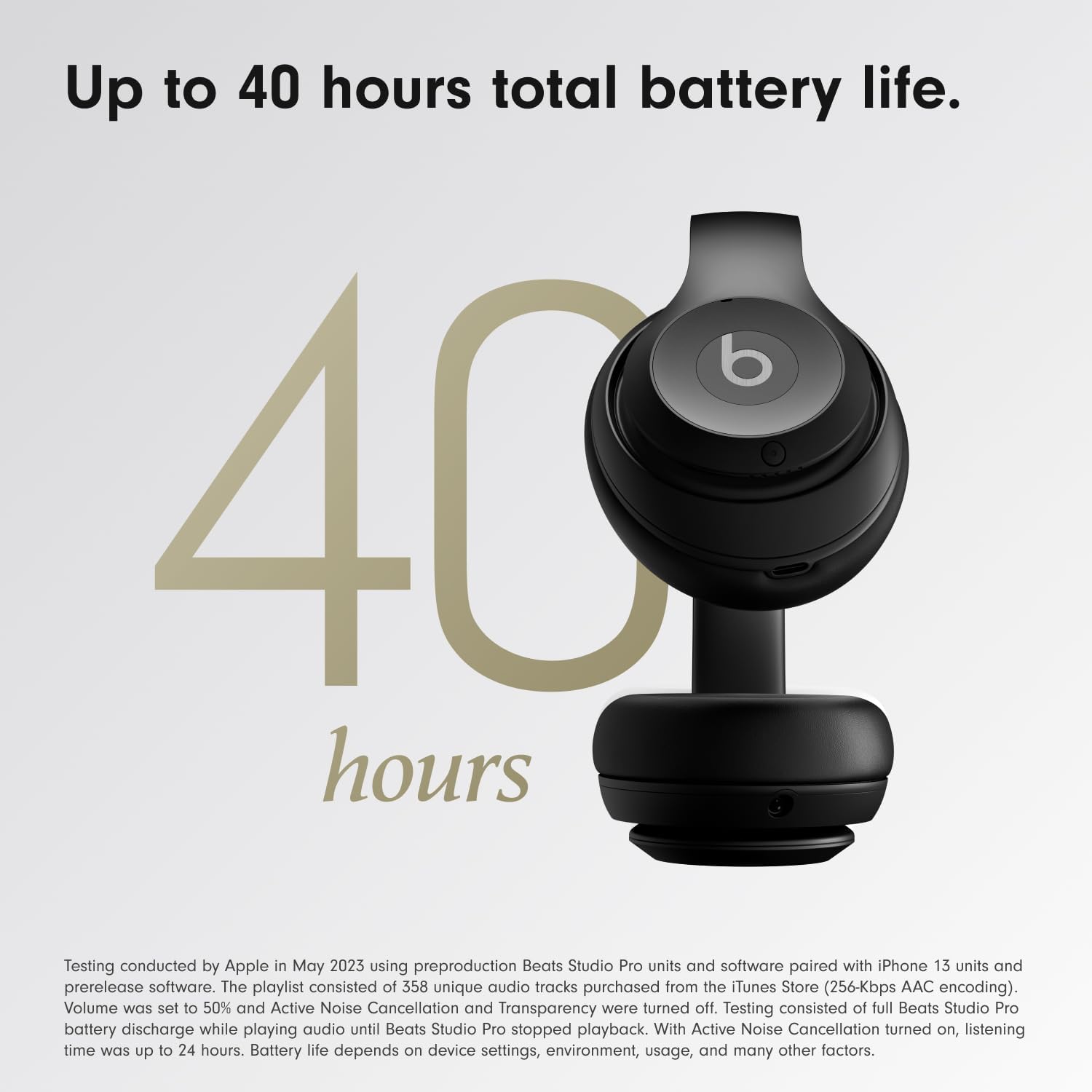
Beats-Studio Pro Cancelling Headphones
Beats Studio Pro - Wireless Bluetooth Noise Cancelling Headphones with USB-C Charging Cable (20 cm) - Jet Black