
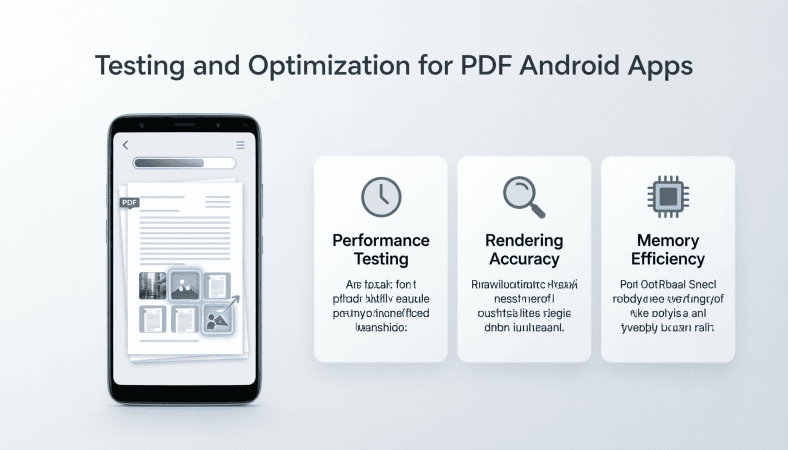
Building your PDF reader app is just the beginning. From my experience, the real difference between a good app and a great app is rigorous testing and optimization. Even the most beautifully designed app can fail if it’s slow, crashes, or doesn’t behave well on different devices.
Here’s a step-by-step guide based on years of hands-on experience.
Step 1: Test Across Devices and Screen Sizes
PDF apps behave differently on:
-
Smartphones (small screens)
-
Tablets (larger screens)
-
Low-end devices (less RAM, older processors)
I always maintain a device test list: one high-end phone, one mid-range phone, and a tablet. This catches layout, memory, and performance issues early.
Once, I tested only on my high-end phone. The app crashed repeatedly on mid-range devices during scrolling. Lesson: never skip testing low-end devices.
Step 2: Test PDF Loading Performance
Large PDFs can slow down your app.
-
Measure load times for small vs large PDFs.
-
Test lazy loading implementation to avoid freezing the UI.
-
Monitor memory usage with Android Studio Profiler.
Think of it like pouring water into a cup. Pour too fast and it spills (app crashes). Pour gradually and it works perfectly (lazy loading).
Step 3: Test Interactive Features
Make sure:
-
Navigation buttons and swipe gestures work correctly.
-
Search functionality finds keywords accurately.
-
Bookmarks and annotations are saved properly.
I often simulate real user behavior like jumping 100 pages ahead or searching for obscure terms. This exposes hidden bugs that typical testing misses.
Step 4: Optimize PDF Rendering
Rendering speed affects user experience:
-
Preload nearby pages for smoother scrolling.
-
Optimize images in PDFs to reduce memory usage.
-
Use hardware acceleration where possible.
I sometimes hesitate between image quality and performance. My rule: prioritize smooth scrolling; users can tolerate slightly lower image quality.
Step 5: Optimize App Size
Large APKs can reduce downloads:
-
Use external storage for very large PDFs instead of embedding them in assets.
-
Compress images without reducing readability.
-
Remove unnecessary resources and unused libraries.
Practical Tip: I once embedded multiple 50MB PDFs in assets install size exceeded 200MB. Moving them to external storage reduced app size by 75% and prevented Play Store warnings.
Step 6: Automation and Regression Testing
-
Use JUnit or Espresso for automated UI tests.
-
Regression tests ensure new updates don’t break existing functionality.
-
Automated tests save time for repeated testing of large PDFs.
On one PDF app update, a small change broke the search function in large files. Automated tests caught this before release, avoiding negative user reviews.
Step 7: Checklist Before Publishing
✅ Test on multiple devices (phones, tablets)
✅ Measure PDF load times and optimize
✅ Verify navigation, search, bookmarks, and annotations
✅ Optimize scrolling, zoom, and rendering
✅ Reduce APK size and optimize resources
✅ Implement automated tests for future updates
Conclusion
Testing and optimization are critical for delivering a reliable and user-friendly PDF app. By:
-
Covering multiple devices
-
Optimizing PDF loading and rendering
-
Verifying interactive features
-
Reducing app size
…you ensure your users have a smooth, enjoyable experience, and your app receives better ratings and retention.
When testing your PDF reader app, it helps to use a real book instead of a simple sample file. For example, the 500 Mouthwatering Dessert Recipes Cookbook provides hundreds of recipe pages that are perfect for testing navigation, scrolling, and chapter structure.
For the complete guide to building a full PDF Android app, read the main article here.
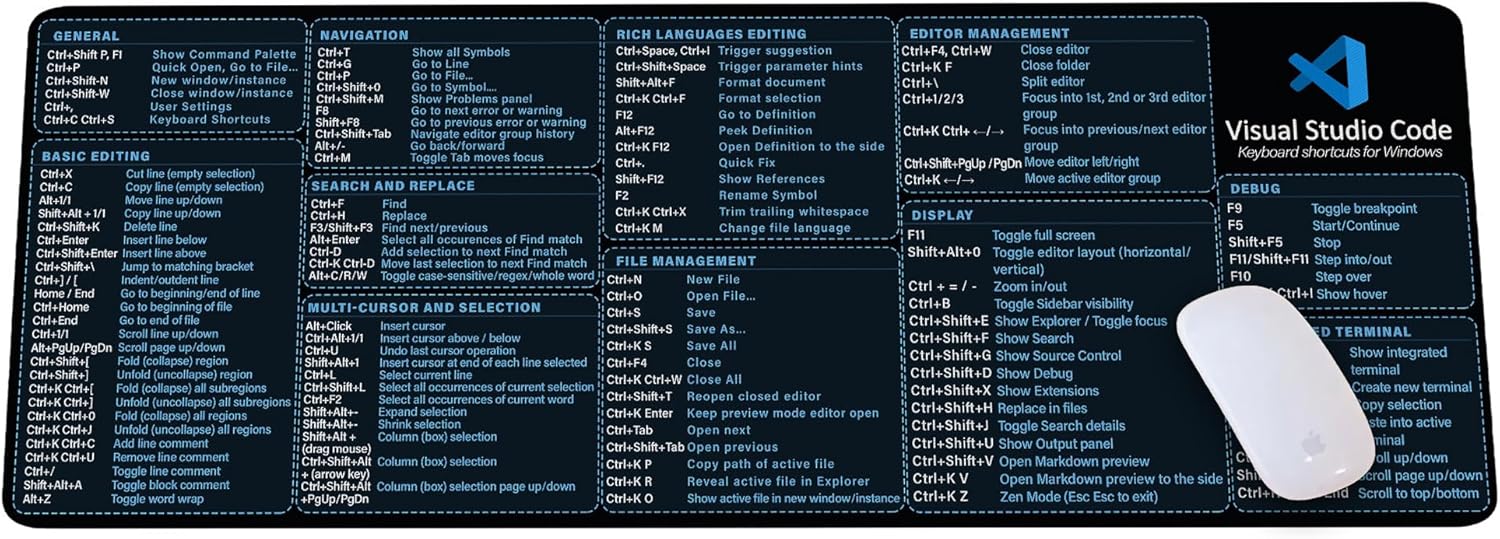
Visual Studio Code Shortcuts Mouse Pad
Visual Studio Code Shortcuts Mouse Pad – Desk Mat for Programmers, Coders & Beginners, Great Office Gift for Developers & Tech Enthusiasts, Computer Accessory for Study, Work, and Learning KMH
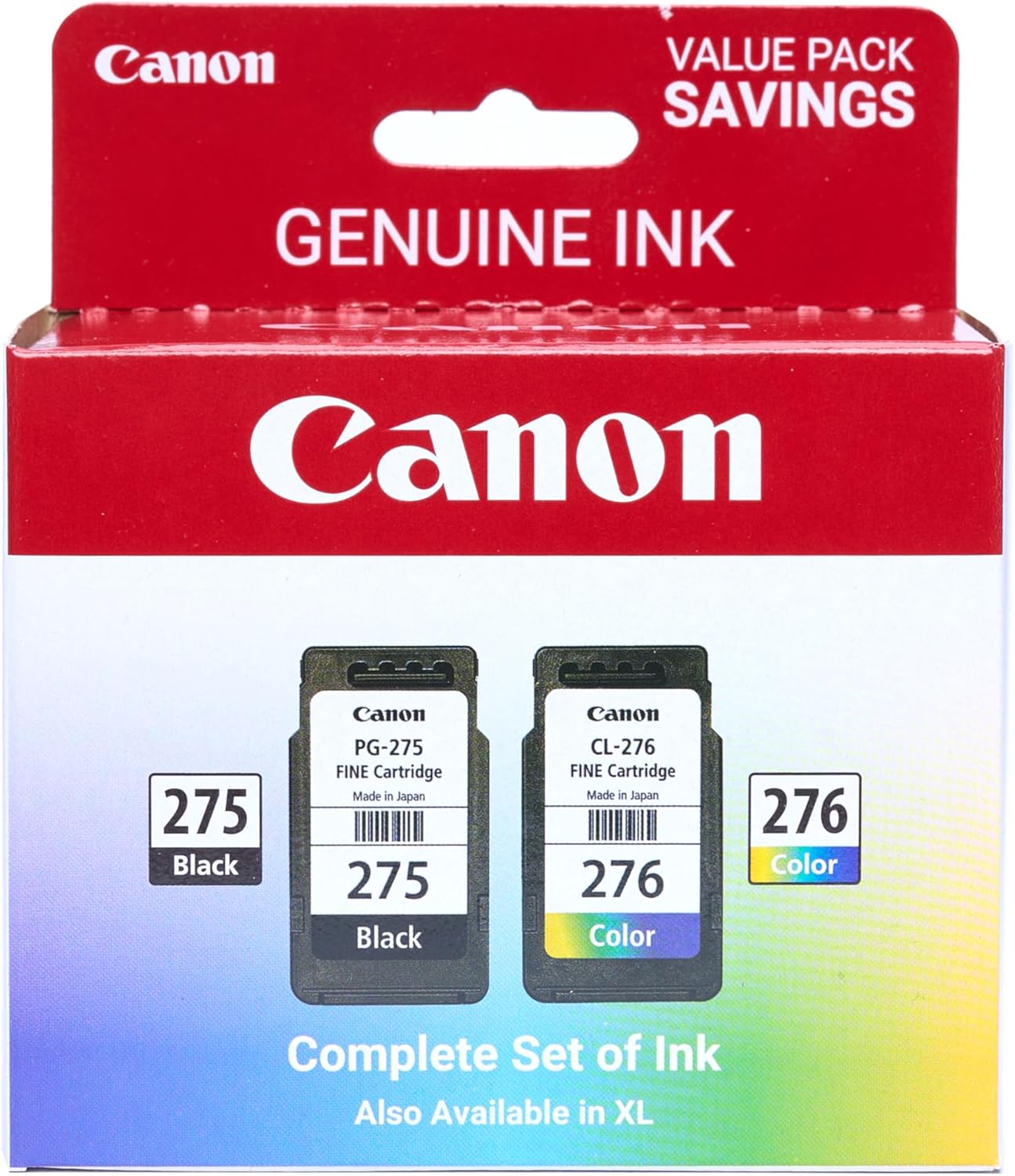
Canon PG-275
Canon PG-275 / CL-276 Genuine Ink Value Pack (2 Cartridges), Compatible with TS3520/3522/4722/3720/3722, TR4720
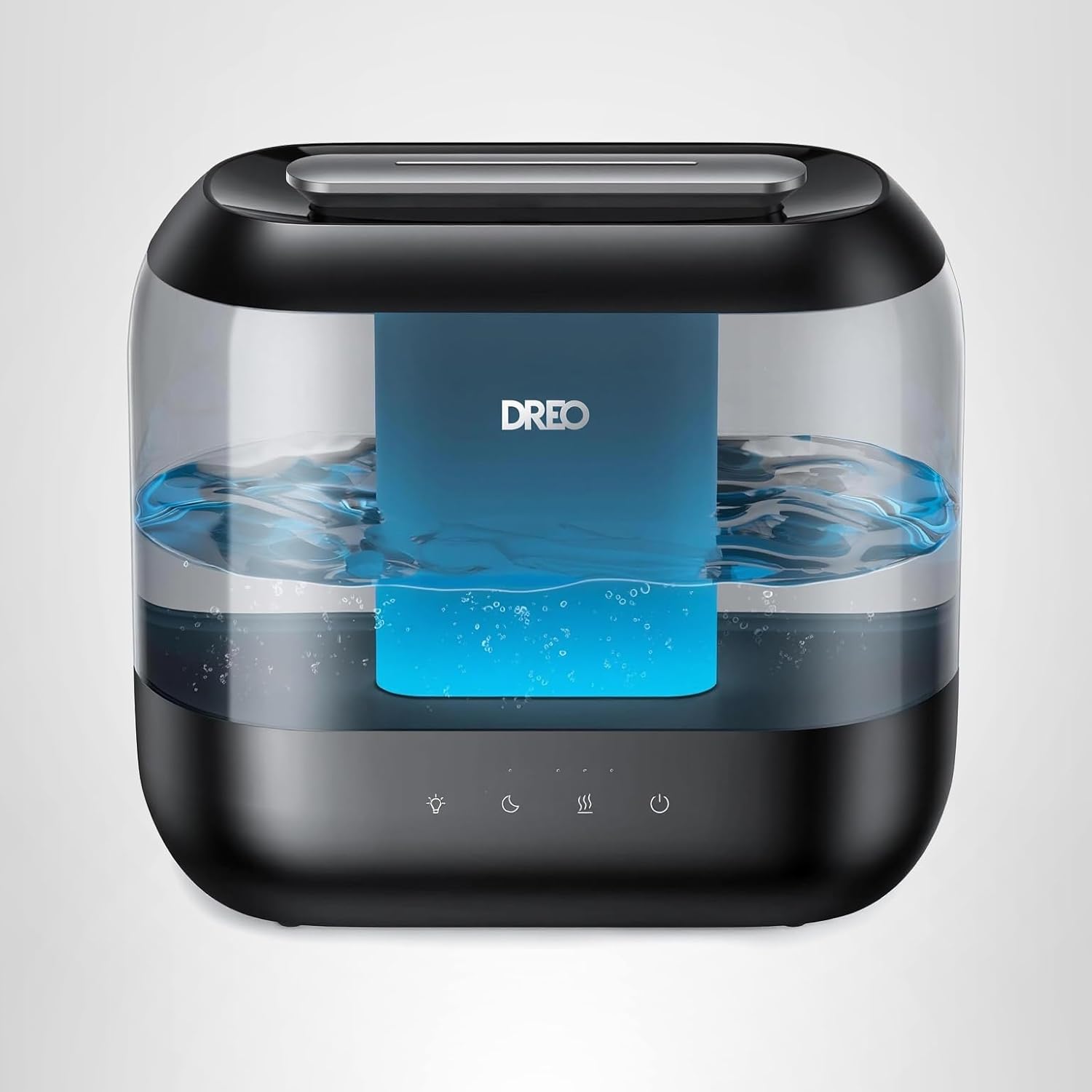
Dreo Humidifiers for Bedroom
Dreo Humidifiers for Bedroom, 4L Top Fill for Large Room, 36H Runtime, 28 dB Quiet Supersized Cool Mist Air Humidifier for Baby Nursery, Plants, Indoor, Night Light, Easy to Clean & Fill, Black
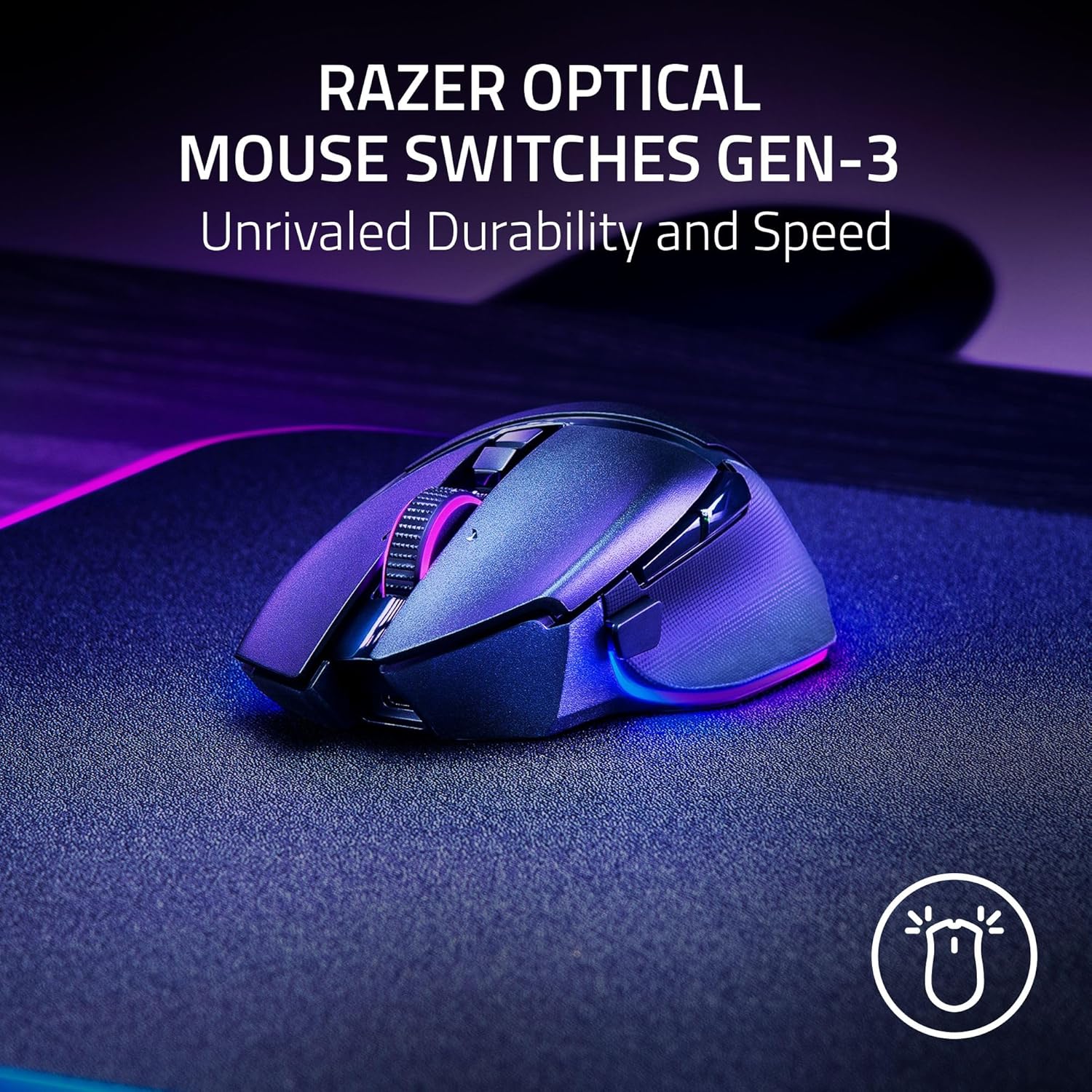
Razer
Razer Basilisk V3 Pro 35K Wireless Gaming Mouse: HyperScroll Tilt Wheel - 35K DPI Optical Sensor Gen 2-13 Customizable Controls - Chroma RGB - Optical Switches Gen 3 - Up to 140 Hr Battery - Black