Once you’ve added your PDF to the project, the next step is displaying it efficiently. I’ve seen many developers try to create a PDF renderer from scratch—it works for small PDFs, but for large files, it’s slow, buggy, and a nightmare to maintain. That’s where PDF viewer libraries come in.
I’ll walk you through the best options, how to integrate them, and tips from real-world experience.
Step 1: Why Use a PDF Library?
PDF files can be complex: images, text layers, annotations, and forms. Writing your own renderer is time-consuming. Libraries handle:
-
Page rendering
-
Zooming and scrolling
-
Search support
-
Performance optimization
In one early app, I tried custom PDF rendering. Users reported freezing and crashes on page 50 of a 200-page book. Switching to AndroidPdfViewer solved the issue overnight.
Step 2: Recommended Libraries
Here are my go-to libraries:
-
AndroidPdfViewer
-
Easy integration
-
Smooth scrolling
-
Supports large PDFs
-
-
PDFView
-
Lightweight
-
Simple API
-
Good for basic apps
-
-
MuPDF
-
Advanced features (annotations, forms)
-
Slightly more complex setup
-
Better for professional-grade apps
-
Test multiple libraries on your PDF early. Each library behaves differently depending on PDF complexity and device specs.
Step 3: Adding AndroidPdfViewer
Gradle Dependency:
implementation ‘com.github.barteksc:android-pdf-viewer:3.2.0-beta.1’
}
Basic Usage in Activity:
pdfView.fromAsset(“my_book.pdf”)
.enableSwipe(true)
.swipeHorizontal(false)
.enableDoubletap(true)
.load();
Practical Tip: Use fromAsset() for files in the assets folder, or fromFile(new File(path)) for external PDFs.
Step 4: Handling Large PDFs
Large PDFs can cause memory issues. I recommend:
-
Lazy loading: Load pages on demand instead of all at once.
-
Background threads: Prevent UI freezing.
-
Image optimization: Reduce resolution of embedded images.
I had a 300 page technical PDF. Without lazy loading, even high-end phones froze. Adding swipeHorizontal(false) and loading pages in chunks solved the problem.
Step 5: Customizing Viewer Features
Libraries often allow:
-
Zooming: Pinch gestures or double-tap
-
Scrolling: Vertical or horizontal
-
Page indicators: Show current page / total pages
-
Search: Highlight keywords
Think of it like building a reader’s comfort kit. Users should feel in control, not lost in a wall of pages.
Step 6: Common Mistakes and How to Avoid Them
-
Forgetting to test on low-end devices → lag or crashes
-
Loading all pages in memory → app freezes
-
Using heavy images without optimization → high memory usage
-
Ignoring library updates → missing bug fixes
I often debate whether to add annotations or stick to basic reading. Adding extra features can increase complexity and potential bugs. My approach: implement core reading first, then add optional features gradually.
Step 7: Checklist Before Moving to Interactive Features
✅ Choose the right PDF library based on app needs
✅ Add Gradle dependency correctly
✅ Test with small and large PDFs
✅ Implement lazy loading for performance
✅ Customize zoom, scroll, and page indicators
✅ Test on multiple devices
Conclusion
PDF viewer libraries are the backbone of any PDF Android app. Using the right library ensures:
-
Smooth, responsive page rendering
-
Efficient memory usage
-
Fast implementation of key features like zoom and search
By testing early, handling large PDFs carefully, and customizing features thoughtfully, you set your app up for a professional and user friendly experience.
For the complete guide to building a full PDF Android app, read the main article here.

iFIT Pro
iFIT Pro – Monthly Membership – 1 month free trial included [Subscription]
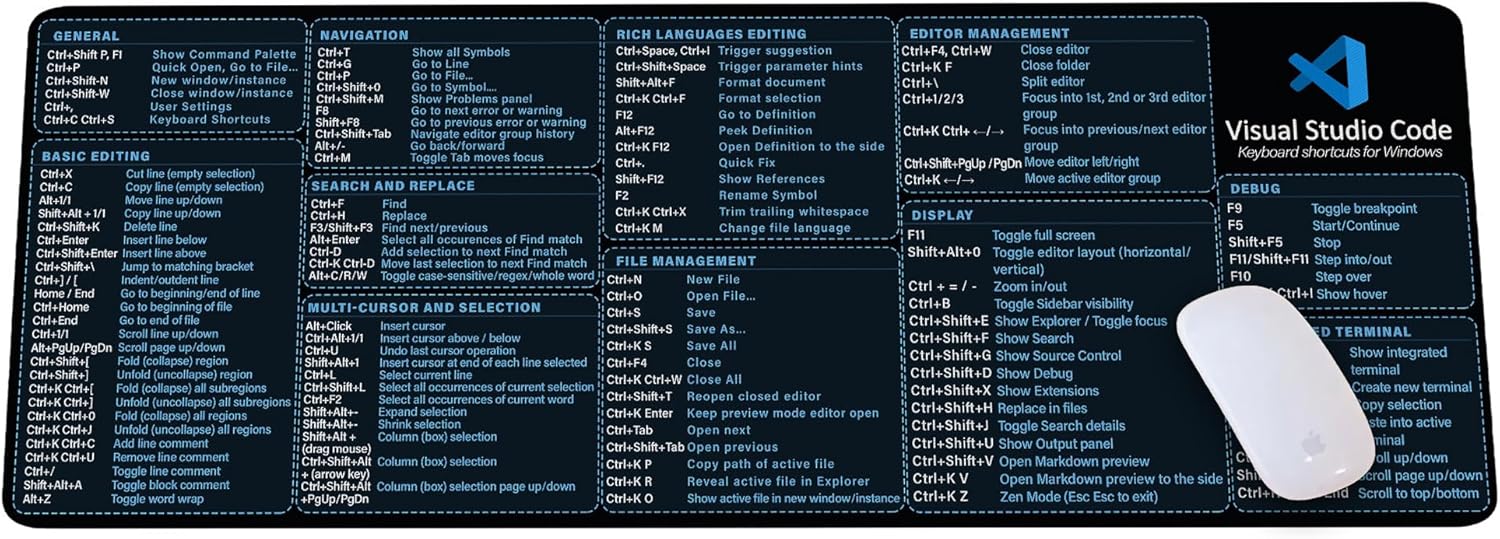
Visual Studio Code Shortcuts Mouse Pad
Visual Studio Code Shortcuts Mouse Pad – Desk Mat for Programmers, Coders & Beginners, Great Office Gift for Developers & Tech Enthusiasts, Computer Accessory for Study, Work, and Learning KMH

Sound Healing 432 Hz
song transports the listener to a relaxed state of mindfulness and inner peace.

Razer
Razer Basilisk V3 Pro 35K Wireless Gaming Mouse: HyperScroll Tilt Wheel – 35K DPI Optical Sensor Gen 2-13 Customizable Controls – Chroma RGB – Optical Switches Gen 3 – Up to 140 Hr Battery – Black
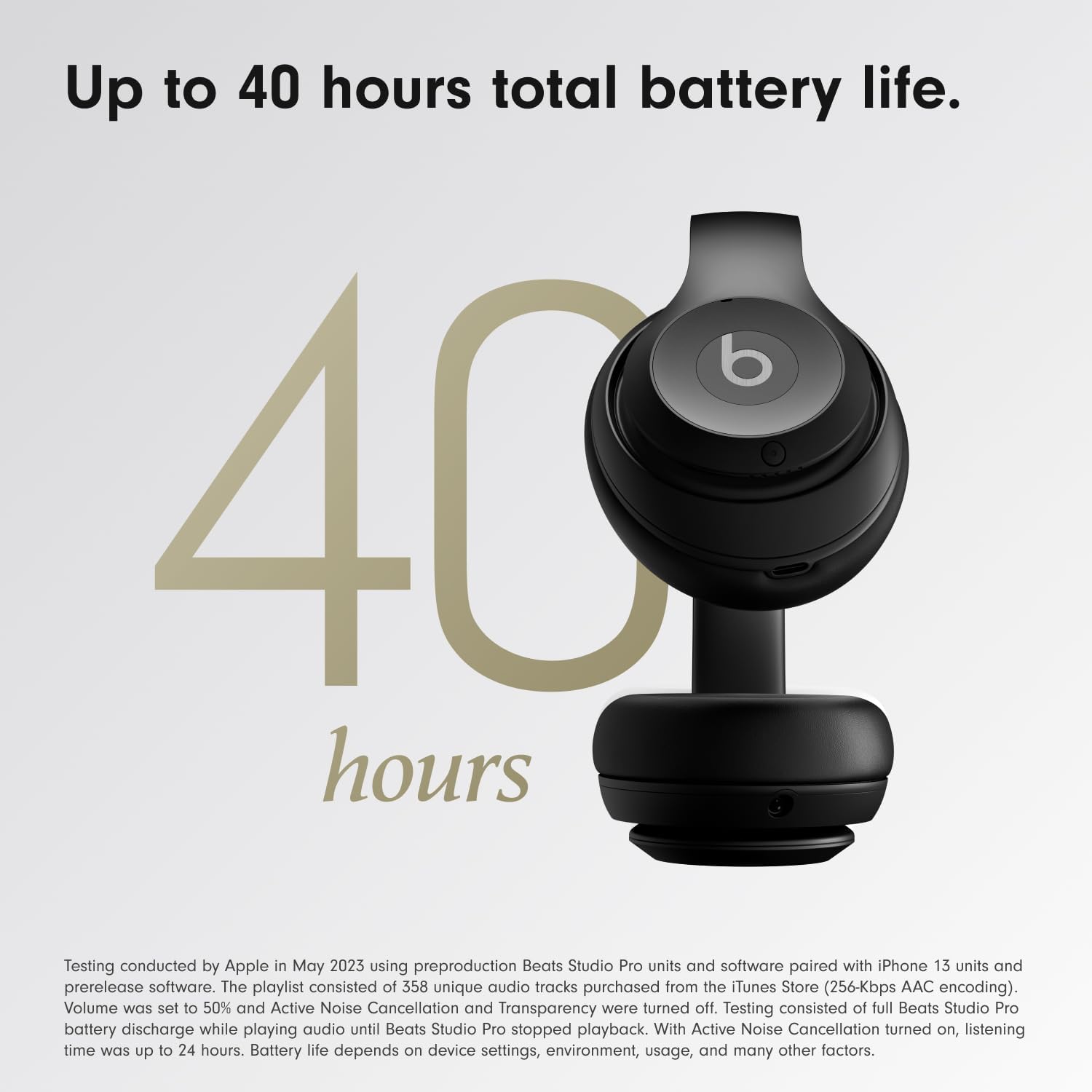
Beats-Studio Pro Cancelling Headphones
Beats Studio Pro – Wireless Bluetooth Noise Cancelling Headphones with USB-C Charging Cable (20 cm) – Jet Black