
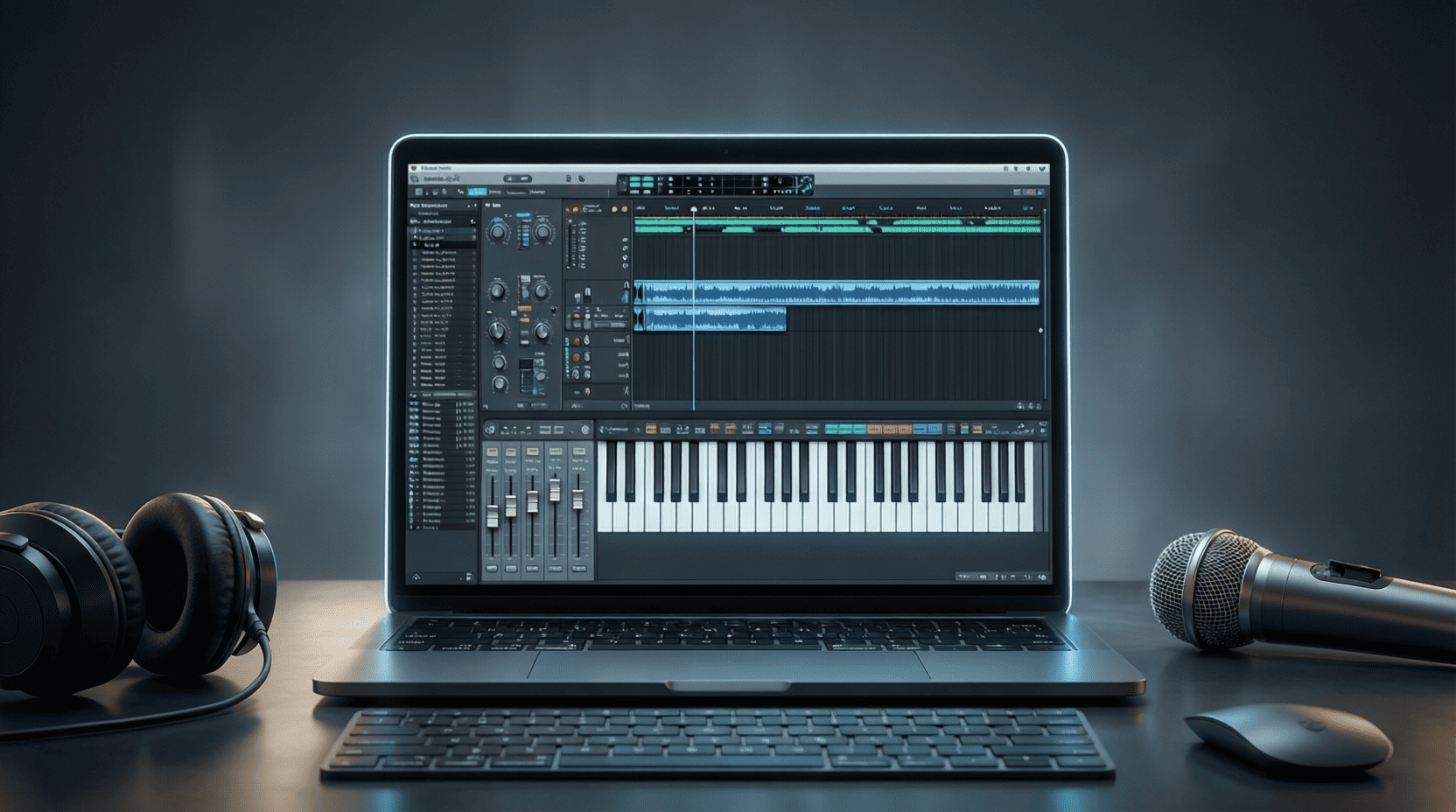
Troubleshooting Common Issues in FL Studio 21
As a seasoned music producer and competitive gamer, I understand the frustration that can arise when you encounter issues with your software. FL Studio 21, one of the most popular Digital Audio Workstations (DAWs), offers a multitude of features, but like any software, it can run into problems. This article will guide you through common issues, providing step-by-step solutions and helpful tips to get your music production back on track.
1. Audio Playback Issues
One of the most common issues FL Studio users face is audio playback problems. Here are some potential causes and solutions:
1.1 Check Audio Device Settings
- Open FL Studio and navigate to Options > Audio Settings.
- Ensure the correct audio device is selected in the Device dropdown menu.
- Test different driver modes (ASIO, DirectSound, etc.) to find one that works best.
1.2 Update Audio Drivers
Outdated audio drivers can cause playback issues. To update your audio drivers:
- Go to your computer’s Device Manager.
- Locate Sound, video, and game controllers.
- Right-click on your audio device and select Update driver.
- Follow the prompts to install any available updates.
2. MIDI Controller Not Responding
If your MIDI controller is not responding, it can be frustrating. Follow these steps to troubleshoot:
2.1 Check MIDI Settings
- Go to Options > MIDI Settings.
- Ensure that your MIDI controller is listed under Input.
- Enable the controller by clicking the checkbox next to it.
2.2 Reconnect Your MIDI Controller
Sometimes simply reconnecting your device can help:
- Unplug your MIDI controller from the USB port.
- Wait a few seconds, then plug it back in.
- Restart FL Studio.
3. Plugin Issues
Using third-party plugins can sometimes lead to compatibility problems. Here’s how to address plugin-related issues:
3.1 Rescan Plugins
- Go to Options > Manage Plugins.
- Click on Find Plugins to rescan all plugin folders.
- Ensure that your plugins are located in a directory that FL Studio scans.
3.2 Check for Updates
Outdated plugins may not function correctly. Check the plugin manufacturer’s website for updates.
4. Project File Not Opening
It can be alarming when a project file won’t open. Here are a few strategies to recover your projects:
4.1 Check File Integrity
- Right-click on the project file and select Properties.
- Ensure the file size is as expected. If the file size is too small, it may be corrupted.
4.2 Use Backup Files
FL Studio automatically saves backup files. To access them:
- Navigating to your project folder.
- Look for files ending in .flp.bak.
- Rename the backup file to .flp and try opening it.
5. Performance Issues
Performance lag can hinder your workflow. Here are some steps to optimize FL Studio for better performance:
5.1 Adjust Buffer Size
- Go to Options > Audio Settings.
- Increase the buffer size to reduce CPU load, especially during playback.
5.2 Disable Unused Effects
Disabling effects that you are not currently using can free up CPU resources:
- Go to each mixer track and disable effects by clicking the green light next to each effect.
6. Visual Glitches
Sometimes, you might encounter visual glitches in FL Studio. Here’s how to troubleshoot:
6.1 Update FL Studio
Make sure you are running the latest version of FL Studio:
- Visit the official FL Studio website and download the latest version.
6.2 Change Display Scaling Settings
If you’re using a high-resolution display, it might cause visual glitches:
- Right-click on your desktop and select Display settings.
- Adjust the scaling settings to 100%.
7. General Tips for Troubleshooting
Here are some general tips that can help you troubleshoot common issues in FL Studio:
- Restart FL Studio and your computer regularly to clear temporary issues.
- Check the FL Studio forums and FAQ sections for specific issues.
- Consider reinstalling FL Studio if problems persist.
Conclusion
While encountering issues in FL Studio 21 can be frustrating, many common problems have straightforward solutions. By following the steps outlined in this article, you can troubleshoot effectively and get back to creating your music. For more in-depth guidance on using FL Studio 21, check out our FL Studio 21: The Ultimate Guide.
Remember, every producer faces challenges in their workflow, and being prepared with troubleshooting strategies will enhance your overall music production experience.
interface sounds OGG
interface sounds, UI sound effects, UX sound effects, game UI sounds, mobile UI audio, notification sound effects, button click SFX, menu sounds, toggle switch sounds, error alert sounds
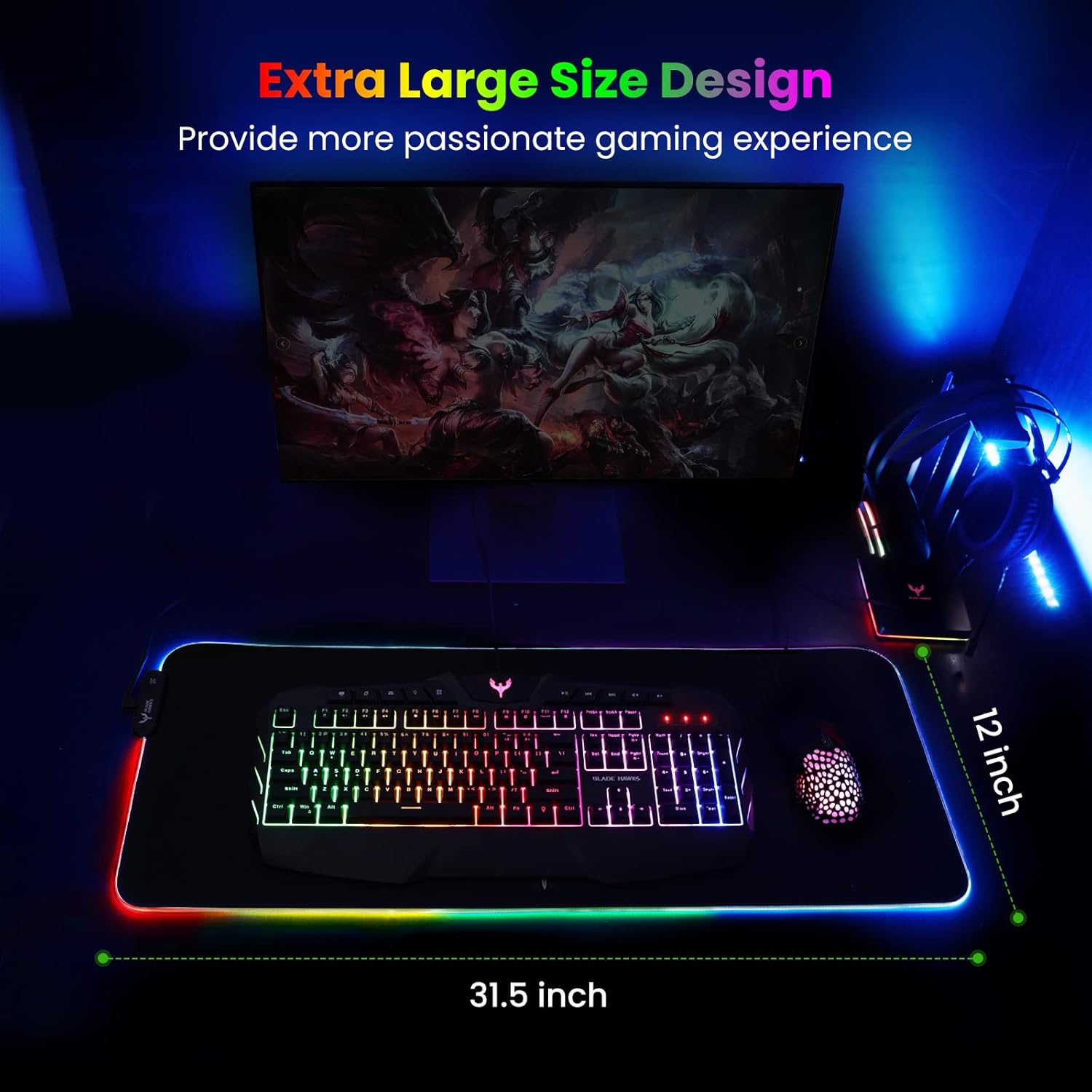
Mouse Pad
BladeHawks Extra Large RGB Gaming Mouse Pad-14 Light Modes, Extended Soft LED Mouse Pad, Anti-Slip Rubber Base, Computer Keyboard Mousepad Mat (31.5 x 12 Inch)

Arknights: Endfield
3D tactical RPG set in the Arknights universe. Lead a team of operators on a mysterious planet, explore new areas, build and optimize your base, and fight in dynamic battles while completing story-driven missions in a sci-fi world.
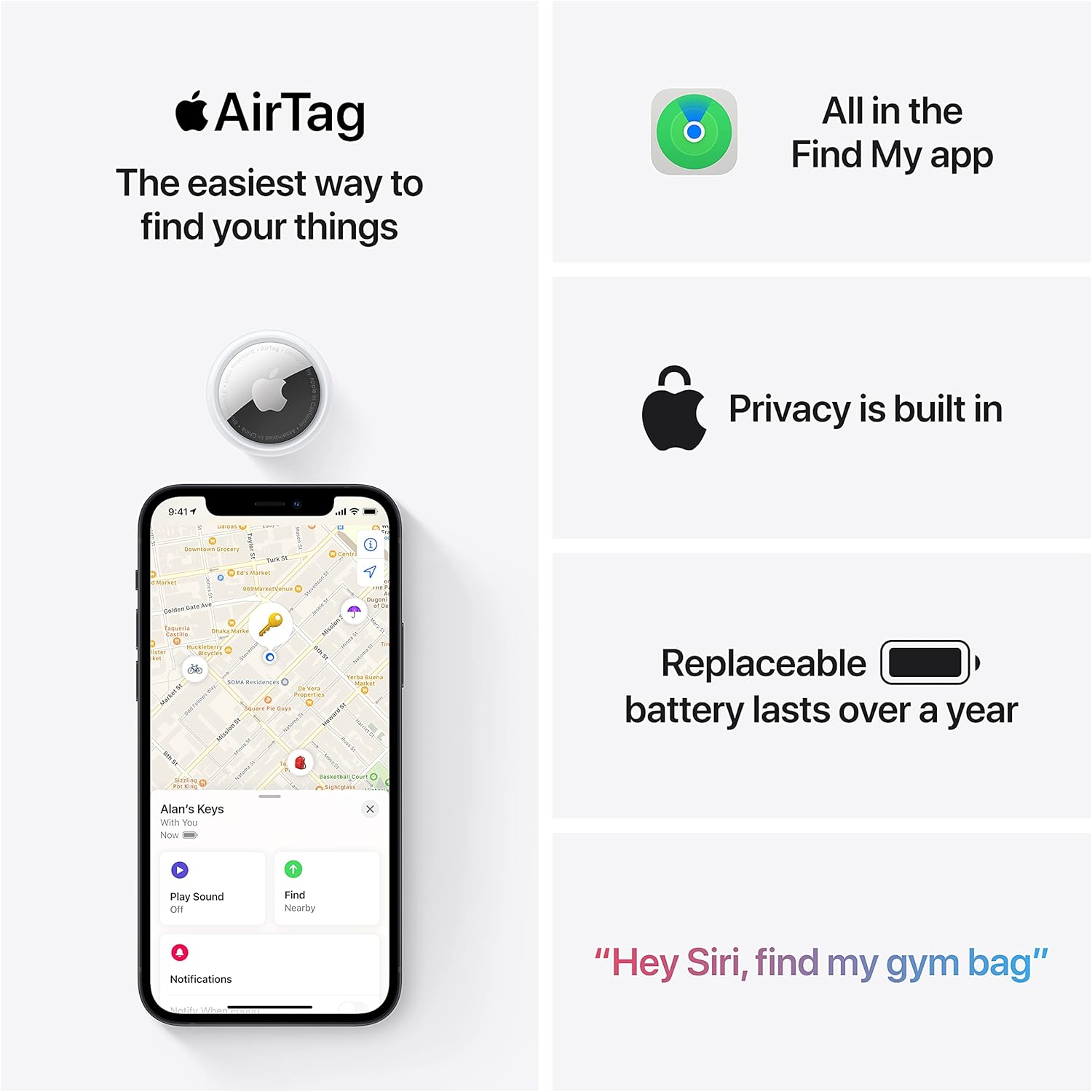
Apple AirTag 4 Pack
Brand Apple Are Batteries Included Yes Number of Batteries 4 CR2032 batteries required. (included) Product Dimensions 1.26\"L x 1.26\"W x 0.31\"Th Compatible Devices airtag