
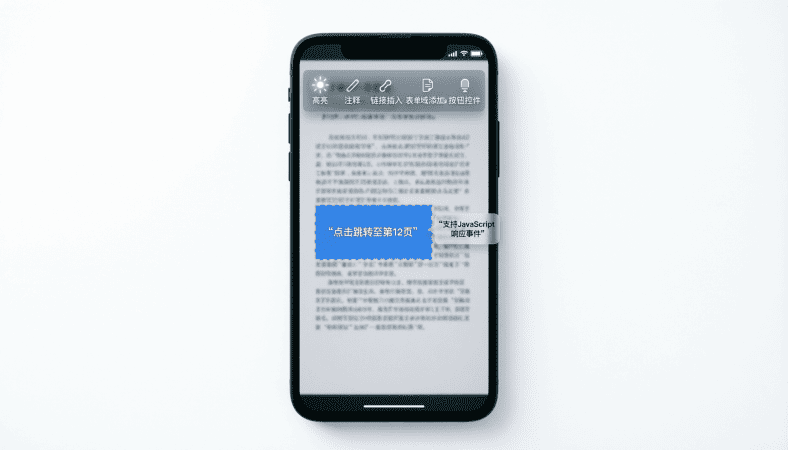
Once you’ve added your PDF to the project, the next step is displaying it efficiently. I’ve seen many developers try to create a PDF renderer from scratch—it works for small PDFs, but for large files, it’s slow, buggy, and a nightmare to maintain. That’s where PDF viewer libraries come in.
I’ll walk you through the best options, how to integrate them, and tips from real-world experience.
Step 1: Why Use a PDF Library?
PDF files can be complex: images, text layers, annotations, and forms. Writing your own renderer is time-consuming. Libraries handle:
-
Page rendering
-
Zooming and scrolling
-
Search support
-
Performance optimization
In one early app, I tried custom PDF rendering. Users reported freezing and crashes on page 50 of a 200-page book. Switching to AndroidPdfViewer solved the issue overnight.
Step 2: Recommended Libraries
Here are my go-to libraries:
-
AndroidPdfViewer
-
Easy integration
-
Smooth scrolling
-
Supports large PDFs
-
-
PDFView
-
Lightweight
-
Simple API
-
Good for basic apps
-
-
MuPDF
-
Advanced features (annotations, forms)
-
Slightly more complex setup
-
Better for professional-grade apps
-
Test multiple libraries on your PDF early. Each library behaves differently depending on PDF complexity and device specs.
Step 3: Adding AndroidPdfViewer
Gradle Dependency:
implementation ‘com.github.barteksc:android-pdf-viewer:3.2.0-beta.1’
}
Basic Usage in Activity:
pdfView.fromAsset(“my_book.pdf”)
.enableSwipe(true)
.swipeHorizontal(false)
.enableDoubletap(true)
.load();
Practical Tip: Use fromAsset() for files in the assets folder, or fromFile(new File(path)) for external PDFs.
Step 4: Handling Large PDFs
Large PDFs can cause memory issues. I recommend:
-
Lazy loading: Load pages on demand instead of all at once.
-
Background threads: Prevent UI freezing.
-
Image optimization: Reduce resolution of embedded images.
I had a 300 page technical PDF. Without lazy loading, even high-end phones froze. Adding swipeHorizontal(false) and loading pages in chunks solved the problem.
Step 5: Customizing Viewer Features
Libraries often allow:
-
Zooming: Pinch gestures or double-tap
-
Scrolling: Vertical or horizontal
-
Page indicators: Show current page / total pages
-
Search: Highlight keywords
Think of it like building a reader’s comfort kit. Users should feel in control, not lost in a wall of pages.
Step 6: Common Mistakes and How to Avoid Them
-
Forgetting to test on low-end devices → lag or crashes
-
Loading all pages in memory → app freezes
-
Using heavy images without optimization → high memory usage
-
Ignoring library updates → missing bug fixes
I often debate whether to add annotations or stick to basic reading. Adding extra features can increase complexity and potential bugs. My approach: implement core reading first, then add optional features gradually.
Step 7: Checklist Before Moving to Interactive Features
✅ Choose the right PDF library based on app needs
✅ Add Gradle dependency correctly
✅ Test with small and large PDFs
✅ Implement lazy loading for performance
✅ Customize zoom, scroll, and page indicators
✅ Test on multiple devices
Conclusion
PDF viewer libraries are the backbone of any PDF Android app. Using the right library ensures:
-
Smooth, responsive page rendering
-
Efficient memory usage
-
Fast implementation of key features like zoom and search
By testing early, handling large PDFs carefully, and customizing features thoughtfully, you set your app up for a professional and user friendly experience.
For the complete guide to building a full PDF Android app, read the main article here.
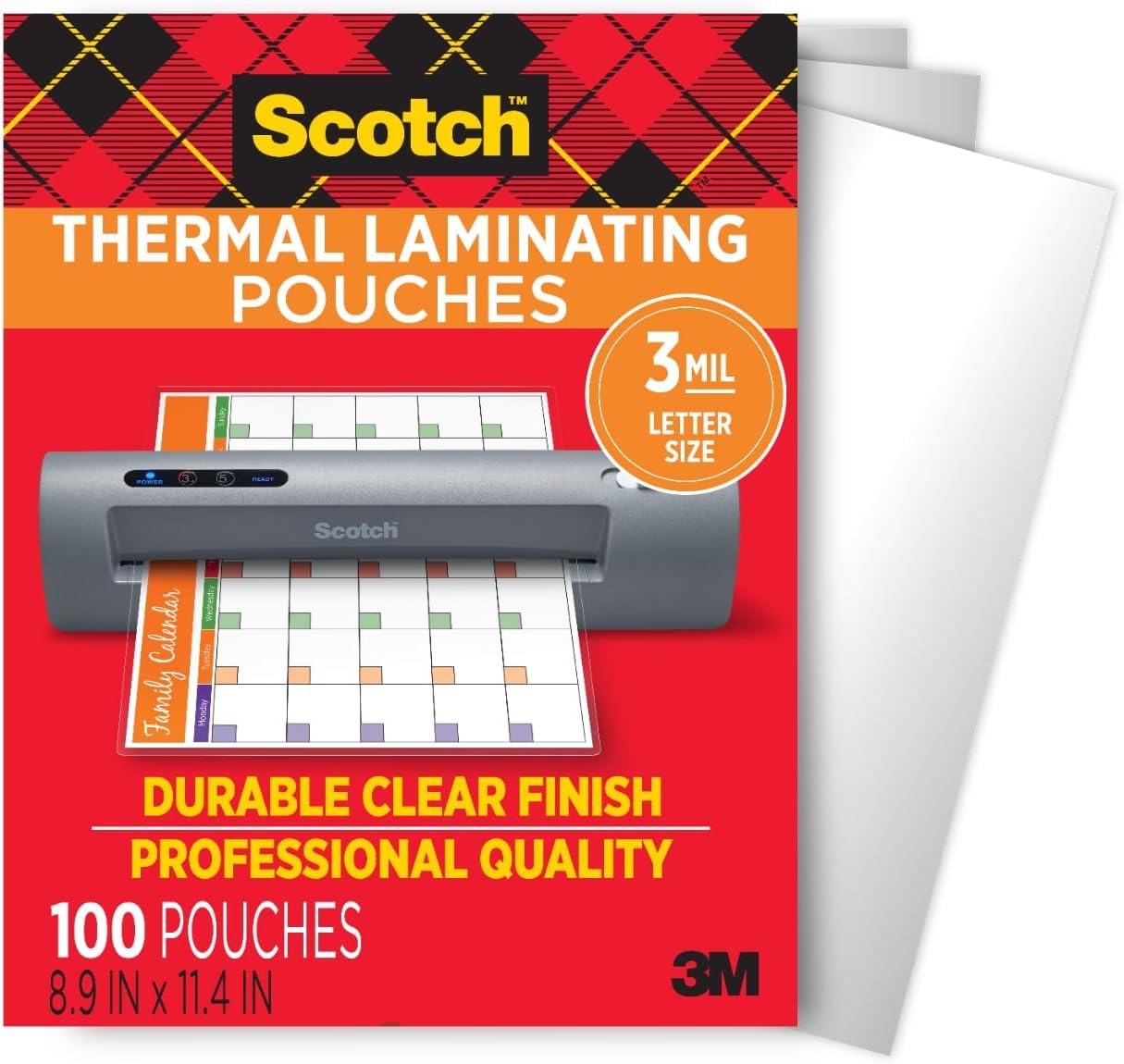
Scotch Thermal Laminating Pouches
Scotch Thermal Laminating Pouches, for Use with Thermal Laminators, 8.9 x 11.4 Inches, Letter Size Sheets, 100-Pack
interface sounds OGG
interface sounds, UI sound effects, UX sound effects, game UI sounds, mobile UI audio, notification sound effects, button click SFX, menu sounds, toggle switch sounds, error alert sounds
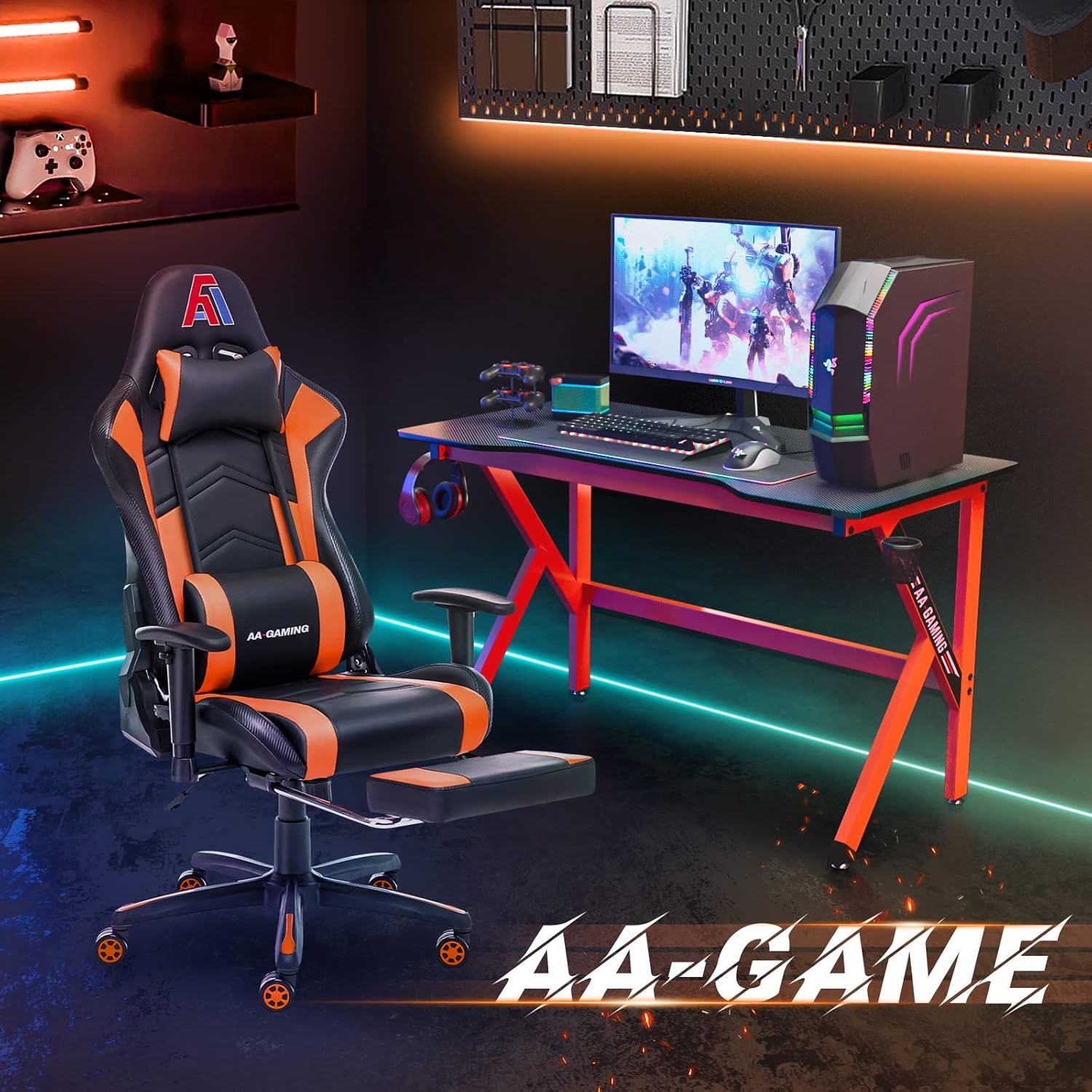
AA Products High Back Ergonomic Gaming Chair
AA Products Gaming Chair Ergonomic High Back Computer Racing Chair Adjustable Office Chair with Footrest, Lumbar Support Swivel Chair - BlackOrange
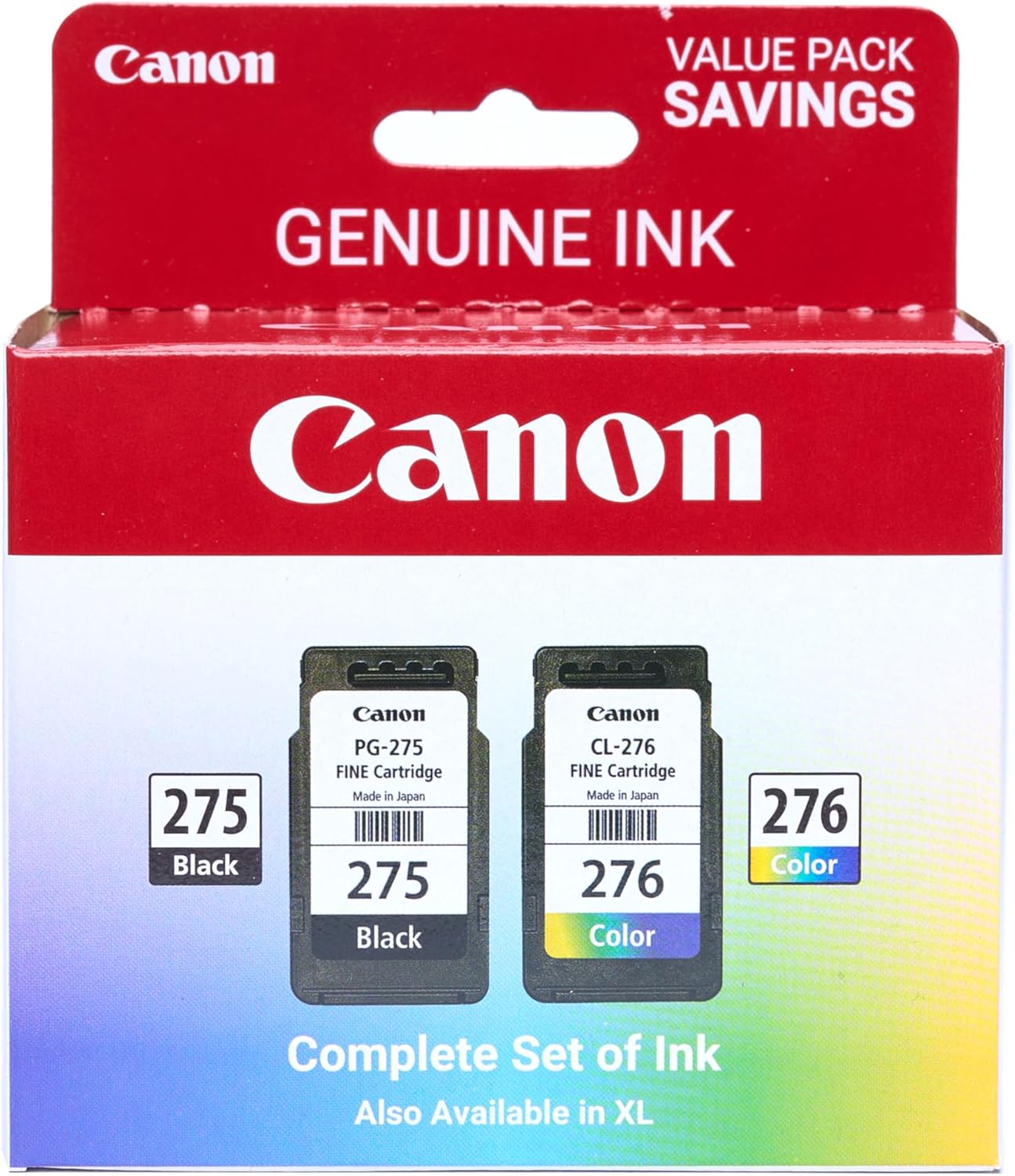
Canon PG-275
Canon PG-275 / CL-276 Genuine Ink Value Pack (2 Cartridges), Compatible with TS3520/3522/4722/3720/3722, TR4720