If you’ve ever wanted to turn a PDF book into a fully functional Android app, this guide is for you. Whether you’re a developer, educator, or hobbyist, this step-by-step guide will show you how to create a PDF reader app with Java and Android Studio, including design, features, testing, publishing, and marketing.
1. Analyzing Your PDF Book
Before you start coding, take time to review your PDF content. Identify chapters, images, and sections that are relevant to your app.
-
Why this matters: Adding unnecessary pages or images can slow down the app.
-
tip: Include keywords like “PDF book content analysis,” “organize PDF for Android app.”
-
Tools: Adobe Acrobat, SmallPDF, Foxit Reader
-
Practical advice: Highlight main chapters and important images. Avoid blank or repetitive pages.
2. Extracting Content from Any PDF
Not all PDFs are ready to use. Some may be scanned or protected. Learn how to extract text and images from PDFs.
-
Text extraction: Use tools like Adobe Acrobat or SmallPDF to get clean text.
-
OCR for scanned PDFs: Convert scanned pages into editable text with Tesseract or Google Drive OCR.
-
tip: Target keywords such as “extract text from PDF,” “OCR for Android apps.”
-
Practical tip: Always proofread OCR output to avoid errors like misread numbers or symbols.
3. Designing a Mobile-Friendly UI/UX
A clean, readable interface makes your app user-friendly and engaging. Check our guide on UI/UX design for PDF Android apps.
-
Navigation: Table of contents, chapter selection, and page scrolling.
-
Visuals: Fonts, colors, and layouts optimized for small screens.
-
Tools: Figma, Adobe XD
-
Practical advice: Use large buttons and clear headings. Floating navigation buttons improve usability.
4. Setting Up Android Studio
Start your development by following this guide to setup Android Studio.
-
Steps: Install Android Studio, create a new project, configure SDK.
-
Practical advice: Use unique package names like
com.mypdfreader.app. Avoid default names to prevent conflicts.
5. Choosing Your Programming Language
Decide between Java and Kotlin for your project. Read Java vs Kotlin for PDF Android apps.
-
Java: Stable, with many libraries and resources.
-
Kotlin: Modern, concise, and fully supported in Android Studio.
-
Practical advice: Choose one before starting development to avoid rewriting code.
6. Adding PDF Files to Your Project
Learn how to add PDF files to your Android project.
-
Steps: Put the PDF in the
assetsfolder or external storage. -
Practical advice: For large PDFs, avoid loading everything in memory at once to prevent crashes.
7. Using PDF Viewer Libraries
Integrate PDFs using libraries like AndroidPdfViewer and PDFView.
-
Practical tip: Test multiple libraries to find one with smooth scrolling and fast performance.
8. Adding Interactive Features
Enhance your app with navigation, search, bookmarks, and notes. See interactive features for PDF Android apps.
-
Navigation: Next/Previous buttons, chapter lists.
-
Search: Allow users to find keywords within the PDF.
-
Bookmarks and notes: Store locally using SharedPreferences or Room database.
9. Testing and Optimization
Ensure your app works across all devices by following testing and optimization techniques.
-
Steps: Test on emulators and real devices, handle different screen sizes.
-
Performance: Use lazy loading for large PDFs, optimize images.
10. Publishing Your PDF Android App
Once ready, publish your app by following this guide to Google Play publishing.
-
Steps: Generate APK or App Bundle, create store listing with screenshots.
-
Practical advice: Use clear, keyword-rich descriptions and highlight features like bookmarks, search, and notes.
11. Marketing and User Acquisition
Promote your app using marketing strategies for Android PDF apps.
-
Strategies: Social media, blogs, forums, demo videos.
-
Practical advice: Encourage reviews and ratings to improve visibility on Google Play.
12. Maintaining and Updating Your App
Keep your app compatible and fresh. Learn how to maintain and update PDF Android apps.
-
Updates: Add new PDFs, fix bugs, improve features.
-
Compatibility: Test with new Android versions.
-
Practical advice: Always backup PDF files and project code before updates.
Conclusion
Turning a PDF book into an Android app is achievable with planning, design, and the right tools. By following this step-by-step guide, you can create a fully functional, user-friendly, and SEO-optimized PDF reader app.
-
Focus on user experience and practical features.
-
Optimize for performance and test thoroughly.
-
Promote your app to reach the right audience and maintain it with updates.
interface sounds OGG
interface sounds, UI sound effects, UX sound effects, game UI sounds, mobile UI audio, notification sound effects, button click SFX, menu sounds, toggle switch sounds, error alert sounds
iFIT Pro
iFIT Pro – Monthly Membership – 1 month free trial included [Subscription]

Panvola
Panvola Debugging Definition Computer Programmer Gifts Student Teacher Coder Boyfriend Girlfriend IT Vacuum Insulated Tumbler Tech Support Travel Mug Stainless Steel With Straw Removable Lid (30 oz)

KOORUI
KOORUI 24.5 Inch Gaming Monitor 200Hz, 1ms, FHD(1920 * 1080p) IPS Display, HDR400, 90% DCI-P3 Color Gamut with Adaptive Sync, HDMI & DP Port, Black, G2511P
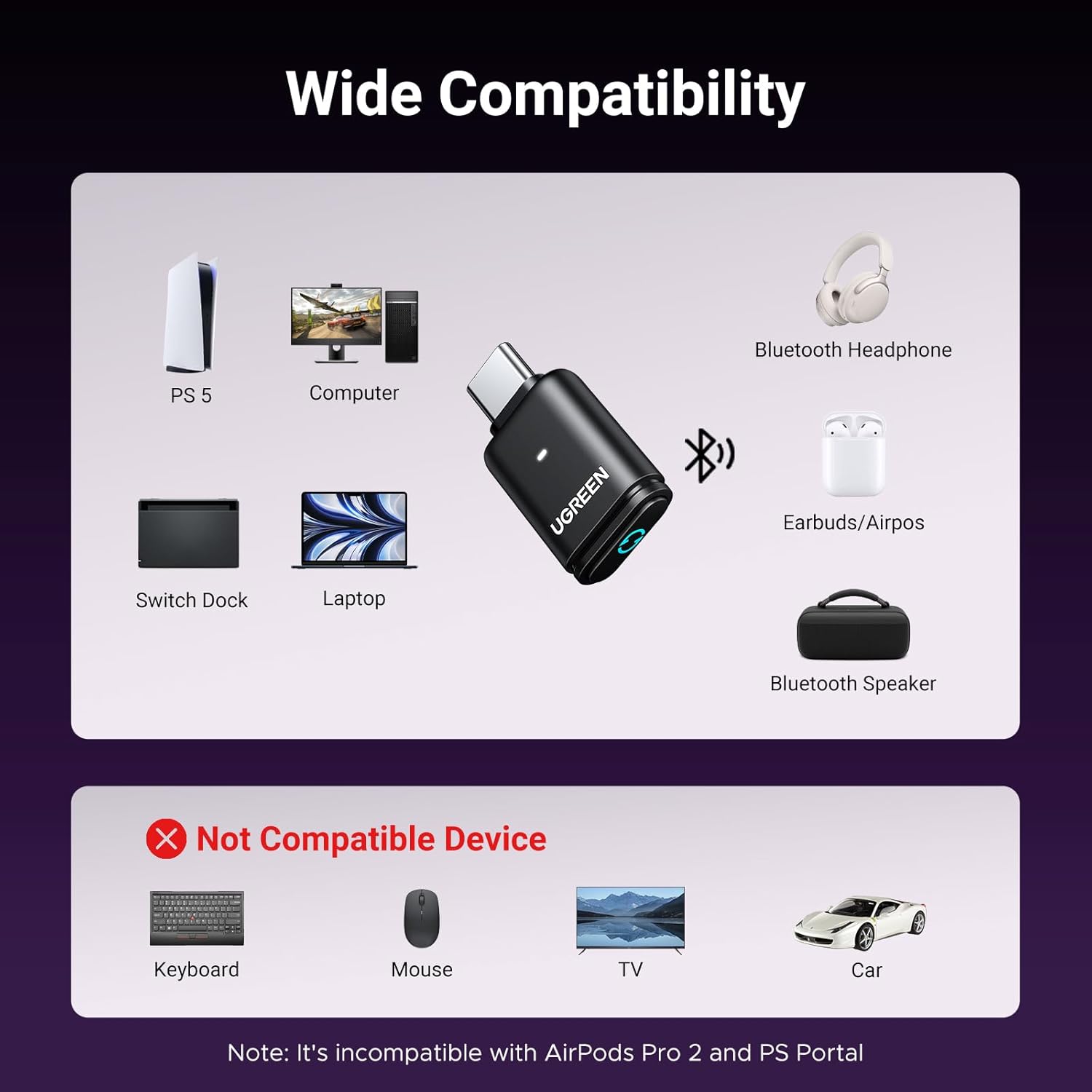
UGREEN USB-C Bluetooth Adapter for PS5
UGREEN USB-C Bluetooth Adapter for PS5, Bluetooth 5.3 Audio Adapter with APTX Low Latency & aptX-Adaptive, Wireless Audio Transmitter to Connect Wireless Headphones & Earbuds

Razer
Razer Basilisk V3 Pro 35K Wireless Gaming Mouse: HyperScroll Tilt Wheel – 35K DPI Optical Sensor Gen 2-13 Customizable Controls – Chroma RGB – Optical Switches Gen 3 – Up to 140 Hr Battery – Black